Let me start with a confession. The first time I customized a WordPress theme, I directly edited the style.css of a free theme called Twenty Seventeen. Changed colors, tweaked fonts, added a custom header. I felt like a genius — for about two weeks. Then an update notification popped up for the theme. I clicked “Update,” and boom. Everything I had done vanished in a single click. Hours of work, gone. Poof.
That day, a friend told me two words that changed how I work with WordPress forever: child themes.
If you’re new to WordPress or even if you’ve been around for a while but never really understood what the fuss about child themes is, this article is for you. I’m going to explain it the way I wish someone had explained it to me — in plain English, with real examples, and without making you feel dumb.
Table of Contents
So, What Exactly Is a Child Theme?
Let me give you the simplest analogy I can think of.
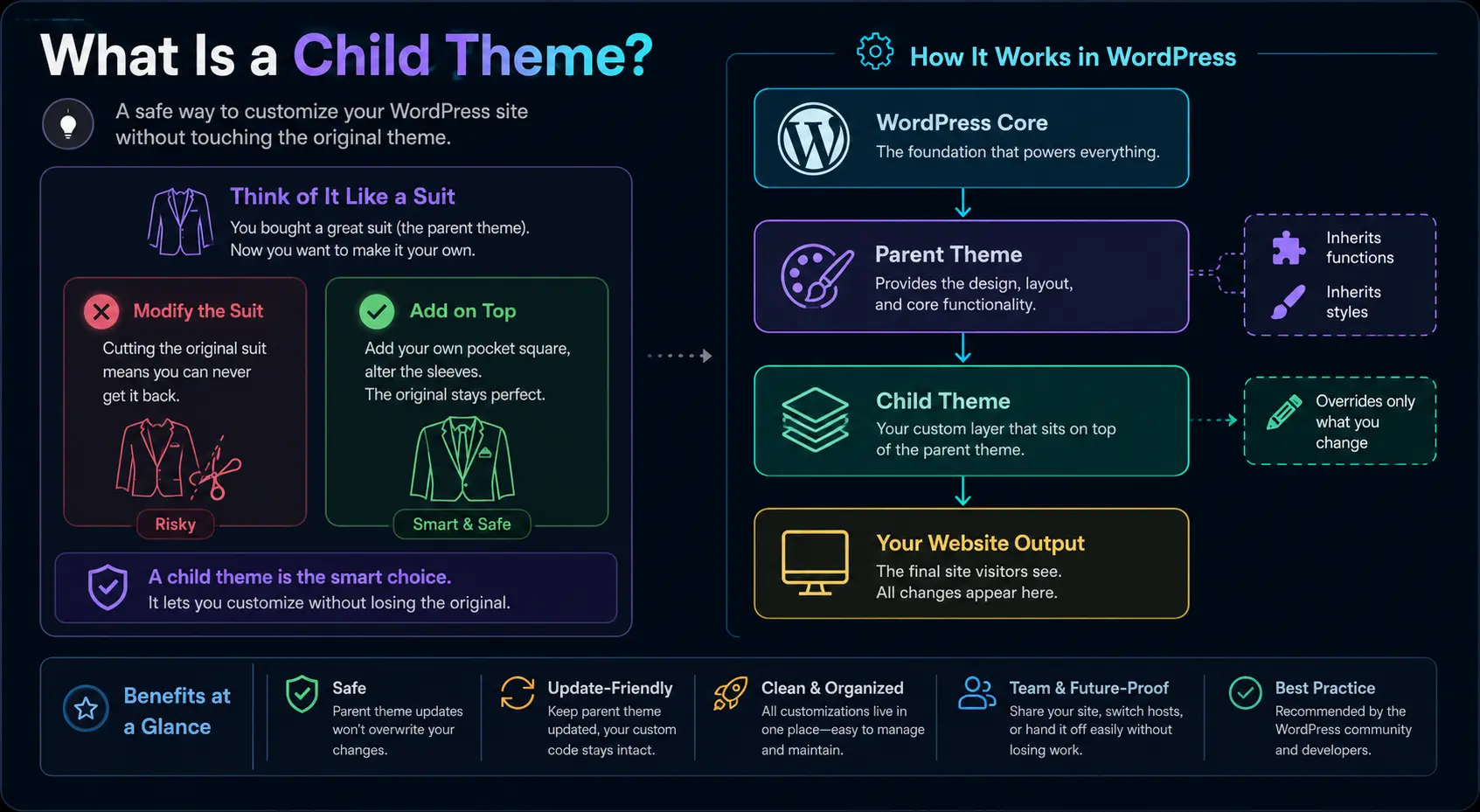
Imagine you bought a really nice suit off the rack. It fits well, but you want to add a personalized pocket square, maybe shorten the sleeves a touch, and sew your initials inside. You have two options:
- Cut and modify the suit directly. If you ever want the original back, you’re out of luck.
- Wear the suit as-is, but add your own accessories and minor tailoring on top. The original suit stays intact underneath.
A child theme is option two. It’s a separate theme that inherits everything from another theme (the parent theme) — its looks, its functions, its layout — but lets you make your own changes on top without ever touching the original files.
In WordPress terms:
- The parent theme is the original theme (like Twenty Twenty-Four, Astra, GeneratePress, etc.).
- The child theme is your customized layer that sits on top.
Why Should You Even Bother?
I get it. Setting up a child theme feels like extra work when you could just open style.css and start typing. But here’s why you should always use one for customizations:
The Big Reasons
- Safe updates: Your parent theme can be updated without wiping out your changes. This is the #1 reason child themes exist.
- Clean organization: All your custom code lives in one place, separate from the original theme.
- Easy rollback: If something breaks, you just disable the child theme and you’re back to the parent.
- Learning-friendly: It’s a great way to understand how WordPress themes actually work, because you’re not drowning in thousands of lines of code.
- No “Frankenstein” themes: I’ve seen people hack parent themes so badly that they couldn’t even recognize the original. Child themes keep things sane.
A Quick Comparison Table
Let me lay it out side-by-side so it’s crystal clear:
| Scenario | Without Child Theme | With Child Theme |
|---|---|---|
| Theme update released | All customizations lost | Customizations preserved |
| Need to fix a bug | Edit parent files (risky) | Override in child theme |
| Want to revert changes | Hope you have a backup | Just delete the override file |
| Code organization | Mixed with parent code | Clean separation |
| Client hands project to you | Confusing, scary | Clear and predictable |
How Does a Child Theme Actually Work?
This is the part where most tutorials lose people, so let me keep it simple.
When a visitor loads your WordPress site, WordPress looks at your active theme (which would be your child theme). Then it follows a specific order for loading files:
- It checks the child theme first.
- If the child theme has a file (say,
header.php), it uses that. - If the child theme doesn’t have it, it falls back to the parent theme.
This is called the template hierarchy fallback, and it’s the magic behind child themes.
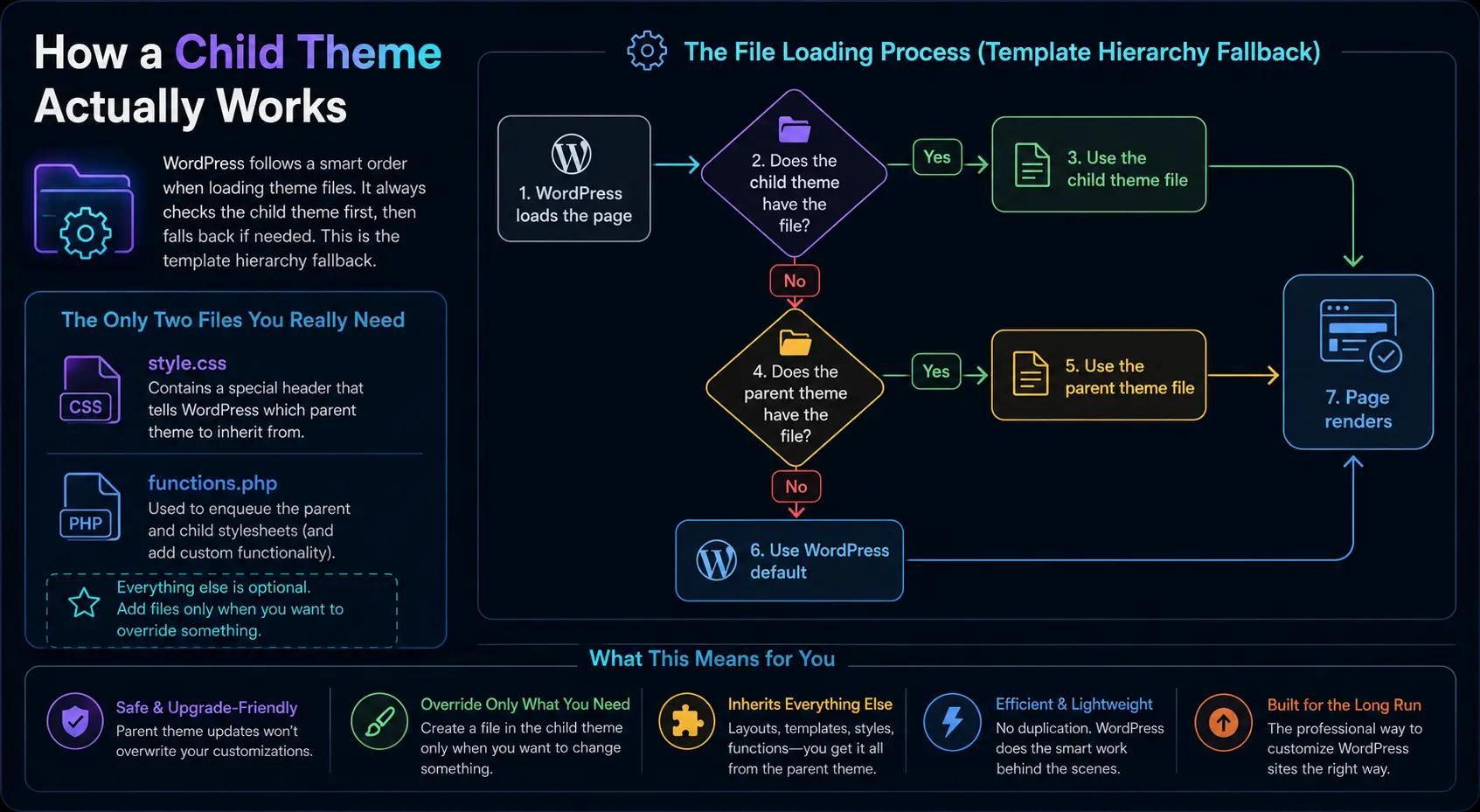
The only two files a child theme strictly needs are:
style.css(with a special header that declares the parent)functions.php(to enqueue the parent and child stylesheets)
That’s it. Everything else is optional and only added if you want to override something.
Creating Your First Child Theme: A Walkthrough
Let’s make one together. I’ll use Twenty Twenty-Four as the parent theme since it’s a popular default. But honestly, the process is the same for almost any theme.
Step 1: Create the Folder
Go to wp-content/themes/ and create a new folder. Name it something like twentytwentyfour-child.
Tip from experience: Always use lowercase letters and hyphens. Never spaces. I learned this the hard way when a capital letter broke my entire customizer on a live site.
Step 2: Create style.css
Inside your child theme folder, create a file called style.css and add this at the top:
/*
 Theme Name:   Twenty Twenty-Four Child
 Theme URI:    https://yoursite.com
 Description:  My custom child theme for Twenty Twenty-Four
 Author:       Your Name
 Author URI:   https://yoursite.com
 Template:     twentytwentyfour
 Version:      1.0.0
 License:      GNU General Public License v2 or later
 License URI:  http://www.gnu.org/licenses/gpl-2.0.html
*/The most important line here is Template:. This is what tells WordPress which theme is the parent. It must match the folder name of the parent theme exactly. If you get this wrong, your child theme simply won’t work, and you’ll spend an hour wondering why.
Step 3: Create functions.php
Now create functions.php in the same folder:
<?php
function my_child_theme_styles() {
    wp_enqueue_style( 'parent-style', get_template_directory_uri() . '/style.css' );
    wp_enqueue_style( 'child-style', get_stylesheet_directory_uri() . '/style.css', array( 'parent-style' ) );
}
add_action( 'wp_enqueue_scripts', 'my_child_theme_styles' );This piece of code tells WordPress: “Hey, load the parent theme’s stylesheet first, then load mine on top.” That way, your custom styles override the parent’s.
Step 4: Activate It
Go to Appearance → Themes in your WordPress dashboard. You’ll see your new child theme listed. Click Activate.
That’s it. You now have a working child theme. Your site will look identical to the parent, but you’re ready to safely customize.
Customizing Through Your Child Theme
This is where things get fun. Let me walk through a few real scenarios.
Scenario 1: Changing the Link Color
Let’s say you want all links to be green instead of the default. In your child theme’s style.css, you simply add:
a {
    color: #2e8b57;
}
a:hover {
    color: #1e6b3e;
}Save it, refresh your site, done. The parent theme is untouched.
Scenario 2: Overriding a Template File
Want to change how the footer looks? Copy footer.php from the parent theme folder into your child theme folder. Now edit the child version.
For example, you might want to add a copyright line:
<footer id="colophon" class="site-footer">
    <div class="site-info">
        <p>© <?php echo date('Y'); ?> <?php bloginfo('name'); ?> — All rights reserved.</p>
    </div>
</footer>WordPress will now load your footer.php instead of the parent’s. The parent file stays clean.
Scenario 3: Adding Custom Functions
Maybe you want to add a custom post type or a shortcode. You’d put that in the child theme’s functions.php. Here’s a simple example — a shortcode that shows the current year:
function current_year_shortcode() {
    return date('Y');
}
add_shortcode( 'current_year', 'current_year_shortcode' );Now you can put [current_year] in any post or page and it’ll display the year.
Important: The child theme’s
functions.phpdoes not replace the parent’s. It loads before the parent’s. This means you can add new functions freely, but if you want to replace a parent function, that function must be pluggable (wrapped inif ( ! function_exists( ... ) )).
Common Mistakes I’ve Made (So You Don’t Have To)
I’ve broken more WordPress sites than I’d like to admit. Here are the mistakes I see over and over:
Mistake 1: Wrong Template Name
The Template: line in style.css must match the parent theme’s folder name, not its display name. Twenty Twenty-Four is the display name; the folder is twentytwentyfour. Use the folder name.
Mistake 2: Forgetting to Enqueue Parent Styles
If you only enqueue your child stylesheet, the parent’s styles won’t load, and your site will look broken. Always enqueue both.
Mistake 3: Using @import for Parent Styles
Older tutorials tell you to put @import url("../twentytwentyfour/style.css"); at the top of your child stylesheet. This works, but it’s slower than the wp_enqueue_style method. Avoid it.
Mistake 4: Copying the Entire Parent functions.php
I did this once. It caused white-screen-of-death because functions got declared twice. Only add what you need to your child functions.php.
Mistake 5: Not Testing Updates on a Staging Site
Even with a child theme, updates can introduce breaking changes. Always test on a staging copy first.
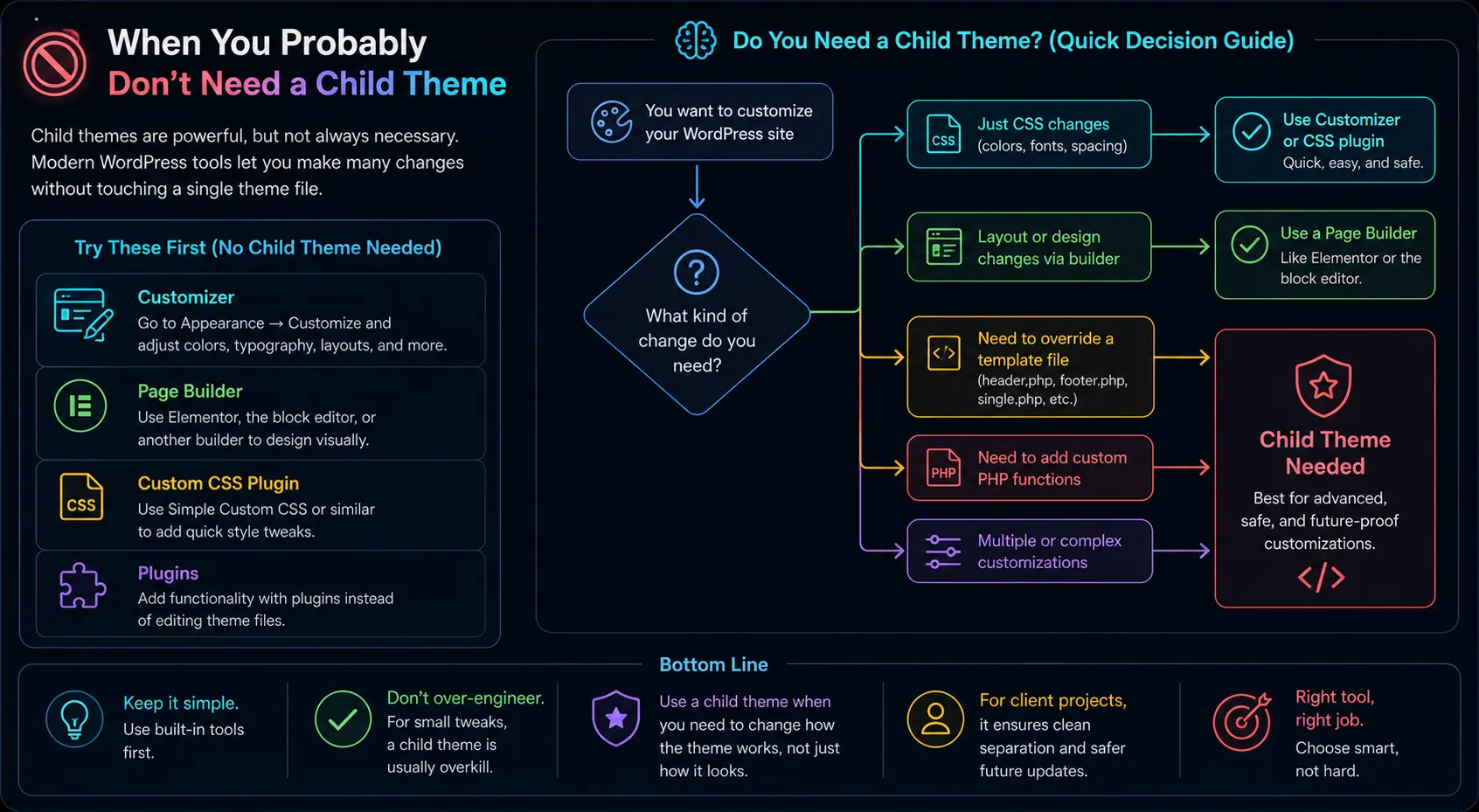
When You Probably Don’t Need a Child Theme
Here’s an unpopular opinion: child themes aren’t always necessary.
These days, modern themes come with powerful customizers, theme options, and page builders. Sometimes you can achieve everything you need through:
- The Customizer (Appearance → Customize)
- A page builder like Elementor or the block editor
- A custom CSS plugin like Simple Custom CSS
- Plugins for functionality instead of theme edits
You really need a child theme when:
- You want to override template files (like
header.php,footer.php,single.php) - You’re adding lots of custom PHP functions
- You’re working on a client project where clean separation matters
- The theme doesn’t expose the customization hooks you need
If all you want is a color tweak, just use the Customizer or a CSS plugin. Don’t over-engineer.
Best Practices That Have Saved My Skin
Over the years, I’ve picked up a few habits that make working with child themes much smoother:
- Use a screenshot: Add a
screenshot.png(1200×900px) in your child theme folder so it looks nice in the dashboard. - Comment your code: Future-you will thank you. A simple
// Changed link color to brand greengoes a long way. - Version your CSS: Bump the version in
style.csswhenever you make big changes — helps with cache-busting. - Keep it minimal: Don’t override files you don’t need to. Each override is one more thing to maintain.
- Backup before updates: Use a plugin like UpdraftPlus. Always.
- Use a starter theme: Themes like Underscores (
_s) are built to be customized as parent themes.
A Real-World Example: Building a Brand Site
Let me tie this all together with a quick story.
A local bakery hired me to build their website. They loved the look of Astra (a popular free theme), but wanted:
- A custom footer with their address and hours
- Brand colors instead of the default palette
- A custom “Daily Specials” post type
- A slightly modified single-post layout
Here’s what I did:
- Created an
astra-childfolder withstyle.cssandfunctions.php. - Added brand colors to my child
style.css. - Copied
footer.phpfrom Astra into my child theme and customized it. - Copied
single.phpand tweaked the layout for the post meta. - Added a
register_post_type()call in my childfunctions.phpfor “Daily Specials”.
When Astra released an update a month later, I updated the parent with zero issues. All my customizations lived safely in the child theme. The client was happy, and I slept well that night.
Troubleshooting Quick Reference
Here’s a quick reference table for the most common child theme issues:
| Problem | Likely Cause | Fix |
|---|---|---|
| Site looks unstyled | Parent styles not enqueued | Add wp_enqueue_style for parent |
| Changes not showing | Browser cache or wrong file | Hard refresh, check file path |
| Child theme not appearing | Wrong folder name or location | Verify wp-content/themes/child-folder/ |
| White screen of death | PHP error in functions.php | Check for syntax errors, enable WP_DEBUG |
| Template override ignored | Wrong file name or path | Match parent’s file name exactly |
A Word About Block Themes (FSE) and Child Themes
With Full Site Editing (FSE) and block-based themes like Twenty Twenty-Four, things are evolving. Block themes use theme.json for styling and HTML template files instead of PHP.
You can still create child themes for block themes, but you’ll often work with theme.json instead of (or alongside) style.css. Here’s a minimal theme.json example for a child theme:
{
  "$schema": "https://schemas.wp.org/trunk/theme.json",
  "version": 2,
  "settings": {
    "color": {
      "palette": [
        { "slug": "brand", "color": "#2e8b57", "name": "Brand Green" }
      ]
    }
  }
}This adds a new color option to the editor without touching the parent’s theme.json. The principle is the same — your child overrides the parent.
Final Thoughts
Child themes sound technical, but they’re honestly one of the most beginner-friendly concepts in WordPress once it clicks. They’re essentially a permission slip that says: “Go ahead and customize. Your work is safe.”
If there’s one thing I want you to take away from this article, it’s this: never edit a parent theme directly. Always use a child theme when you need to make changes that go beyond what the Customizer offers. It takes five extra minutes to set up, and it can save you hours — sometimes days — of rework later.
I wish someone had told me that before I clicked “Update” all those years ago.
Conclusion
Child themes are the cornerstone of safe WordPress customization. They give you the freedom to modify without the fear of losing your work on the next update. Whether you’re a hobbyist building your first site or a freelancer delivering projects to clients, mastering child themes will make your WordPress life significantly easier.
Start small — create a child theme, change a color, override a footer. Build confidence one step at a time. Before long, you’ll wonder how you ever worked without them.
If you’d like to dig deeper, here are three solid references I personally recommend:
Happy theming. And remember — always back up before you update. Always.
FAQs
Will using a child theme slow down my website?
No, it won’t. A child theme is incredibly lightweight. The only thing it does is tell WordPress to check its own folder for files before checking the parent theme. This happens in a fraction of a millisecond. As long as you aren’t loading massive amounts of unnecessary code inside your child theme, your site speed will remain exactly the same.
What happens if the parent theme gets discontinued or stops updating?
Your website won’t instantly break, and your child theme will keep working. However, this is a risky situation. If WordPress releases a major core update and your parent theme isn’t updated to keep up, your site might develop bugs or security holes. That’s why it’s always best to build child themes on top of popular, well-maintained parent themes that have an active development team.
Can I use a child theme with any WordPress theme?
Yes, you can use a child theme with almost any WordPress theme out there. As long as the parent theme is coded to standard WordPress guidelines, the child theme functionality will work. There are a few very rare, poorly coded themes that throw tantrums when a child theme is introduced, but 99% of the time, it works flawlessly.
Do I need to know how to code to use a child theme?
To set up a basic child theme, you only need to know how to copy and paste a few lines of code. To actually use it for customizations, you will need a basic understanding of HTML, CSS, and maybe a little PHP. If you don’t want to touch code at all, there are free plugins available that will generate a child theme for you with the click of a button, though you’ll still need some coding knowledge to make custom changes later.
How do I update a child theme?
Child themes actually don’t get automatic updates like parent themes do. Think of a child theme as your own personal notebook. Because you are the only one writing in it, you are the only one who updates it. When you want to change or add something, you simply edit the files in your child theme folder directly.
I messed up my child theme and my site is broken. What do I do?
Don’t panic! This happens to everyone. Simply connect to your website using FTP or your web host’s file manager. Go to the wp-content/themes/ folder and find your child theme. You can either delete the file you just messed up, or rename the entire child theme folder. WordPress will automatically fall back to using the parent theme, and your site will instantly come back online.
What is the difference between a child theme and a plugin?
It all comes down to looks versus features. A child theme is for changing how your site looks (layout, colors, templates). A plugin is for adding features (like a contact form, an online store, or SEO tools). A good rule of thumb is: if you want to change the design, use a child theme. If you want to add a feature that you’d want to keep even if you changed your entire theme someday, use a plugin.
Can a child theme have its own child theme? (A grandchild theme?)
Technically, WordPress doesn’t support this out of the box. The system is designed for just one parent and one child. If you try to create a “grandchild” theme, you’ll likely end up with a messy conflict of files. If you need to customize an existing child theme, it’s much better to just edit that child theme directly or use a custom plugin for your specific additions.
If I decide to change my parent theme later, can I keep my child theme?
Unfortunately, no. A child theme is specifically built to connect to one exact parent theme. If you switch from a parent theme like “Astra” to “GeneratePress,” your Astra child theme will be useless because the template files and code hooks are completely different. You would need to build a brand new child theme for GeneratePress and move your custom CSS and PHP code over manually.