If you’ve ever opened a WordPress theme folder and stared at files like single.php, page.php, archive.php, and index.php wondering “who decides which one runs?” — you’re not alone. I asked that exact question seven years ago, standing in front of my first client project, completely stuck. That single afternoon of frustration sent me down a rabbit hole I never came back from. And honestly? I’m grateful, because the WordPress Template Hierarchy is one of the most elegant ideas in the entire CMS world once it clicks.
So grab a coffee. I’m going to explain this the way I wish someone had explained it to me — plain words, real examples, and a few battle scars along the way.
Table of Contents
What Even Is the Template Hierarchy?
Here’s the simplest way I can put it: WordPress Template Hierarchy is the rulebook WordPress uses to decide which PHP file renders the page you’re looking at.
Imagine you walk into a restaurant and ask for “something to eat.” The waiter doesn’t just throw food at you. They ask questions: Are you vegetarian? Allergic to nuts? In a hurry? Budget? Based on your answers, they narrow down the menu until they pick the perfect dish.
WordPress does the same thing. When a visitor lands on a URL, WordPress silently asks itself a chain of questions:
- Is this a single blog post?
- Is it a page?
- Is it a category archive?
- Is the user searching?
Each question points WordPress toward a specific template file. And if that file doesn’t exist, WordPress falls back to a more general one — until it reaches the final safety net: index.php.
That last detail is huge, so let me bold it again: every road in the hierarchy eventually leads to index.php. You could, theoretically, build an entire theme with just one file. (Please don’t.)
Why Should You Even Care?
I know, I know — there are page builders and block themes now. Why bother learning this dusty old system?
Here’s the truth from experience:
- Page builders break. When they do, you’ll need to know what’s actually rendering.
- Custom post types almost always require custom templates.
- Performance tuning is impossible if you don’t know which file controls what.
- Client requests like “make the blog look different from the case studies” need this knowledge.
- Debugging white screens and missing layouts becomes 10x faster.
In short, the hierarchy is the skeleton of every WordPress site. Learn it once, and it pays you back forever.
The Big Picture: How WordPress Picks a Template
Let me walk you through the actual decision flow. When a request hits WordPress, the engine does roughly this:
- Parses the URL to figure out what type of content is being requested.
- Matches the query type (single post, page, archive, search, etc.).
- Looks for the most specific template file available in the theme.
- Falls back to progressively more general templates.
- Lands on
index.phpif nothing else matches.
Here’s a Mermaid diagram showing that flow at a high level:
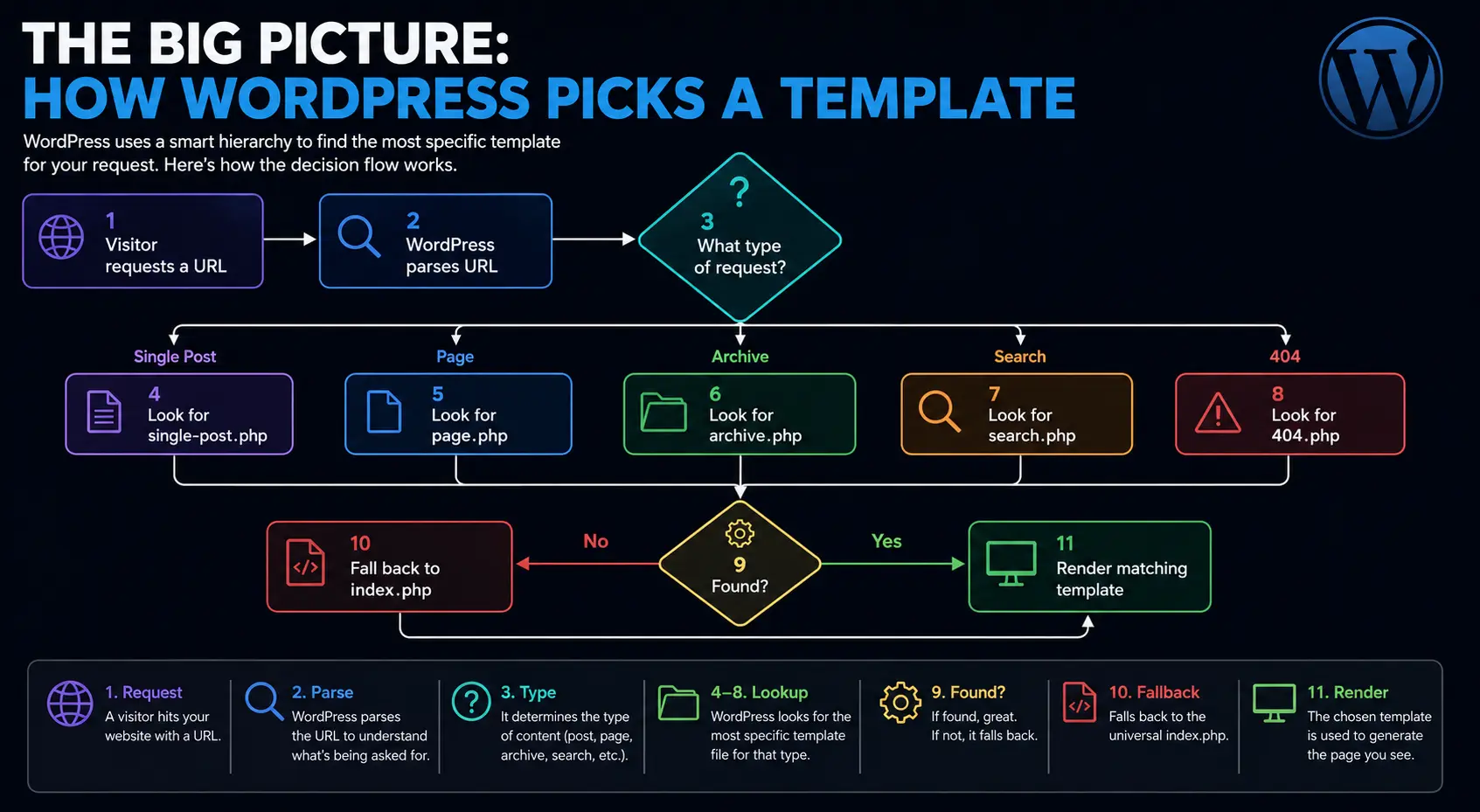
Once I visualized it like this, the entire system made sense. WordPress isn’t magic — it’s a polite queue of “if/else” questions.
The Hierarchy Breakdown: A Reference Table
Let me give you a table I keep pinned to my desk. It shows the major content types and the order in which WordPress looks for templates.
| Content Type | Template Resolution Order (most → least specific) | Final Fallback |
|---|---|---|
| Front Page | front-page.php → index.php | index.php |
| Home (Blog Posts Page) | home.php → index.php | index.php |
| Single Post | single-{post-type}-{slug}.php → single-{post-type}.php → single.php → singular.php → index.php | index.php |
| Page | custom template file → page-{slug}.php → page-{ID}.php → page.php → singular.php → index.php | index.php |
| Category Archive | category-{slug}.php → category-{ID}.php → category.php → archive.php → index.php | index.php |
| Tag Archive | tag-{slug}.php → tag-{ID}.php → tag.php → archive.php → index.php | index.php |
| Custom Taxonomy | taxonomy-{taxonomy}-{term}.php → taxonomy-{taxonomy}.php → taxonomy.php → archive.php → index.php | index.php |
| Author Archive | author-{nicename}.php → author-{ID}.php → author.php → archive.php → index.php | index.php |
| Date Archive | date.php → archive.php → index.php | index.php |
| Search Results | search.php → index.php | index.php |
| 404 (Not Found) | 404.php → index.php | index.php |
| Attachment | {MIME-type}.php → attachment.php → single-attachment.php → single.php → singular.php → index.php | index.php |
Print this. Tattoo it on your arm. Whatever works.
The Front Page vs. Home Page Confusion
This is the question I get asked more than any other, so let’s settle it once and for all.
In WordPress land, “Front Page” and “Home Page” are not the same thing.
- Front Page → the very first page visitors see when they type
yoursite.com. - Home Page → the page that displays your blog posts (the “Posts page” you set under Settings → Reading).
These can be the same page. They can also be completely different. It depends on your settings.
Here’s the decision tree:
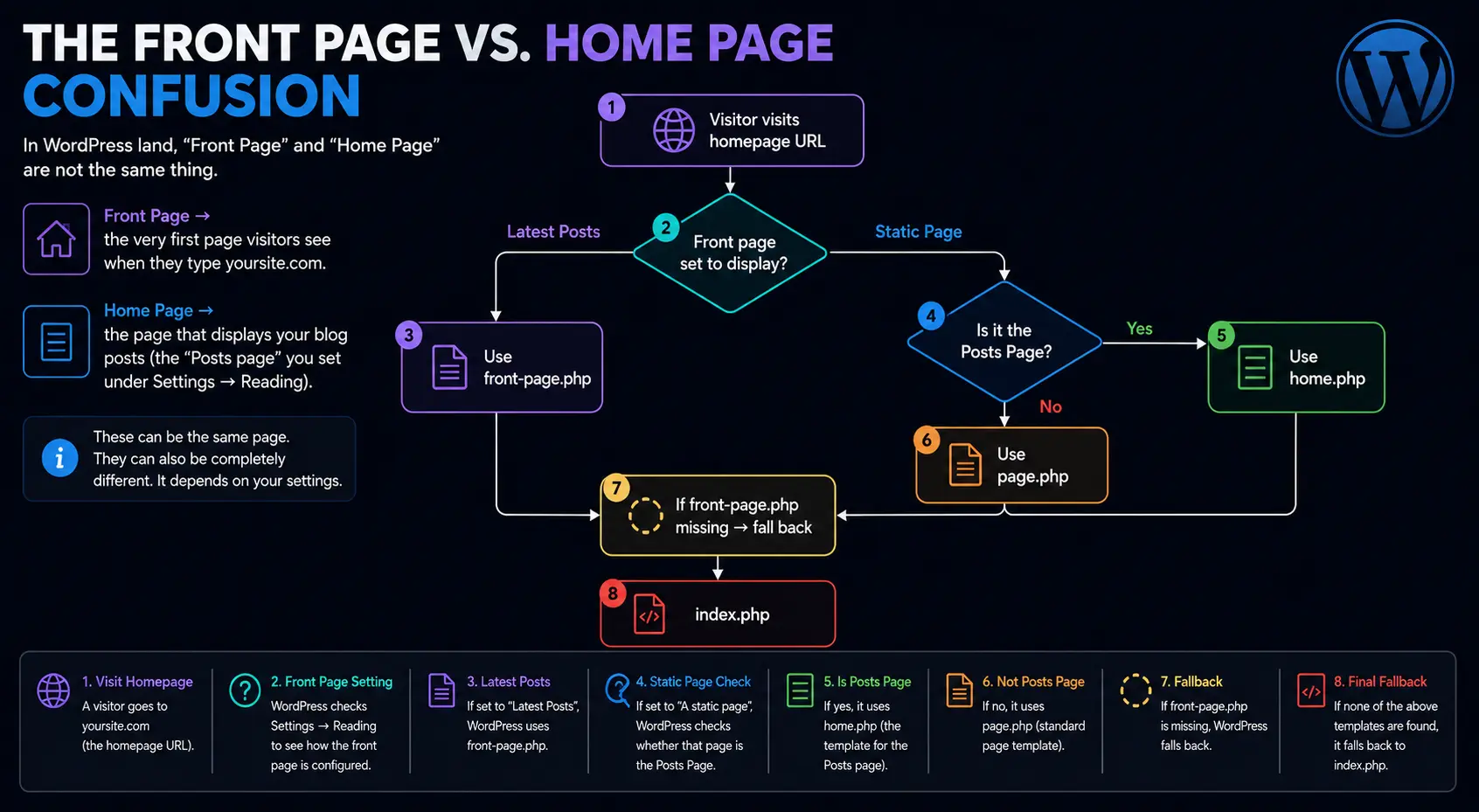
I once wasted two hours debugging a “broken” homepage because I was editing home.php when the site was set to display a static front page. The file I actually needed was front-page.php. Don’t be me.
Pro tip: If you set Settings → Reading to “Your homepage displays → A static page,” then:
front-page.phprenders the chosen static page.home.phprenders the chosen posts page.
Both can exist in the same theme. Powerful, but easy to confuse.
Single Posts: The Slug Trick
Let’s say you write a wildly popular post called “How I Broke WordPress and Lived.” Its slug is how-i-broke-wordpress. You want this post to look different from every other post on your blog.
The hierarchy gives you a beautiful option: single-post-how-i-broke-wordpress.php.
That’s right — WordPress lets you create a template file specific to one post, by slug. The full resolution order for a standard blog post looks like this:
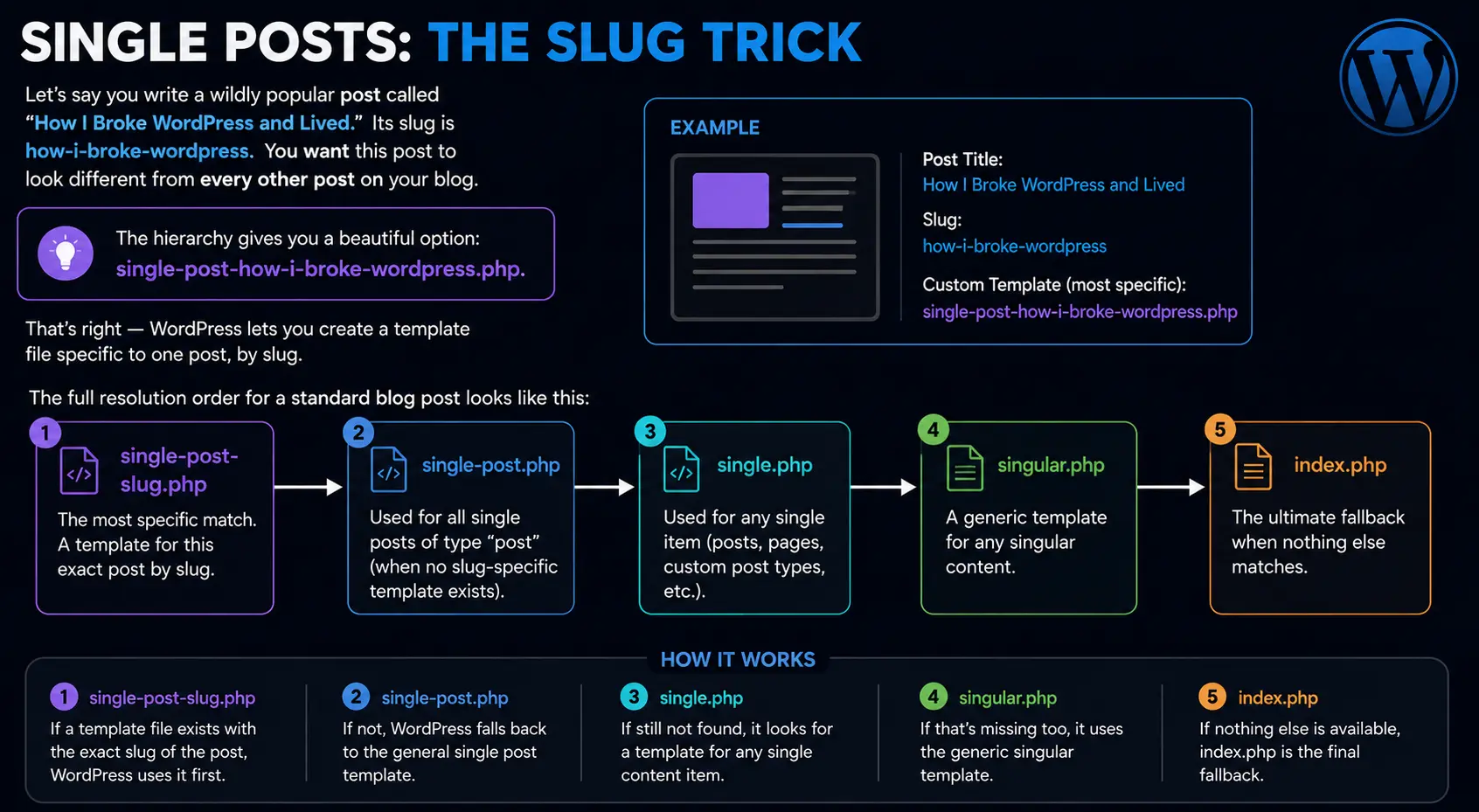
I used this trick on a personal site to give my “About the Author” post a custom layout, with a sidebar of related articles. No plugins, no shortcodes — just one PHP file.
A minimal example:
<?php
// single-post-how-i-broke-wordpress.php
get_header(); ?>

<article class="featured-story">
    <h1><?php the_title(); ?></h1>
    <div class="custom-layout">
        <?php the_content(); ?>
    </div>
</article>

<?php get_footer(); ?>WordPress automatically picks this file over single.php because it’s more specific. Magic, but predictable magic.
Pages: Custom Templates and the Slug Rule
Pages follow a similar but slightly different pattern. Here’s the order WordPress checks:
- Custom page template (chosen from the Page Attributes meta box).
page-{slug}.phppage-{ID}.phppage.phpsingular.phpindex.php
To create a custom page template, you add a comment at the top of any PHP file:
<?php
/* Template Name: Full Width No Sidebar */
get_header(); ?>
<main class="full-width">
    <?php while (have_posts()) : the_post(); the_content(); endwhile; ?>
</main>
<?php get_footer(); ?>Save this as template-fullwidth.php in your theme. Now, when you edit any page in the admin, you’ll see “Full Width No Sidebar” in the Template dropdown. Choose it, and WordPress will use this file instead of page.php.
This is the method I reach for most often when clients say, “Can this one page look different?” Yes. Yes it can.
Custom Post Types: Where the Hierarchy Really Shines
Here’s where things get exciting. When you register a custom post type — say, portfolio — WordPress automatically looks for:
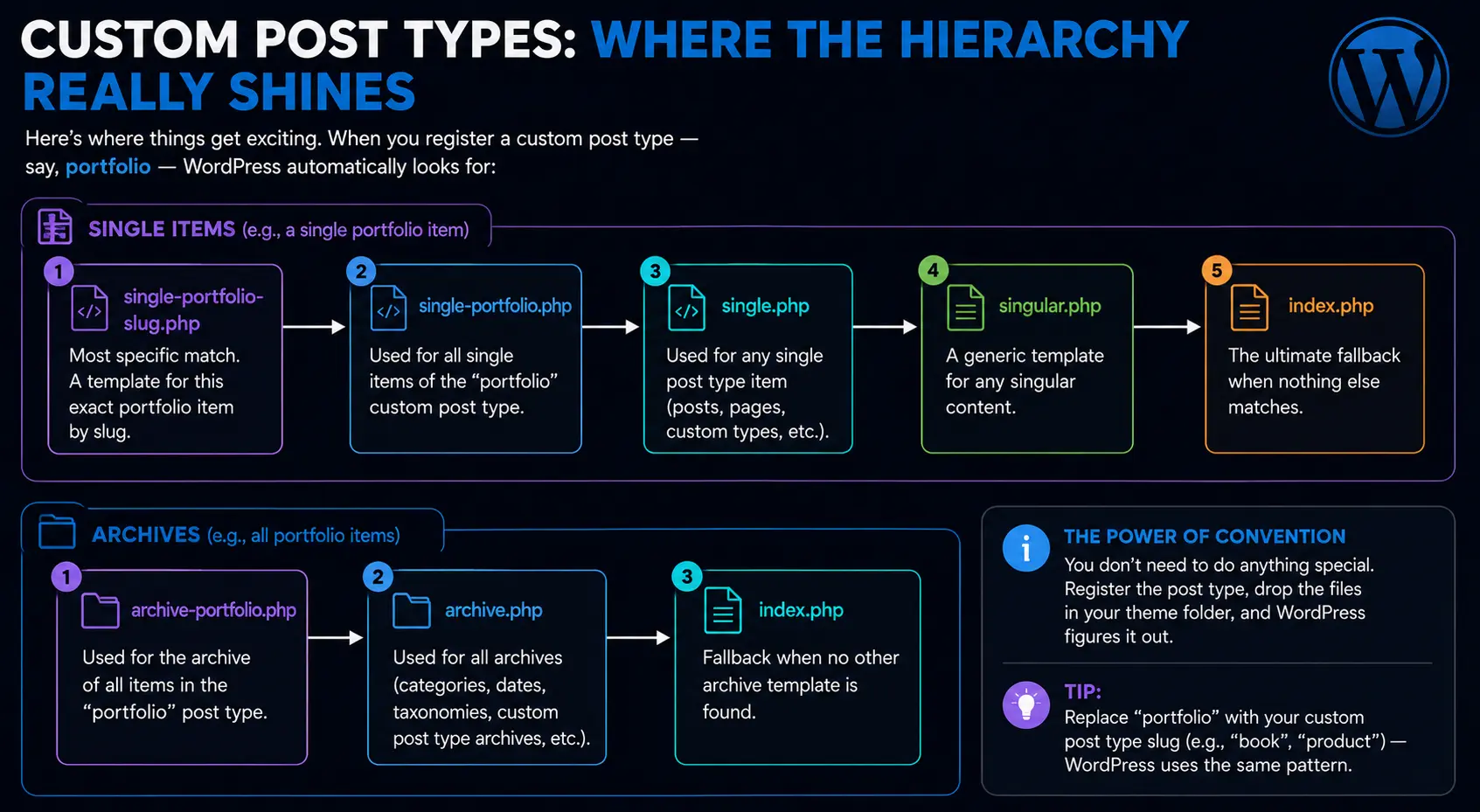
You don’t need to do anything special. Register the post type, drop the files in your theme folder, and WordPress figures it out.
Example registration snippet:
function my_portfolio_cpt() {
    register_post_type('portfolio', [
        'labels' => ['name' => 'Portfolio'],
        'public' => true,
        'has_archive' => true,
        'rewrite' => ['slug' => 'work'],
    ]);
}
add_action('init', 'my_portfolio_cpt');Now:
- A single portfolio item at
/work/project-name/will usesingle-portfolio.php(or fall back as shown above). - The portfolio listing at
/work/will usearchive-portfolio.php.
This is the foundation of pretty much every real-world WordPress project beyond simple blogs.
Category and Tag Archives
Categories and tags are taxonomies built into WordPress. Their hierarchy lets you get wildly specific:
category-recipes.php→ loads only for the “Recipes” category archive.tag-vegan.php→ loads only for the “vegan” tag archive.
I once built a food blog where every category needed its own color scheme. Instead of writing conditional logic in one file, I just created category-breakfast.php, category-lunch.php, category-dinner.php, each with its own body class and hero image. Clean, maintainable, and the client loved it.
Custom Taxonomies
If you register a custom taxonomy called genre for a books post type, WordPress gives you:
taxonomy-genre-fiction.php— for the “fiction” term only.taxonomy-genre.php— for any term in the genre taxonomy.taxonomy.php— for any custom taxonomy term.archive.phpindex.php
Five layers of fallback. That’s flexibility.
Author, Date, Search, and 404
These are the quieter members of the hierarchy family, but each has its moment.
- Author archives can have per-author templates:
author-john.phpoverridesauthor.php. - Date archives (yearly, monthly, daily) all share
date.php. - Search results use
search.php— and yes, you should always build a nice one. The default WordPress search results page is awful. - 404 uses
404.php. A good 404 page is a small kindness to your lost visitors. I always include a search box and links to popular content.
The Attachment Rabbit Hole
This one surprises people. Attachments (uploaded media files) have their own page. Visit yoursite.com/?attachment_id=123 and you’ll see a dedicated page for that file.
WordPress checks:
image.php(for image MIME types)application.php(for document MIME types)attachment.phpsingle-attachment.phpsingle.phpsingular.phpindex.php
I once used image.php to create a beautiful photography portfolio view where each uploaded image got its own artist-style page with EXIF metadata and next/previous navigation. Clients were floored. WordPress made it almost effortless.
Singular.php: The Quiet Unifier
A few years ago, WordPress introduced singular.php. It sits between single.php/page.php and index.php. If you want a unified layout for both posts and pages — common in minimalist themes — drop the shared markup into singular.php and skip single.php and page.php entirely.
I love this file for content-first blogs where posts and pages really do look the same.
Best Practices I’ve Learned the Hard Way
Let me save you some pain with a handful of tips I picked up from late-night debugging sessions:
- Start small. Build with just
index.phpfirst. Add more specific templates only when you actually need them. - Don’t duplicate. If
single.phpandpage.phpwould be identical, just usesingular.php. - Use
get_template_part(). Split repetitive chunks (like the post card) into partials liketemplate-parts/content.php. Your future self will thank you. - Name files descriptively.
template-landing-v2.phpis better thantemplate2.php. - Always have a
404.php. Users will mistype URLs. Be kind. - Never edit parent theme files directly if you’re using a child theme. Override via the child theme’s own files.
- Comment your templates. A simple
// Loads for category "recipes" onlyat the top ofcategory-recipes.phpsaves hours of confusion later.
Common Mistakes to Avoid
I’ve made all of these. Maybe you can skip them:
- Confusing
home.phpandfront-page.php. (We covered this. It still trips me up sometimes.) - Forgetting to flush permalinks after registering a custom post type. Just visit Settings → Permalinks and save. That’s it.
- Putting custom page templates in a subfolder. It works in modern WordPress, but older setups may not pick them up. Test it.
- Expecting
page-{ID}.phpto work after exporting/importing to a new database. IDs change. Use slugs when possible. - Ignoring
singular.php. It’s a lifesaver, especially for themes that handle lots of content types.
A Real-World Workflow
When I start a new theme, here’s the order I usually create files:
style.cssandfunctions.php(obviously)index.php(the safety net)header.phpandfooter.phpsingular.php(covers posts and pages initially)archive.php(for all listing pages)search.phpand404.phpsingle.phpandpage.php(when I need to differentiate)- Specific overrides like
single-portfolio.phporcategory-news.php(only when needed)
This way, the theme works end-to-end within a day, and I add complexity only where the design demands it.
Block Themes vs. Classic Themes: A Quick Note
With the rise of Full Site Editing (FSE) and block themes, you might wonder if the hierarchy still matters. Short answer: yes, but it’s evolving.
Block themes use templates/ and parts/ folders, and the file-naming convention still mirrors the classic hierarchy. So templates/single.html does exactly what single.php used to do — the resolution logic is the same. The shift is in how you build templates (HTML with block markup instead of PHP), not in which template gets chosen.
If you understand the classic hierarchy, the block theme version will feel like an old friend in a new outfit.
Wrapping Up
The WordPress Template Hierarchy is one of those topics that feels intimidating until you realize it’s just a series of polite questions WordPress asks itself. Once that mental model clicks, you stop fighting the system and start dancing with it.
Remember the key ideas:
- WordPress looks for the most specific template first.
- It falls back gracefully until it hits
index.php. - You can override at the level of post type, slug, category, tag, term, author, and even MIME type.
- The system rewards clarity. Name your files well, and WordPress will reward you with predictable behavior.
I still consult the official hierarchy diagram on almost every project. Not because I don’t know it — but because a quick visual check has saved me from countless silly mistakes. Keep that table I gave you nearby, build small, and add specificity only when needed.
Happy theming.
References & Further Reading
- WordPress Official Template Hierarchy Documentation
- WordPress Theme Developer Handbook
- Template Hierarchy Visual Diagram (wp-hierarchy.com)
FAQs
What exactly is the WordPress Template Hierarchy?
Think of it as a decision-making flowchart for your website. When a visitor clicks a link, WordPress looks at the URL and asks itself, “What kind of page is this?” Once it knows if it’s a blog post, a page, or a category archive, it follows a specific order to find the right PHP file in your theme to display that page.
Do I need to create every single file shown in the hierarchy?
Absolutely not! This is a common misconception. You can build a fully functioning WordPress theme with just two files: index.php and style.css. The hierarchy just gives you the option to create specific files if you want different layouts for different types of content. You only create the files you actually need.
What happens if WordPress can’t find a specific template file?
WordPress gracefully falls back to a more general file. For example, if a visitor clicks on a category archive but your theme doesn’t have a category.php file, WordPress will look for archive.php. If that’s missing, it falls back to index.php. Every single path in the hierarchy eventually ends at index.php as the ultimate safety net.
Why do front-page.php and home.php confuse so many people?
Because in everyday language, “front page” and “home page” mean the same thing—but not in WordPress!front-page.php is used for the very first page visitors see when they type your main web address.home.php is used specifically to display your list of blog posts. If you set your site to show a static page on the homepage, front-page.php handles it. If you set it to show your latest posts, home.php handles it.
How can I make one specific blog post look different from all the others?
You can use the “slug trick.” If your post has the slug my-special-trip, you can create a file in your theme called single-post-my-special-trip.php. Because this is highly specific, WordPress will choose this file over the default single.php just for that one post, allowing you to give it a completely custom layout.
How does the hierarchy work with Custom Post Types?
It works beautifully and automatically. If you register a custom post type called “Movies,” WordPress will automatically look for single-movies.php to display a single movie, and archive-movies.php to display the list of all movies. You don’t have to write any special rules to make this happen; just naming the files correctly is enough.
What is the point of singular.php?
It is a massive time-saver. Before it was introduced, if you wanted your blog posts (single.php) and your static pages (page.php) to look exactly the same, you had to write the same code in two separate files. Now, you can just delete both of those and put your layout in singular.php. WordPress will use it for any standalone post or page.
Can I give different categories their own unique designs?
Yes, you can do this easily by using the category slug. If you have a category called “Recipes” with the slug recipes, you can create a file named category-recipes.php. WordPress will use that file only for the Recipes category page, while all other categories will fall back to the standard category.php or archive.php.
Does this hierarchy still matter with modern Block Themes and Full Site Editing?
Yes, the core logic remains exactly the same. The main difference is that instead of using PHP files like single.php, you use HTML files like single.html inside a templates folder. WordPress still asks the same questions and follows the same fallback rules to pick the right HTML block template file.
What is the best way to keep my theme files organized?
Start small and only add files when necessary. Don’t duplicate code across multiple templates. Instead of writing the code for a blog post card in five different archive files, put that code chunk into a file like template-parts/content-card.php, and use the get_template_part() function to pull it into your other templates. This keeps your theme clean and easy to update.