Let me take you back to a time not so long ago. If you wanted to change the layout of your WordPress website’s header, you had to dive into the murky waters of PHP. You’d open up a header.php file, squint at the code, cross your fingers, and hope you didn’t accidentally bring down your entire site by deleting a semicolon. I remember those days vividly. I once spent an entire Tuesday afternoon trying to move a search bar from the right side of my navigation menu to the left, only to end up with a “white screen of death.”
Those days are over.
Enter Full Site Editing (FSE).
If you’ve been around the WordPress space lately, you’ve probably heard this term thrown around. It sounds fancy, maybe a bit intimidating, but I promise you, it is the best thing to happen to WordPress since the invention of plugins. Today, I want to sit down and explain exactly what Full Site Editing is, how it works, and why it completely changes the game, no fluff—just a straight-up explanation of the new era of WordPress.
Table of Contents
The “Before FSE” Era: Why We Needed a Change
To truly appreciate what Full Site Editing does, we have to talk about how we used to build WordPress sites.
For years, WordPress had a massive split personality. When you wanted to write a blog post, you used the WordPress editor (originally the Classic Editor, and later the Gutenberg Block Editor). It was visual. You typed, added images, and saw roughly what the final post would look like.
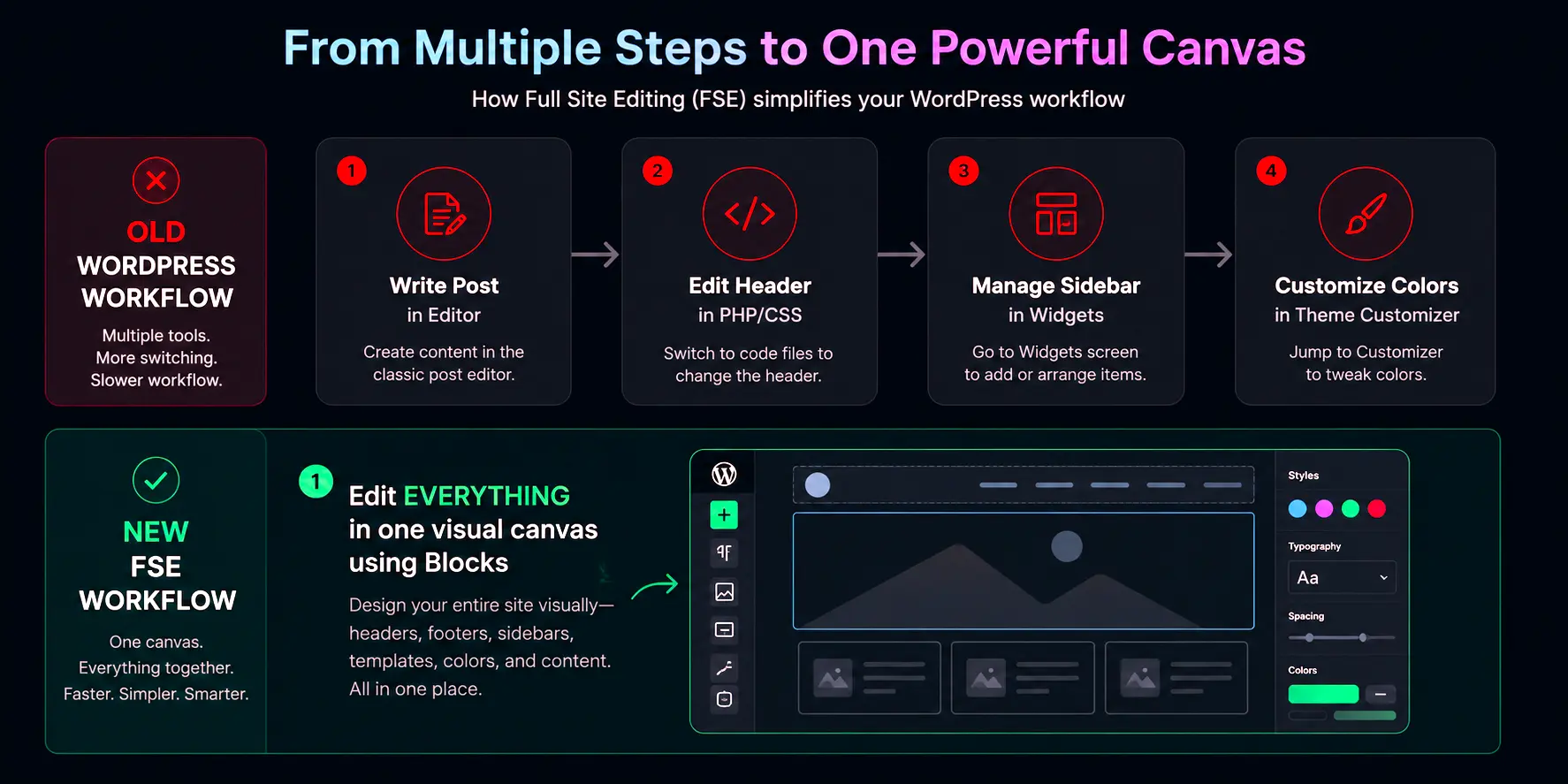
But when you wanted to edit the rest of your site—the header, the footer, the sidebar, the archive pages—you were thrust into the backend. You had to use menus, widgets, customizer panels, and inevitably, PHP code.
This meant you were living in two different worlds. The front-end was visual and block-based; the back-end was code-heavy and fragmented. If you wanted to add a button to your footer, you couldn’t just click on the footer and add a button block. You had to find a “Footer Widget Area,” use a clunky old widget interface, and style it with custom CSS. It was like building a house where the living room is modern and sleek, but the kitchen is from the 1980s.
We needed a way to bring the entire website into the modern, visual, block-based era. That is exactly what Full Site Editing does.
What Exactly is Full Site Editing (FSE)?
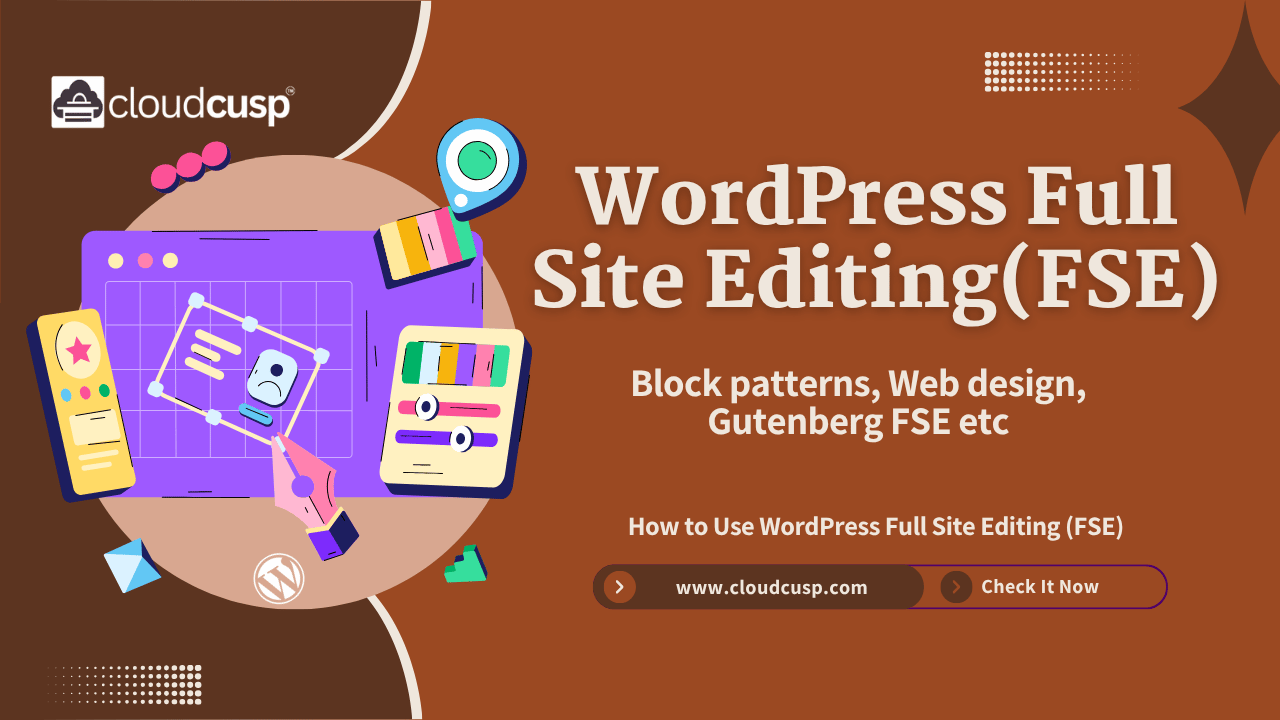
At its core, Full Site Editing is a feature in WordPress that allows you to design and customize every single part of your website using blocks. Not just your blog posts, but your header, footer, sidebar, 404 page, search results page—everything.
Imagine clicking directly on your website’s logo in the header, hitting the backspace key, and typing in a new name. Imagine dragging and dropping a “Recent Posts” block right into your sidebar, or adding a beautiful photo gallery to your footer without touching a single line of code. That is the promise of FSE. It takes the Gutenberg Block Editor and stretches it out to cover the entire screen.
Here is a simple way to visualize the shift in how the sites are build in WordPress:
Key Components of FSE
To understand how Full Site Editing works under the hood, you need to know its main components. Think of these as the building blocks of the FSE universe:
- Site Editor: This is the new control center. It replaces the old Theme Customizer. You access it from your WordPress dashboard, and it opens up a full, live, visual representation of your site. You can click on anything and edit it directly.
- Block Themes: These are brand-new WordPress themes built specifically for FSE. Traditional themes (often called Classic Themes) use PHP files. Block Themes use HTML files that are entirely composed of blocks. Examples include Twenty Twenty-Four or Blockpress.
- Templates: A template dictates the layout of a specific type of page. For example, you have a “Single Post” template (for blog posts), an “Index” template (for your blog page), and a “Page” template. In FSE, you can visually edit these templates.
- Template Parts: These are smaller, reusable sections of a template. The most common examples are the Header and the Footer. You edit a Template Part once, and it updates everywhere it is used.
- Global Styles: This is the new way to handle your site’s design. Instead of dealing with a custom CSS file, Global Styles provides a visual interface to change your site-wide colors, typography (fonts), and layout spacing.
Let’s look at a quick comparison of how things used to be versus how they are now:
| Feature | Classic WordPress (Before FSE) | Full Site Editing (FSE) |
|---|---|---|
| Editing Interface | Multiple fragmented screens (Customizer, Widgets, Menus, Editor) | One unified Site Editor |
| Theme Structure | Built with PHP files (header.php, footer.php, etc.) | Built with HTML and blocks (header.html, footer.html, etc.) |
| Customizing Layout | Requires coding or page builder plugins | Drag-and-drop using native blocks |
| Changing Site Colors | Theme Customizer or custom CSS | Global Styles interface |
| Creating a Header | Edit header.php or use a custom menu/widget area | Drag blocks into a Template Part |
Diving Deeper: How Global Styles Changed My Life
I want to spend a minute on Global Styles, because this was the feature that truly made me a believer in Full Site Editing.
In the past, if I wanted my website headings to be a specific shade of navy blue, I had to either hope my theme supported it in the Customizer, or write custom CSS. If I wanted my body text to be the font “Lato,” I had to enqueue the Google Font in my functions.php file and then write CSS to apply it. It was tedious.
With Global Styles, WordPress introduced a feature called theme.json. Now, as a regular user, you don’t need to know how to code this file. But you benefit from it massively. The theme.json file acts as a central set of design rules.
When you open the Site Editor and click on the “Styles” icon (it looks like a half-filled circle), you are presented with a beautiful panel. You can click “Typography,” choose a font for your whole site, and watch it change instantly. You can set a color palette, and WordPress will intelligently apply those colors to your buttons, links, and backgrounds.
Here is a glimpse of what the theme.json file looks like under the hood. This is the code that powers the visual panel you interact with:
{
  "version": 2,
  "settings": {
    "color": {
      "palette": [
        { "slug": "primary", "color": "#007cba", "name": "Primary" },
        { "slug": "secondary", "color": "#006ba1", "name": "Secondary" }
      ]
    },
    "typography": {
      "fontFamilies": [
        { "fontFamily": "-apple-system, BlinkMacSystemFont, 'Segoe UI', Roboto, sans-serif", "slug": "system-font", "name": "System Font" }
      ]
    }
  }
}This code tells WordPress: “Hey, my primary color is #007cba, and my default font is the system font.” When you use the visual Global Styles panel to change the primary color to red, WordPress updates these settings on the fly. No CSS file required. It is a unified, cohesive way to manage design.
The hierarchy of styles in FSE is incredibly logical. It works like a cascade:
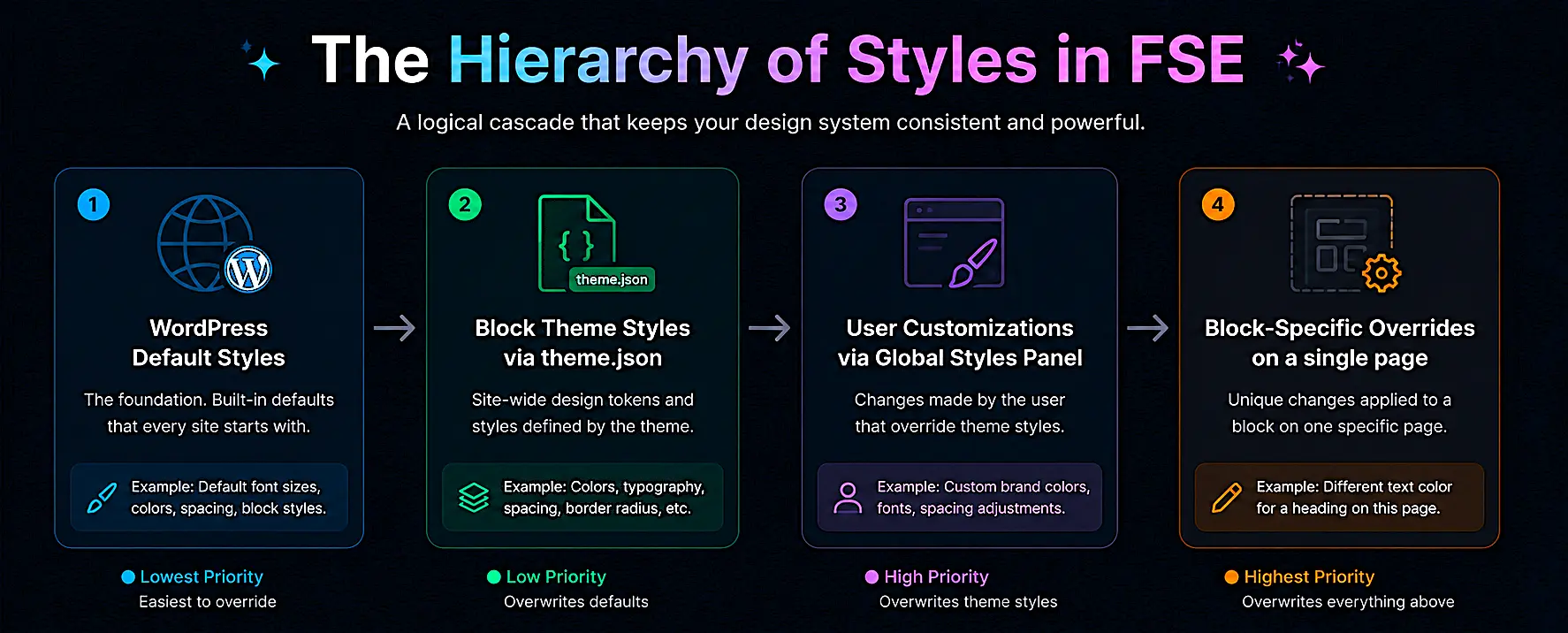
If the theme makes all headings blue, you can use Global Styles to make them green site-wide. If you want just one specific heading on one page to be red, you can override it directly on that block. The control is granular and intuitive.
Block Themes: The DNA of Full Site Editing
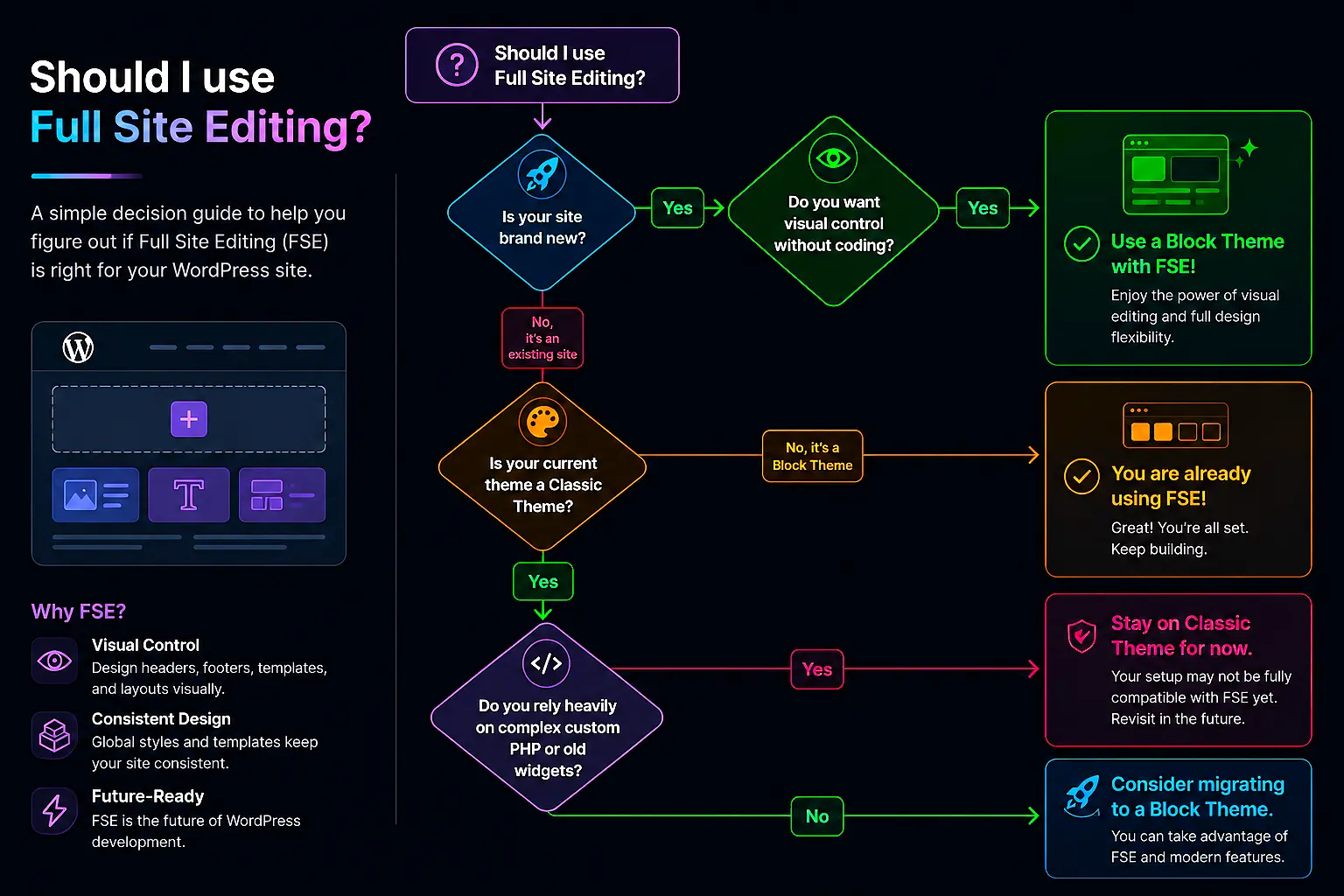
You cannot use Full Site Editing with an older, classic theme. It simply won’t work. To unlock the Site Editor, you must activate a Block Theme.
When I first heard this, I was annoyed. “Great, I have to abandon my favorite theme,” I thought. But once I understood how Block Themes are built, I realized how much simpler they are.
A classic theme is a messy folder full of PHP files. A Block Theme is incredibly clean. The most important folder in a Block Theme is the templates folder, and the parts folder.
Instead of complex PHP logic, a Block Theme’s index.html file looks like this:
Look at that code. Even if you aren’t a developer, you can read it like a book. It says: “Put the header template part here. Then run a query to show posts (the title and excerpt). Then put the footer template part here.” Those HTML comments (<!-- wp:... -->) are WordPress blocks.
This means that the entire structure of your website is saved as a collection of blocks. And because it’s saved as blocks, the Site Editor can visually manipulate them. You aren’t hacking PHP; you are rearranging blocks.
My Real-World Experience: Building a Site with FSE
Let me share a recent experience. I was building a local bakery website. In the past, this would involve buying a premium theme, installing 5 different plugins for layouts and forms, and fighting the Customizer to get the colors just right.
With Full Site Editing, here is how my workflow went:
- Theme Selection: I installed the Twenty Twenty-Four theme, which is a stellar Block Theme.
- Global Styles: I opened the Site Editor, went to Global Styles, and set the primary color to a warm, bakery-appropriate pastel pink. I changed the default font to a soft serif font. Instantly, the entire website reflected this cozy vibe.
- Header Customization: I clicked on my header Template Part. The default had a massive site title. I clicked the title block, deleted it, and replaced it with the bakery’s logo block. Then, I added a “Navigation” block right next to it and typed out the menu items (Home, Menu, About, Contact). Took me 3 minutes.
- Homepage Layout: I opened the “Home” template. I removed the default blog posts layout. Instead, I added a “Cover” block (a big image with text overlay) showing a fresh loaf of bread. Below that, I added a “Columns” block—three columns showcasing “Breads,” “Pastries,” and “Cakes,” each with a photo and a button.
- Footer: I clicked on the footer Template Part, removed the default credit text, and added a “Social Icons” block linking to the bakery’s Instagram and Facebook.
The entire site was built without writing a single line of code, and without leaving the Site Editor. The mental shift is profound: you stop thinking about “which admin screen do I go to?” and start thinking “I’ll just click on the thing I want to change.”
The Magic of Patterns in FSE
As I was building the bakery site, I relied heavily on another feature that goes hand-in-hand with Full Site Editing: Patterns (often called Block Patterns).
A Pattern is a pre-designed collection of blocks. Think of it like a stamp. Instead of creating a complex layout from scratch—say, a “Meet the Team” section with circular photos, names, and bios in perfectly aligned columns—you can just insert a Pattern.
WordPress has a massive directory of free Patterns. Within the Site Editor, you click the “+” icon to add a block, switch to the “Patterns” tab, and browse categories like “Gallery,” “Call to Action,” or “Services.” You click one, and it drops right onto your page. Because it is made of individual blocks, you can then change the text, swap the images, and tweak the colors to match your Global Styles.
It is like having a professional web designer handing you modular pieces of a puzzle that you can snap together however you want.
The Learning Curve: It’s Not All Perfect
I want to be completely honest with you. Full Site Editing is amazing, but it is not without its growing pains. Transitioning from the old way of doing things requires a mental adjustment.
Here are a few hurdles I faced when I first started using FSE:
- Muscle Memory: For years, my muscle memory told me to go to “Appearance > Customize” to change my site. Now, I have to go to “Appearance > Editor.” It took me weeks to stop instinctively clicking the wrong menu item.
- The “Where Did My Widgets Go?” Panic: In classic WordPress, sidebars were managed in “Appearance > Widgets.” In FSE, sidebars don’t exist as separate widget areas. They are just columns of blocks inside a template. If you want to edit your sidebar, you open the Site Editor, click on the sidebar area of your template, and edit the blocks there. It makes more sense logically, but it’s a big shift.
- Plugin Compatibility: Some older plugins that relied on adding widgets or injecting code into the Customizer don’t play perfectly with Block Themes yet. The ecosystem is catching up, but you might occasionally find a plugin that feels clunky inside the Site Editor.
- Template vs. Page Confusion: Beginners often get confused between editing a “Template” and editing a “Page.” If you edit a template (like the Single Post template), you are changing the structural layout for all posts using that template. If you edit a specific page, you are just changing that one page. Understanding this hierarchy is crucial.
Here is a flowchart to help you decide whether to make the jump to FSE based on your current situation:
How to Get Started with FSE Today
If you are excited to try this out, getting started is incredibly easy. You don’t need to buy anything or install special plugins (assuming you are running an updated version of WordPress, which you absolutely should be).
- Update WordPress: Make sure your WordPress installation is running version 6.0 or higher (ideally the latest version, as FSE improves with every update).
- Install a Block Theme: Go to “Appearance > Themes > Add New.” Search for “Block Theme.” The easiest and most robust one to start with is Twenty Twenty-Four. Install and activate it.
- Open the Site Editor: Go to “Appearance > Editor.”
- Explore: Don’t worry about breaking anything at first. Just click around. Click on your header. Click on your post titles. Open the Global Styles panel and change the primary color.
- Save Carefully: When you make changes in the Site Editor, you have to click “Save” for them to go live. WordPress will often ask you to save the template and the specific template parts separately. Just read the prompts carefully.
Under the Hood: A Simple Code Example for FSE
While the whole point of Full Site Editing is to avoid coding, sometimes you want to register a custom block pattern or a specific style for a client. Let’s say you want to register a custom Pattern so it appears in the Site Editor’s inserter.
You would add a simple PHP snippet to your Block Theme’s functions.php file. Here is how easy it is to hook into the FSE system:
function my_bakery_register_pattern() {
    register_block_pattern(
        'my-bakery/specials-board', // The unique slug
        array(
            'title'       => __( 'Daily Specials Board', 'my-bakery' ),
            'description' => _x(
                'A rustic board showing daily bakery specials.',
                'Block pattern description',
                'my-bakery'
            ),
            'content'     => '
                <!-- wp:group {"align":"center","style":{"border":{"width":"2px","color":"#8B4513"}}} -->
                <div class="wp-block-group aligncenter has-border-color" style="border-color:#8B4513;border-width:2px">

                    <!-- wp:heading {"textAlign":"center"} -->
                    <h2 class="has-text-align-center">Today\'s Specials</h2>
                    <!-- /wp:heading -->

                    <!-- wp:paragraph {"align":"center"} -->
                    <p class="has-text-align-center">
                        Fresh sourdough, blueberry muffins, and cinnamon rolls!
                    </p>
                    <!-- /wp:paragraph -->

                </div>
                <!-- /wp:group -->
            ',
        )
    );
}

add_action( 'init', 'my_bakery_register_pattern' );With that small bit of code, a brand-new, custom-designed “Daily Specials Board” pattern becomes available in the Site Editor for the bakery client to insert anywhere they want. The blocks defined in the content HTML are fully editable once they are placed on the page. This is how developers can extend FSE for their clients while keeping the visual, no-code experience intact.
WrapUP
Full Site Editing is not just a passing trend; it is the definitive future of WordPress. By transforming every element of a website into a block, WordPress has bridged the gap between the backend code and the frontend design.
Yes, there is a learning curve. Yes, the transition from classic themes to Block Themes can feel a bit like learning to ride a bike all over again. But once you get the hang of it, the freedom is intoxicating. You no longer need to be a developer to build a professional, beautifully designed website. You just need to know how to drag, drop, and click.
Whether you are a seasoned developer looking to streamline your workflow, or a small business owner who wants to finally take control of your own website, Full Site Editing puts the power back in your hands. It’s time to stop digging through PHP files and start building visually.
conclusion
Full Site Editing represents a monumental shift in the WordPress ecosystem, democratizing web design by making every element of a site accessible through a visual, block-based interface. By embracing Block Themes, Global Styles, and the Site Editor, anyone can build a fully customized website without ever touching a line of code. While the transition requires letting go of old habits like widget screens and custom PHP hacks, the result is a far more intuitive, cohesive, and empowering way to create on the web. The era of the fragmented WordPress backend is over; the era of the visual canvas has just begun.
References:
- WordPress Official Documentation: Full Site Editing
- WordPress News: Full Site Editing Tag
- Learn WordPress: Introduction to Block Themes
FAQs
Do I have to use Full Site Editing, or can I stick to the old way?
You don’t have to use it at all. WordPress is keeping the classic way of doing things around for people who prefer it. FSE is simply a new option. If you are happy with your current theme and the old Customizer, you can keep using them. You only get the FSE experience if you actively choose to switch to a Block Theme.
What is the difference between a Block Theme and a regular theme?
A regular (or classic) theme relies on PHP code files to build your site’s layout. If you want to change the layout, you usually have to use the Theme Customizer or write code. A Block Theme, on the other hand, is built entirely out of blocks. Because it’s made of blocks, you can move things around, delete them, or add new ones visually without ever touching code.
Can I use Full Site Editing with my current theme?
Probably not. Unless the theme you are currently using specifically says it is a “Block Theme” or supports FSE, it won’t work. Most older themes use the classic system. To unlock the Site Editor and Full Site Editing, you must install and activate a Block Theme, like the default Twenty Twenty-Four theme.
Do I need to know how to code to use Full Site Editing?
Not at all! That is the whole point. You can design a complete website by simply clicking, dragging, and dropping blocks. Changing colors and fonts is done through a visual panel called Global Styles. However, if you do know a little CSS or PHP, you can still use those skills to add fine-tuned details, but it is absolutely not required for the average user.
What happened to the WordPress Customizer and Widgets?
When you activate a Block Theme, the old Theme Customizer and the old Widgets screen basically disappear from your dashboard menu. Instead of going to a separate Widgets page to add a search bar to your sidebar, you now open the Site Editor, click directly on your sidebar in the live preview, and drop a “Search Block” right there. Everything is managed in one visual canvas now.
Can I still use page builder plugins like Elementor or Divi with FSE?
You can, but it often feels like wearing a belt and suspenders at the same time. Page builders were originally created to solve the problem of WordPress not having visual design options. Now that FSE offers native visual design, using a page builder on top of it can be redundant and might slow your site down. Many people are finding that FSE replaces their need for heavy page builders altogether.
How do I actually start playing around with Full Site Editing?
It is super easy! First, make sure your WordPress site is updated to the latest version. Then, go to your dashboard, click on “Appearance” > “Themes” > “Add New,” and search for a Block Theme (Twenty Twenty-Four is a great one to practice with). Once you activate it, go back to “Appearance” and you will see a new menu item called “Editor.” Click that, and you will be dropped right into the Site Editor to start clicking around and making changes.