
Alright, let’s sit down and talk about something that has confused almost every junior developer I’ve ever mentored—and honestly, it confused the hell out of me when I first started building web apps. I’m talking about the holy trinity of web storage: Cache, Cookies, and Sessions.
If you spend any time around the internet’s backend systems, you hear these words thrown around constantly. “Clear your cache!” “Are you using cookies or sessions for auth?” “We need to cache this API call.”
When I was learning, I used to treat them like three different names for the exact same thing: just “places where the computer remembers stuff.” But man, was I wrong. They are fundamentally different tools meant to solve completely different problems. Today, I want to break these down for you the exact same way I wish someone had broken them down for me years ago—no textbook jargon, just plain English, real-world examples, and a few diagrams to make it click.
Table of Contents
The “Coffee Shop” Analogy
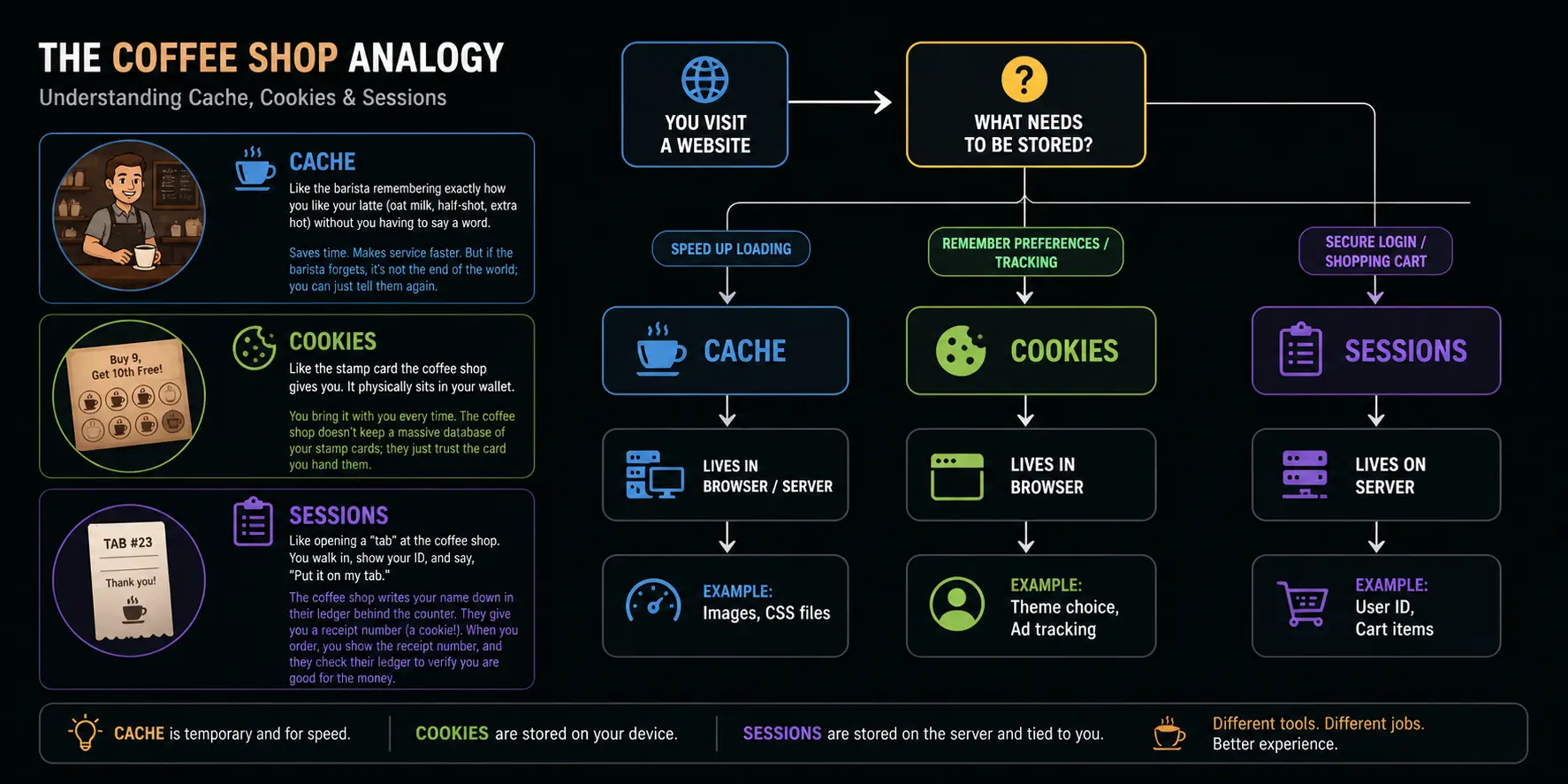
Before we get into the technical weeds, let me give you an analogy that I use in every single onboarding session with my team. Imagine you are a regular at a local coffee shop.
- Cache is like the barista remembering exactly how you like your latte (oat milk, half-shot, extra hot) without you having to say a word. It saves time. It makes the service faster. But if the barista gets hit on the head and forgets, it’s not the end of the world; you can just tell them again.
- Cookies are like the stamp card the coffee shop gives you. It physically sits in your wallet. It says, “Buy 9, get the 10th free.” You bring it with you every time. The coffee shop doesn’t keep a massive database of your stamp cards; they just trust the card you hand them.
- Sessions are like opening a “tab” at the coffee shop. You walk in, show your ID, and say, “Put it on my tab.” The coffee shop writes your name down in their ledger behind the counter. They give you a receipt number (a cookie!). When you order, you show the receipt number, and they check their ledger to verify you are good for the money.
Keep this coffee shop in mind as we dive deeper.
1. Diving into the Cache
Let me tell you a quick story. A few years ago, I built an e-commerce site for a friend. We launched it, and it looked great. But a week later, he called me panicking: “The site is so slow! It takes 10 seconds to load a product page.” I dug into the network tab and realized we were downloading 50 high-resolution product images from the server every single time a user clicked a new page. The server was crying. The user’s internet was crying.
The fix? Caching.
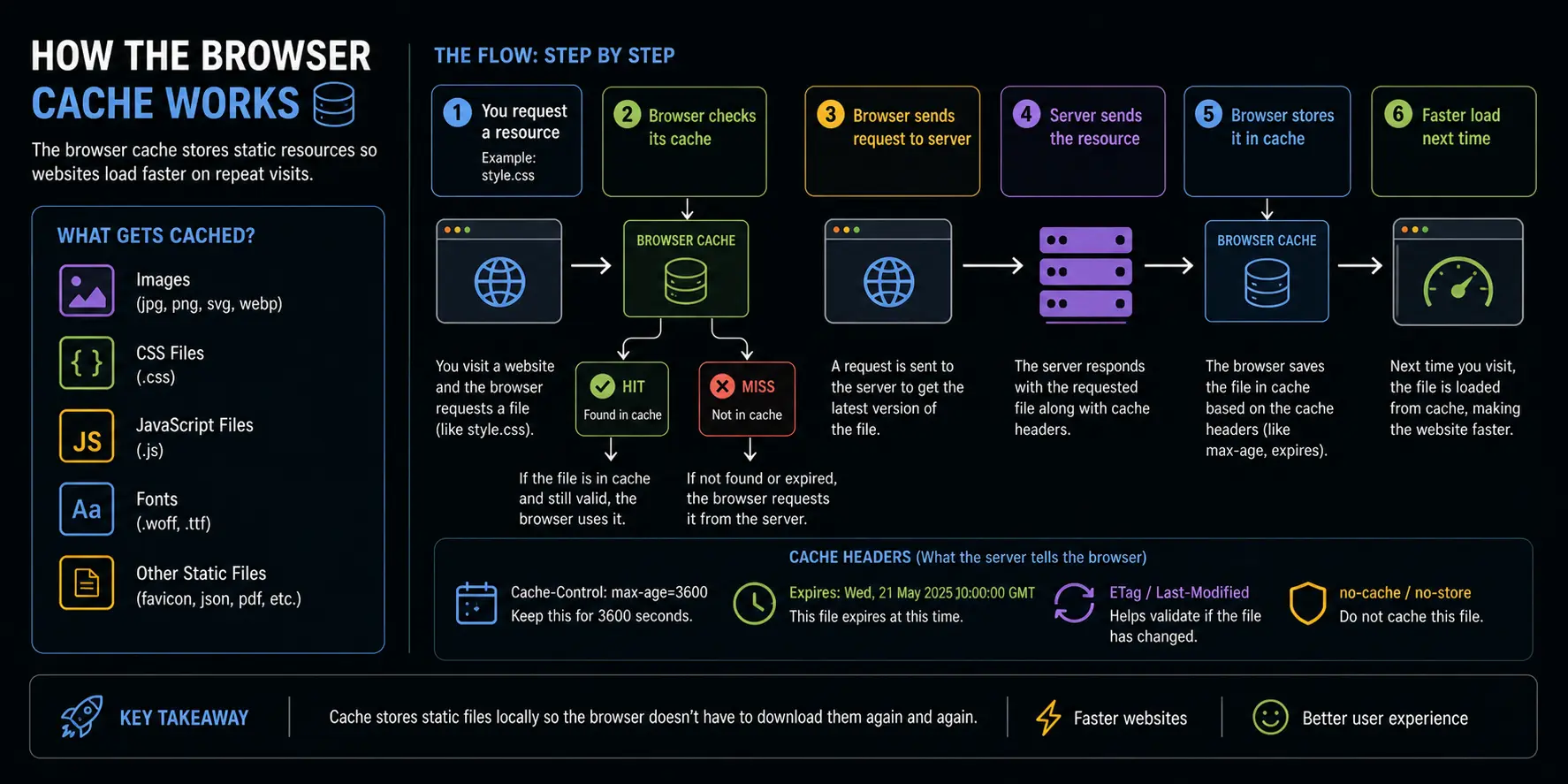
Cache is all about performance. It’s a high-speed storage layer. When you visit a website, your browser downloads the HTML, the CSS stylesheets, the JavaScript files, and the images. If you navigate to another page on that same site, those files are mostly exactly the same. Instead of begging the server in another country to send those heavy files again, your browser keeps a copy locally in the Browser Cache.
How the Browser Cache Works
When your browser asks the server for an image, the server doesn’t just send the image. It sends something called “cache headers.” Think of these as sticky notes attached to the image saying, “Hey browser, I’m not going to change for the next week. Just keep me locally.”
There’s also Server-Side Caching (using tools like Redis or Memcached). Imagine a news site where the homepage gets 10,000 visitors an hour. Instead of querying the database 10,000 times to build the homepage HTML, the server builds it once, saves it in the server’s cache, and just serves that pre-built page to the next 9,999 people.
Key Characteristics of Cache:
- Purpose: Purely for speed and reducing bandwidth.
- Capacity: Can store megabytes or even gigabytes of data (images, heavy scripts).
- Lifespan: Usually expires after a set time (Time-To-Live or TTL) or when the hard drive gets full.
- Security: Generally not used for sensitive data because it’s just sitting there in plain text on your hard drive.
2. Understanding Cookies
Here’s the dirty secret about the web: it has amnesia. The protocol that runs the internet, HTTP, is completely stateless. This means the moment a web page finishes loading, the server completely forgets you exist. If you click a button to go to the next page, the server treats you like a brand-new stranger.
Back in the mid-90s, a guy at Netscape named Lou Montulli got tired of this amnesia. He thought, “Wouldn’t it be great if the server could hand the browser a little piece of paper to hold onto, and the browser could hand it back on the next visit?” And boom, the Cookie was born.
A cookie is a tiny text file (usually capped at around 4KB) that the server tells your browser to save. Every time you make a request to that specific website, your browser automatically attaches that text file to the request.
The Anatomy of a Cookie
When I look at cookies in my browser’s developer tools, I see a few important columns:
- Name/Value: The actual data. E.g.,
theme = dark. - Domain/Path: The browser is smart. It won’t send your
amazon.comcookies towalmart.com. It strictly matches the domain. - Expiration: You can make a cookie disappear as soon as the browser closes (called a Session Cookie, which we’ll talk about later), or you can set a hard date (e.g., “Expire on Dec 31, 2024”). These are Persistent Cookies.
What do we use cookies for?
- Preferences: Remembering that you selected “Dark Mode” or your preferred language.
- Tracking: This is how ad networks follow you around the internet. Site A drops a cookie, Site B reads it, and now they know you were looking at shoes on Site A.
- The “ID Badge”: Most importantly, cookies hold the Session ID (but more on that in a minute).
A Quick Word on Cookie Security (From Hard Experience)
Early in my career, I made the mistake of storing a user’s “Role” (Admin or User) directly in a cookie. I thought, “Great, now I don’t have to query the database to check permissions!”
A clever user simply opened their browser settings, changed their cookie from role=user to role=admin, and suddenly had full access to my admin panel. That was a terrible day.
Because users can easily read and modify cookies, modern development requires two important flags:
- HttpOnly: Tells the browser, “Do not let JavaScript read this cookie.” This stops hackers from stealing your session if they inject malicious code into the site.
- Secure: Tells the browser, “Only send this cookie if we are using a secure HTTPS connection.” It prevents people on public Wi-Fi from intercepting it.
3. Making Sense of Sessions
Okay, this is where the coffee shop “tab” analogy really comes into play.
We established that HTTP has amnesia, and cookies are a way to remember a little bit of data. But what if we need to remember a lot of data, and it needs to be highly secure?
Imagine a user is shopping on your site. They add a $500 TV to their cart, a $50 cable, and a $30 speaker. You could store all this in a cookie. But remember, cookies live on the user’s computer. They can modify them. They could change the TV price to $5.00. Not good.
Enter the Session.
A session is a way to store user data on the server side, safely away from prying eyes. Here is the beautiful dance between Sessions and Cookies:
- You visit the site for the first time.
- The server creates a completely random, unguessable string of characters (e.g.,
x8f9a2b...). This is the Session ID. - The server creates a file (or a database entry) on its own hard drive labeled
x8f9a2b.... - The server sends a Cookie to your browser that simply says
session_id = x8f9a2b.... - When you add a TV to your cart, the server looks at the cookie, sees
x8f9a2b..., and updates the server-side file to say: “User x8f9a2b has a TV in their cart.”
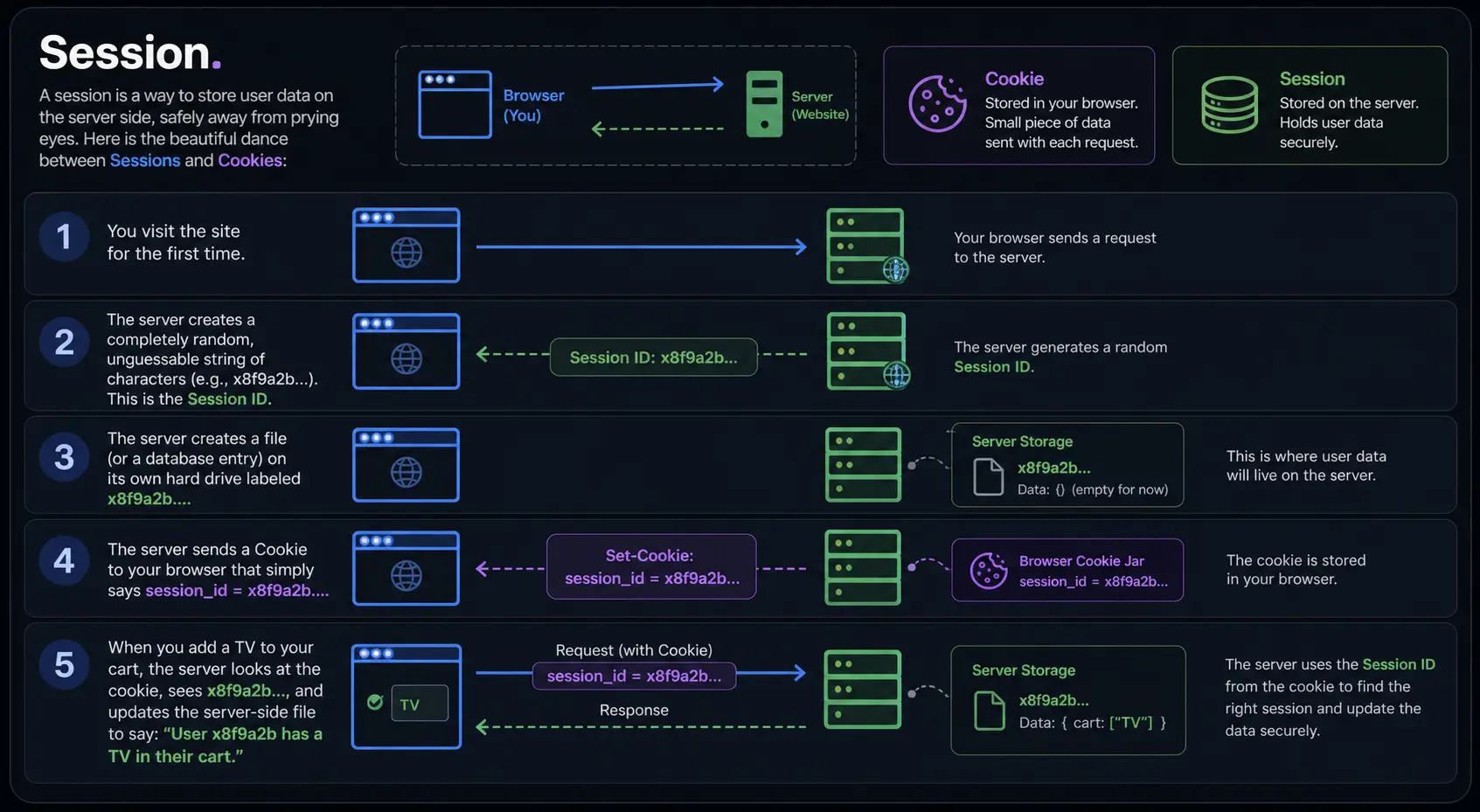
The crucial takeaway here: The cookie only holds the ID badge. The actual heavy, secure data lives on the server.
A Quick Code Example (Because it really helps to see it)
If you use Node.js with Express, setting up a session looks like this:
// This is just to show you how simple the concept is in code
const express = require('express');
const session = require('express-session');

const app = express();

// Tell the server to use sessions
app.use(session({
  secret: 'a-very-secret-string-that-nobody-should-guess', // Encrypts the session ID cookie
  resave: false,
  saveUninitialized: true,
  cookie: {
    secure: true, // Only send over HTTPS
    httpOnly: true, // Block JavaScript access
    maxAge: 1000 * 60 * 60 // Cookie expires in 1 hour
  }
}));

app.get('/add-to-cart', (req, res) => {
  // req.session is the SERVER-SIDE storage!
  // Notice we don't trust the client. We store it on the server.
  if (!req.session.cart) {
    req.session.cart = [];
  }
  req.session.cart.push('Expensive TV');

  res.send('TV added to cart! The server remembers it, not your browser.');
});How do Sessions End?
Sessions usually end in one of two ways:
- Timeout: If you walk away from your computer for 30 minutes, the server says, “They’re probably gone,” and deletes the session file. When you come back, your browser sends the old cookie, but the server says, “I have no idea what this ID is,” and forces you to log in again.
- Manual Logout: You click “Log Out.” The server deletes the session file and tells your browser to delete the
session_idcookie.
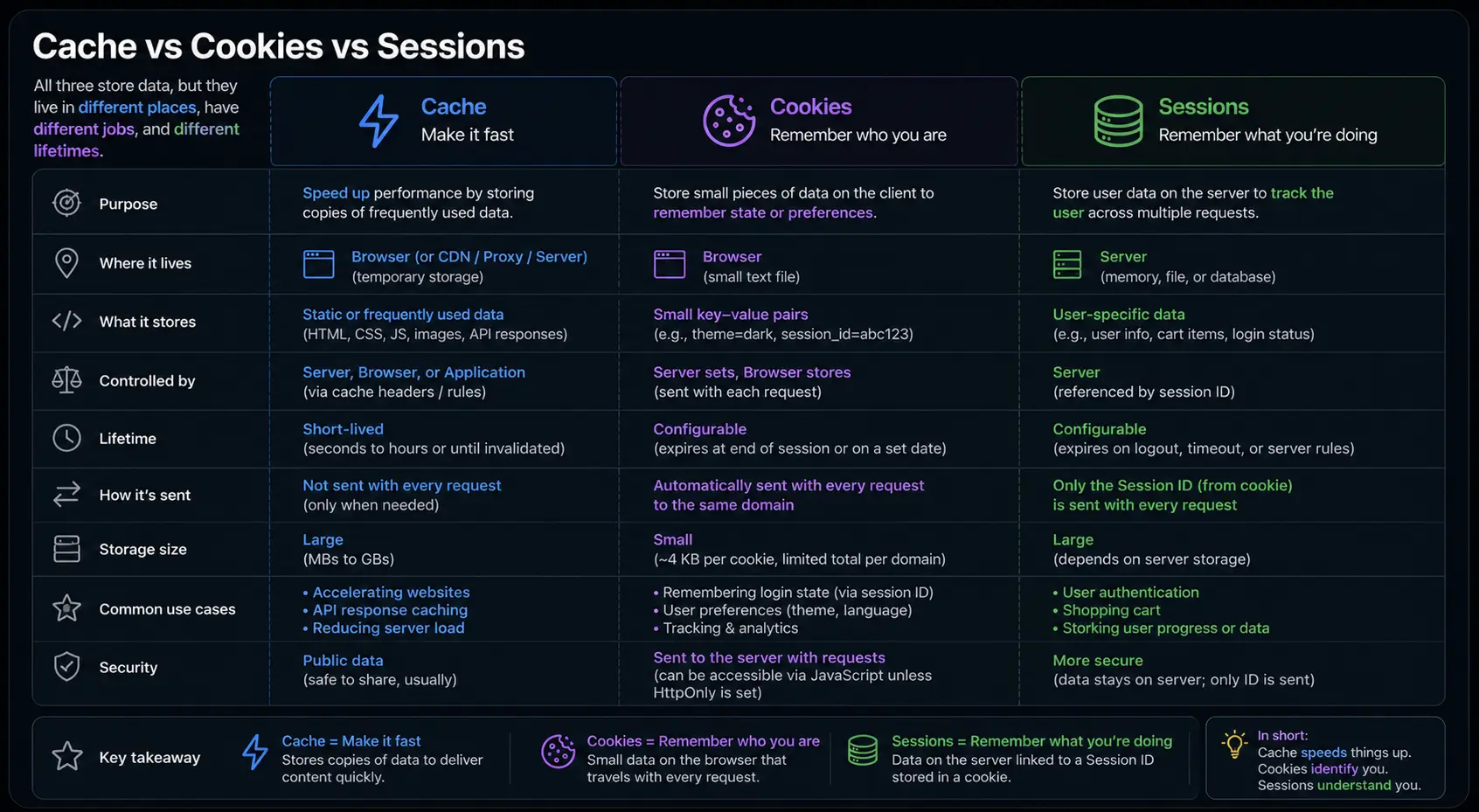
4. The Ultimate Showdown: Cache vs Cookies vs Sessions
Now that we’ve hung out and talked about each one individually, let’s put them side-by-side. When I architect a new application, this is the mental checklist I run through.
| Feature | Cache | Cookies | Sessions |
|---|---|---|---|
| Primary Goal | Speed / Performance | Remembering state / Identification | Secure state management / Auth |
| Where it lives | Browser or Server (Redis/CDN) | User’s Browser (Client-side) | Web Server (Server-side) |
| Storage Capacity | Large (Megabytes/Gigabytes) | Tiny (Max 4KB per cookie) | Practically Unlimited (depends on server RAM/Disk) |
| Security Level | Low (Never put sensitive info here) | Low (User can see and edit it) | High (User cannot see or edit the data) |
| Lifespan | Manually set via headers (TTL) | Can expire on browser close or set date | Usually expires after inactivity (e.g., 30 mins) |
| Impact on Server | Reduces server load drastically | Minimal (just sends tiny text) | Increases server load (has to store/memory manage files) |
When to use what? (My Golden Rules)
Over the years, I’ve developed some hard-and-fast rules for my team. If someone opens a Pull Request violating these, I’ll gently nudge them in the right direction.
Use Cache when:
- You are loading assets that don’t change often (logos, CSS files, product images).
- You are making an expensive database query (like fetching the top 10 articles of the day) that doesn’t need to be 100% real-time to the millisecond.
- Rule of thumb: If removing it makes the site slower but doesn’t break functionality, it belongs in the cache.
Use Cookies when:
- You need to store non-sensitive UI preferences (like “I want the website in Spanish” or “Expand this sidebar by default”).
- You need to pass along a Session ID (the most common use case).
- You are doing analytics or marketing tracking (though this is getting harder with modern privacy laws).
- Rule of thumb: If you wouldn’t mind your worst enemy reading it, it’s safe for a cookie.
Use Sessions when:
- You are handling user authentication (knowing who is logged in).
- You are managing a shopping cart.
- You are handling multi-step forms (like a checkout process) where the data is too big for a cookie and too sensitive to leave on the client.
- Rule of thumb: If manipulating the data could cost you money or compromise user security, it belongs in a session.
5. Common Pitfalls I’ve Seen (And How to Avoid Them)
Just knowing the definitions isn’t enough. The real learning happens when things go wrong. Let me share a few battle scars.
Pitfall 1: The “Clear Your Cache” Support Nightmare
I once worked on a project where we updated the main CSS file to completely redesign the site. Within an hour, customer support was flooded with calls saying the site looked “broken and unstyled.” What happened? The users’ browsers had cached the old CSS file and were flat-out refusing to download the new one.
- The Fix: We learned to use “Cache Busting.” Instead of linking to
style.css, we linked tostyle.css?v=1.2. When we updated the CSS, we changed the version number tov=1.3. The browser sees a new filename and downloads the fresh file instantly.
Pitfall 2: Session Clutter on the Server
When you use sessions, every single visitor to your site—even the bots—gets a session file created on your server if you aren’t careful. I once watched a server crash because millions of Googlebot requests created millions of empty session files, filling up the disk space.
- The Fix: Don’t create a session until you actually need one. In the code example I showed earlier, setting
saveUninitialized: falseensures a session isn’t created for someone just browsing the homepage.
Pitfall 3: Putting the Cart in Local Storage instead of Sessions
A junior dev once asked me, “Why don’t we just use the browser’s Local Storage for the shopping cart? It holds more data than cookies.” Local storage is great, but it’s entirely client-side. If a user adds a $500 TV to their cart using Local Storage, goes to a different computer, and logs in—the cart is empty.
- The Fix: Always tie persistent, important data (like carts or wishlists) to a user account via server-side sessions or a database.
6. How They Actually Work Together
The biggest misconception people have is thinking it’s an “either/or” choice. In a modern, well-built web application, they all work together in harmony.
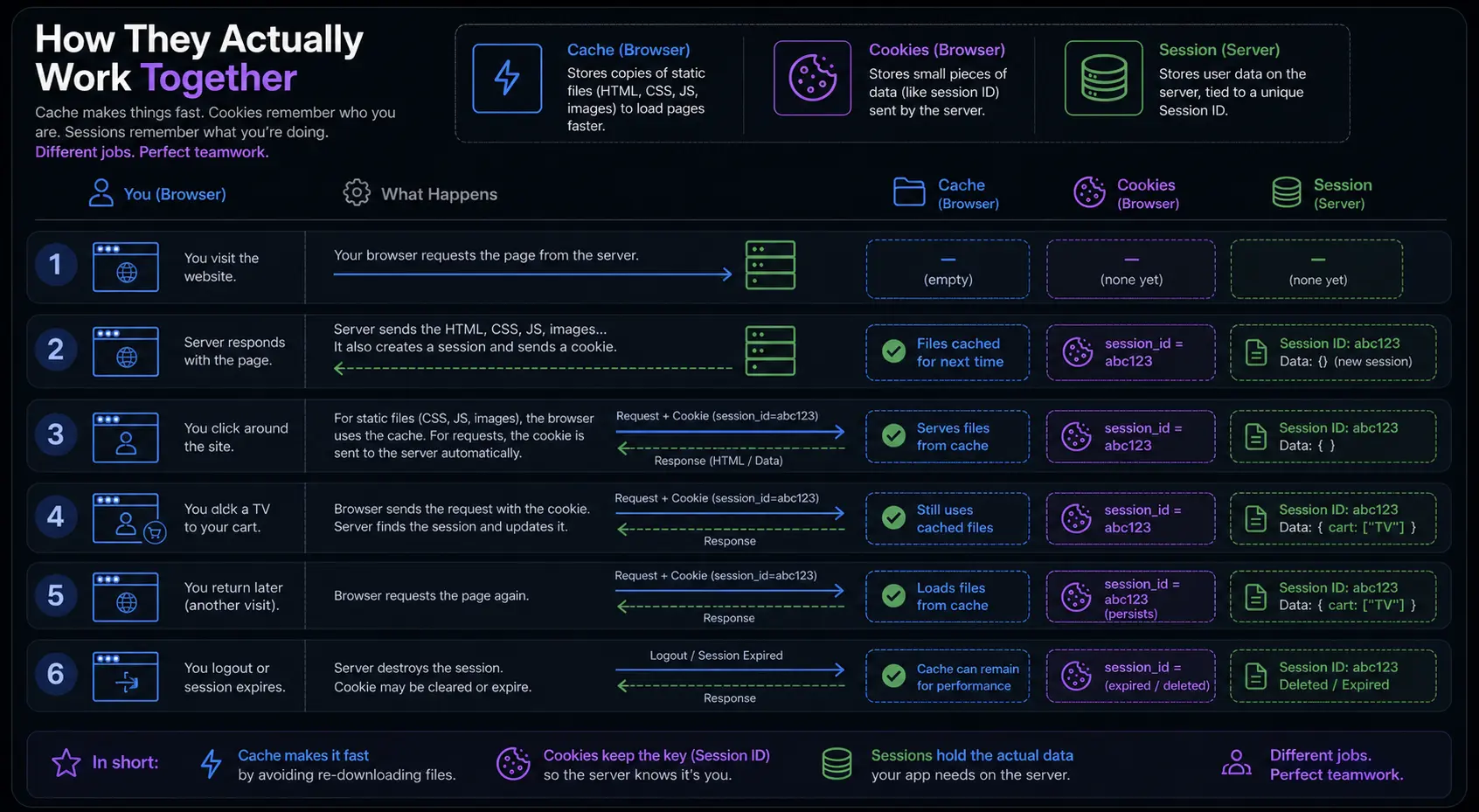
See? They aren’t competing. They are three different gears in the same machine. Cache makes it fast. Cookies make it identifiable. Sessions make it secure.
Wrapping Up
Look, I get it. The terminology of web development can feel like a secret club designed to keep beginners out. But when you strip away the acronyms and look at the actual problems these technologies solve, it’s incredibly logical.
- Cache is your speed demon. Use it to make things snappy.
- Cookies are your sticky notes. Use them to remember small, non-critical things, or to hand out ID badges.
- Sessions are your vault. Use them when the data matters and security is non-negotiable.
The next time you’re building an app, or even just troubleshooting why a website is acting weird, ask yourself: “Is this a speed problem, a memory problem, or a security problem?” Answer that, and you’ll know exactly which tool to reach for.
References:
FAQs
Isn’t a “session cookie” the exact same thing as a session?
Not quite! This trips people up all the time. A session is the secure vault of data sitting on the website’s server. A session cookie is just the regular, tiny text file sitting on your browser that holds the key to that vault. The only difference between a “session cookie” and a normal cookie is that a session cookie has a self-destruct timer set to go off the exact second you close your browser window.
If modern browsers have “Local Storage” now, why do we still use cookies?
Local Storage is great because it can hold a lot more data than a 4KB cookie. But the main reason cookies aren’t dead is convenience: cookies automatically hitch a ride on every single request you make to a website. If I put your user ID in Local Storage, I have to write extra JavaScript code to manually grab it and attach it every time you click a button. Cookies do that heavy lifting automatically.
What actually happens to my computer if I clear my cache?
You aren’t breaking anything, I promise! You are basically telling your browser to forget all the “shortcuts” it saved for your favorite websites. The next time you visit those sites, your browser will have to re-download all the logos, background images, and style files from scratch. The sites will look and work exactly the same; they will just load a little slower on that first visit because your browser is doing the work all over again.
Are my passwords saved in cookies or the cache?
If a website is built correctly, absolutely not. Your actual password should never be stored in a cookie (because you can easily read and edit cookies) and never in the cache (because it’s just for public files like images). When you log in, the server checks your password, and if it’s correct, it just hands your browser a random “Session ID” cookie—like a valet ticket. You give the valet ticket to get into the site, but the ticket itself isn’t your car keys.
Do sessions slow down my computer since they hold so much data?
No, and this is a huge misconception! Sessions live entirely on the website’s server, not on your personal computer. The only thing taking up a tiny fraction of space on your hard drive is the cookie holding the Session ID. If a session is slow, it’s the website’s server struggling to handle thousands of users’ data, but it won’t lag your personal laptop or phone.
Why does logging out of a site in one tab sometimes not log me out in another?
This is usually the cache playing a trick on you! Let’s say you have Tab A and Tab B open. You log out in Tab A, which deletes your cookie. But Tab B might have already saved the “logged-in” version of the page in its cache. When you click something in Tab B, it tries to load the cached page, realizes the cookie is gone, and then finally boots you out. It’s a slight delay caused by the browser trying to be too fast.
Can a virus hide in my cache?
A virus can’t exactly “execute” or run just by sitting in your cache, but a cached file can definitely be a Trojan horse. Imagine a bad ad on a legitimate news site. Your browser caches that bad ad so it loads faster next time. Now, every time you open your browser, it loads that malicious file l
Why do I sometimes see an old version of a website after they just updated it?
Your browser is being a little too loyal. The website updated its code, but your browser looks at its cache, sees an old file that hasn’t “expired” yet, and says, “Nope, I already have this, I’m not going to download the new one.” That’s why the classic “Hard Refresh” trick (pressing Ctrl+F5 on Windows or Cmd+Shift+R on Mac) works—it forcefully ignores the cache and demands the fresh files from the server.
What does it mean when a website says my “session has timed out”?
Imagine leaving your car running with the keys in the ignition while you go into a store for an hour. The server (the car) says, “They’ve been gone too long, this isn’t safe,” and shuts everything down. To protect your account from someone else walking up to your computer and taking over, the server deletes your session data after a certain amount of inactivity (usually 15 to 30 minutes). When you come back and click something, the server sees your cookie but no longer has the vault to match it, so it forces you to log in again.