If you’ve been around WordPress for a while, you’ve probably had that moment where your site suddenly feels like it’s running through molasses. You do the usual stuff: you install a caching plugin, you optimize your images, and you maybe even upgrade your hosting plan. But still, that slow, sluggish feeling remains.
I’ve been there more times than I can count. And almost every single time, when I dig past the surface-level fixes, I end up staring at the exact same culprit: the wp_options table, and more specifically, a little thing called autoload.
Let’s sit down and talk about this. I’m going to explain what the wp_options table is, why autoload is both a brilliant feature and a terrible villain, and how you can clean it up to get your site speeding again. I’ll walk you through this using real-world examples and plain English—no fancy computer science degree required.
Table of Contents
What Exactly is the wp_options Table?
Think of your WordPress database as a massive filing cabinet. You have drawers for posts, drawers for comments, and drawers for users. The wp_options table is like the top drawer of that cabinet—the one where you throw all the miscellaneous stuff that doesn’t belong anywhere else.
It holds the global settings for your entire WordPress installation. When you set your site title, choose your timezone, or pick a default category, that information lives in wp_options. But it’s not just core WordPress settings; every time a plugin needs to save its configuration (like your SEO settings, your caching rules, or your form email recipients), it stuffs it into this table.
Here is what the structure of this table looks like:
| Column Name | What It Does | Example |
|---|---|---|
| option_id | A unique number for the entry | 142 |
| option_name | The label used to call the data | siteurl |
| option_value | The actual data being stored | https://yoursite.com |
| autoload | Tells WP whether to load this on every page | yes or no |
It’s a simple key-value store. WordPress asks, “Hey, what’s the siteurl?” and the database says, “It’s https://yoursite.com.”
The Magic (and Curse) of Autoload
Now, let’s talk about the elephant in the room: the autoload column.
This is a boolean flag (it’s either set to yes or no). When an option has autoload set to yes, it means that every single time a page loads on your WordPress site—whether it’s the homepage, a blog post, or the admin dashboard—WordPress automatically fetches that data and loads it into memory before it even figures out what page it’s supposed to render.
Why does WordPress do this?
For efficiency! The core WordPress developers knew that things like the site URL, the active plugins list, and the current theme are needed on literally every page load. Instead of asking the database for these one by one, WordPress runs a single query that says: “Give me every option where autoload equals ‘yes’.” It stores all of this in a temporary memory space (usually managed by an object cache). This is incredibly smart and makes WordPress fast.
So, where does it go wrong?
The problem lies in lazy plugin and theme developers. When a developer creates a plugin, they often need to store settings. To make their plugin run fast, they might think, “I’ll just set autoload to ‘yes’ so my data is always ready!”
But imagine this: You install an SEO plugin, a security plugin, a form builder, an e-commerce suite, and a social sharing tool. Suddenly, you have 50 plugins, and they are all dumping massive arrays of data into wp_options with autoload set to yes.
To put it in real-world terms: Autoload is like packing your suitcase for a weekend trip. You need a change of clothes, a toothbrush, and maybe a phone charger. That’s core WordPress autoload. But plugins with autoload set to yes are like throwing your winter coats, your entire shoe collection, and your camping tent into that weekend bag. You’re carrying the weight of everything on every trip, even though you only need the toothbrush.
When your autoloaded data gets too large, it exceeds the allocated memory limit (often 128MB or 256MB on standard hosting). When that happens, PHP has to constantly fetch data from the disk instead of memory, or worse, your site crashes with the dreaded “Allowed memory size exhausted” fatal error.
How Autoload Works Behind the Scenes
Let’s look at how this process flows during a normal page load. It’s important to see where the bottleneck happens.
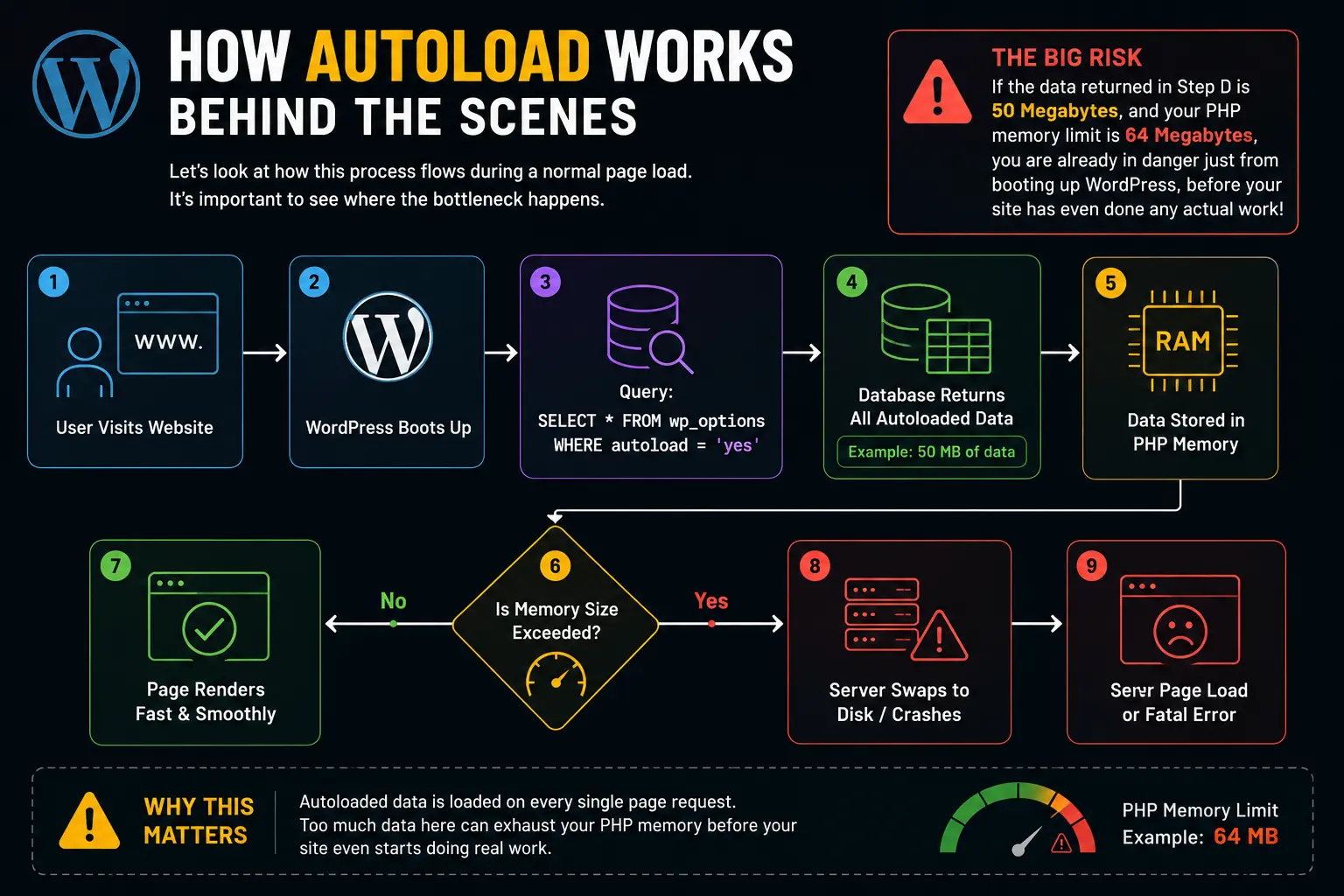
As you can see, if the data returned in Step D is 50 Megabytes, and your PHP memory limit is 64 Megabytes, you are already in danger just from booting up WordPress, before your site has even done any actual work!
Finding the Autoload Bloat in Your Site
You can’t fix a problem you can’t see. So, how do we find out if your wp_options table is bloated?
Most hosting providers give you access to phpMyAdmin or a similar database management tool. You can run a simple SQL query to find out exactly how much data is being autoloaded.
Here is the query I run on almost every slow site I audit:
SELECT SUM(LENGTH(option_value)) AS total_autoload_size
FROM wp_options
WHERE autoload = 'yes';This gives you the total size in bytes. To make sense of it, divide the result by 1024 to get Kilobytes, and by 1024 again to get Megabytes.
- Under 1 MB: You are golden. This is healthy.
- 1 MB to 5 MB: Getting a bit heavy. Could be slowing down cheaper shared hosting.
- Over 5 MB: Danger zone. Your site is hauling around way too much luggage.
- Over 10 MB: Critical. You likely experience random fatal errors or incredibly slow Time to First Byte (TTFB).
But knowing the total size isn’t enough; you need to know who is taking up all the room. To find the biggest offenders, run this query:
SELECT option_name, LENGTH(option_value) AS option_size
FROM wp_options
WHERE autoload = 'yes'
ORDER BY option_size DESC
LIMIT 20;This will give you a table showing the top 20 heaviest autoloaded options. Usually, you’ll see names that give away the culprit, like woocommerce_settings, yoast_indexation_data, or elementor_remote_info_library.
A Real-World Example: The Elementor & WooCommerce Trap
Let me share a story from my own experience. A client came to me with an e-commerce site that was taking 8 to 10 seconds just to start loading. Their host had upgraded their server twice, but it didn’t help.
I ran the size query on their wp_options table. The autoload size was 42 Megabytes. Yes, 42MB!
I ran the second query to find the top offenders. Turns out, a poorly coded snippet in their theme was logging every single product view in the wp_options table instead of a custom table, and it was saving it with autoload = ‘yes’. Every time someone viewed a product, the string of data got longer. By the time I looked at it, that single option was 30MB on its own. WordPress was loading a novel’s worth of useless visitor logs into memory on every single page load.
I changed the autoload value to ‘no’, and suddenly, the page load time dropped from 8 seconds to 1.5 seconds. No new server required.
How to Clean Up the Autoload Mess
So, you’ve found the bloat. Now what? You have to be careful here. Deleting the wrong option_name can break your site or wipe out your plugin settings.
Here is the safe workflow I follow every time:
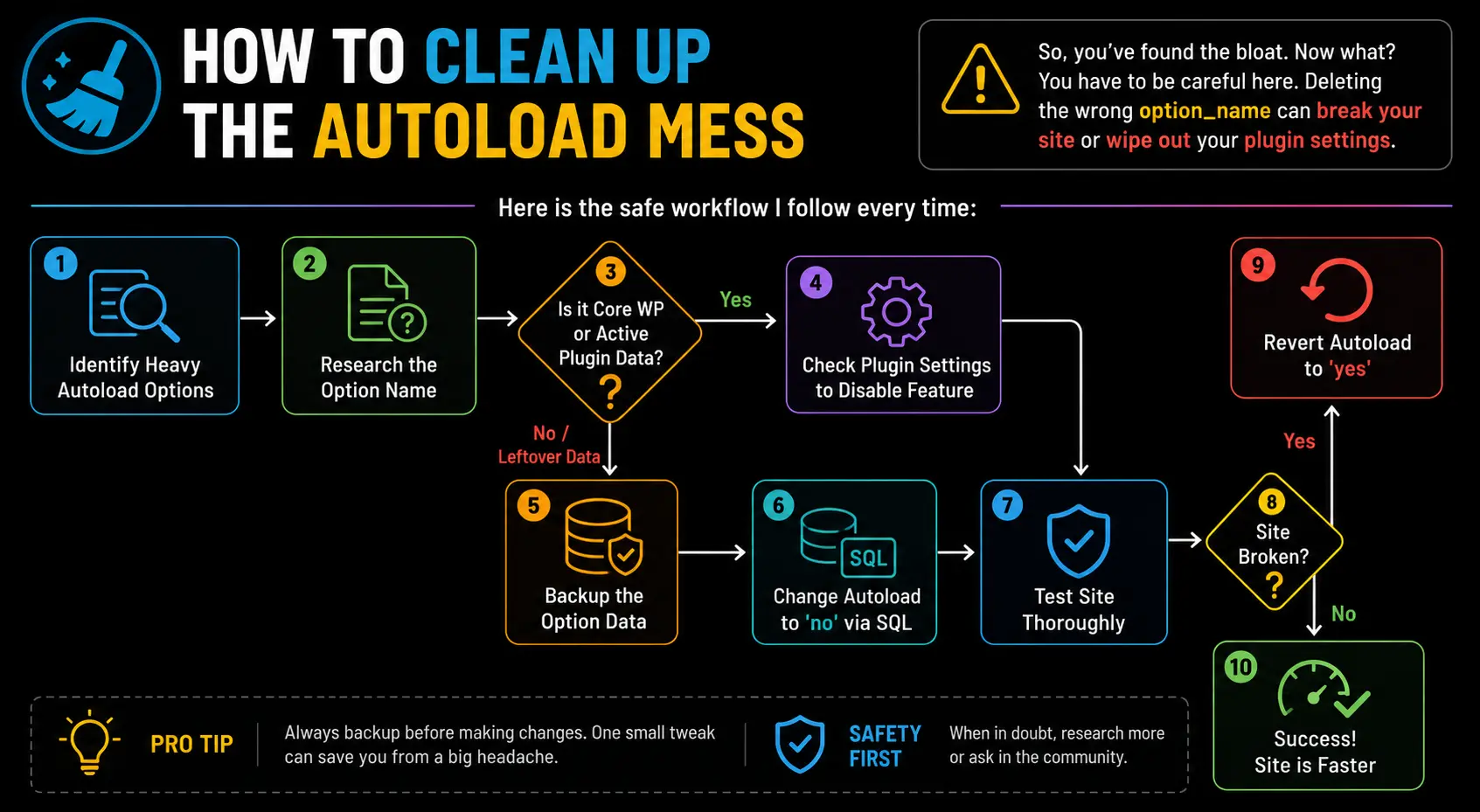
Let’s break down the action steps:
1. Research the Option Name
If you see an option like widget_custom_text, you know it’s a widget. If you see something cryptic like _transient_timeout_1234, it’s a transient (temporary data that should never be autoloaded). If you don’t recognize the name, Google it. Type in "wordpress wp_options [option_name]". Usually, you’ll find forum posts identifying which plugin created it.
2. Handle Transients
Transients are WordPress’s way of caching temporary data (like an API response from Twitter). They are supposed to expire and delete themselves. But sometimes, plugins set them to autoload, or they fail to clean them up.
If you see heavy transients in your autoload list, you can safely delete them. WordPress or the plugin will simply regenerate them when needed.
3. Change Autoload via phpMyAdmin (The Safe Way)
Instead of deleting the data entirely (which is risky), you can just tell WordPress to stop loading it on every page. You can do this with a quick SQL update:
UPDATE wp_options
SET autoload = 'no'
WHERE option_name = 'the_name_of_the_heavy_option';Warning: Never change autoload to ‘no’ for core WordPress options like siteurl, active_plugins, or template. If you change autoload on critical core data, your site will immediately white-screen.
4. Use a Plugin (If you’re uncomfortable with SQL)
If you don’t want to touch the database directly, there are plugins that do this safely.
- WP-Optimize: Great for cleaning up transients and database overhead.
- Autoload Analyzer: A specific plugin built just to find and manage autoload bloat.
How Developers Should Handle wp_options
If you are a developer writing custom plugins or themes, you have a responsibility to the WordPress ecosystem. Don’t be the person who causes someone else’s site to crash because you were lazy with your data storage.
Here are the golden rules for developers:
- Always specify autoload. When you use
update_option()oradd_option(), WordPress defaults toautoload = 'yes'. You should explicitly tell it what to do.
Bad practice (defaults to ‘yes’):
update_option( 'my_plugin_massive_log', $huge_array );Good practice (tells WP not to autoload this heavy data):
update_option( 'my_plugin_massive_log', $huge_array, 'no' );- Use Custom Tables for Heavy Data. The
wp_optionstable was never meant to store thousands of rows of custom data. If your plugin logs errors, stores analytics, or tracks user activity, create a custom database table (wp_my_plugin_logs). It scales infinitely better and doesn’t clog the autoload query. - Clean up after yourself. When a user uninstalls your plugin, delete your options! Don’t leave orphaned data in the database. Use the
uninstall.phpfile to rundelete_option()for everything your plugin created. - Never autoload transients. If you must store transients in options, ensure they are not autoloaded. Actually, use the native Transients API (
set_transient()), which handles expiration and generally avoids thewp_optionstable when a persistent object cache (like Redis) is present.
Keeping Your Database Healthy Long-Term
Cleaning up wp_options isn’t a one-and-done deal. It’s like maintaining a car; you have to change the oil regularly. Here is my ongoing maintenance workflow:
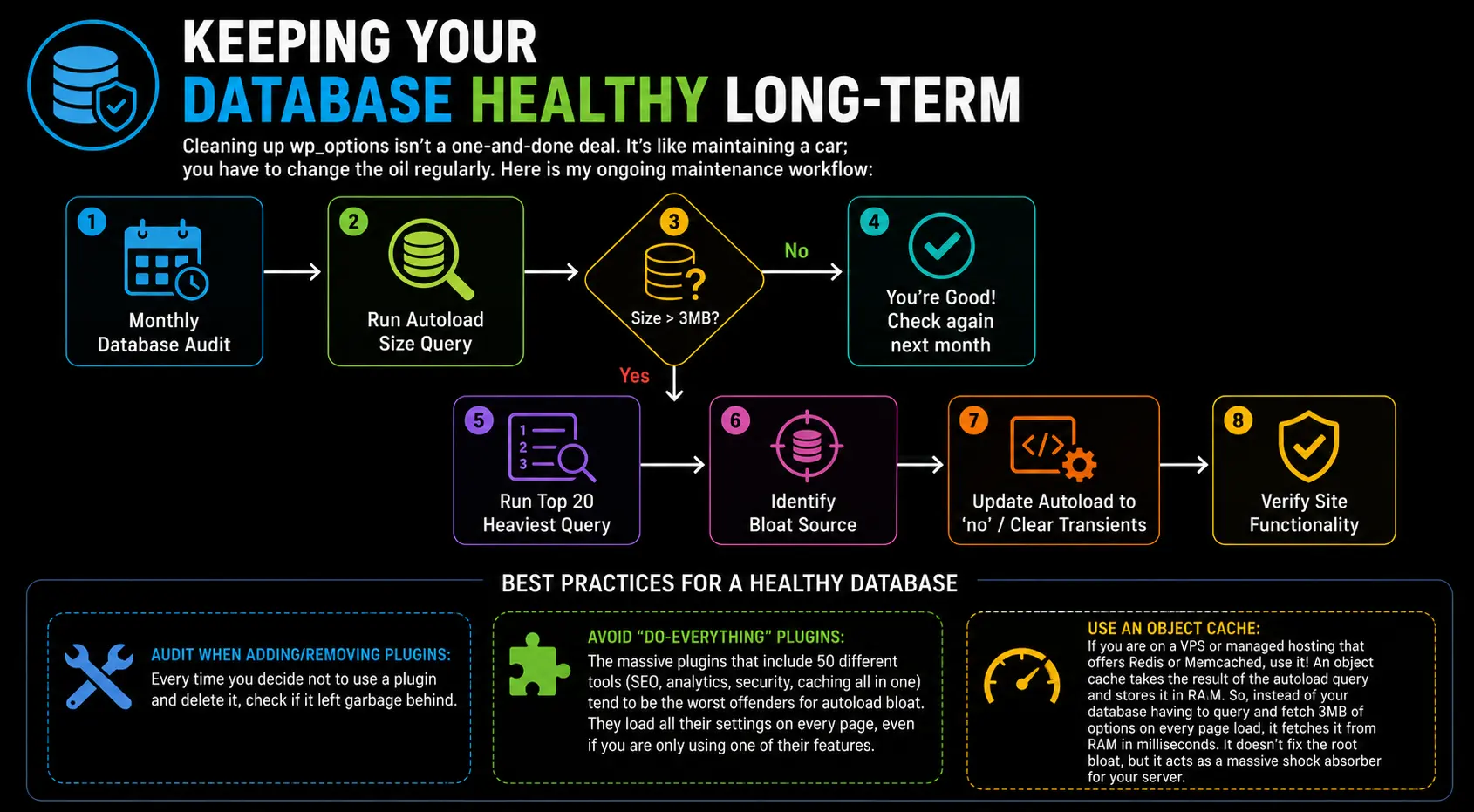
- Audit when adding/removing plugins: Every time you decide not to use a plugin and delete it, check if it left garbage behind.
- Avoid “do-everything” plugins: The massive plugins that include 50 different tools (SEO, analytics, security, caching all in one) tend to be the worst offenders for autoload bloat. They load all their settings on every page, even if you are only using one of their features.
- Use an Object Cache: If you are on a VPS or managed hosting that offers Redis or Memcached, use it! An object cache takes the result of the autoload query and stores it in RAM. So, instead of your database having to query and fetch 3MB of options on every page load, it fetches it from RAM in milliseconds. It doesn’t fix the root bloat, but it acts as a massive shock absorber for your server.
WrapUP
Understanding the wp_options table and the autoload mechanism is a superpower in WordPress performance optimization. Most people will spin their wheels optimizing images and minifying CSS, completely ignoring the heavy backpack their site is carrying on every single page load.
By identifying what is being autoloaded, removing orphaned data, and telling WordPress to only load what it strictly needs, you can shave seconds off your load times and prevent those frustrating memory exhaustion errors. Just remember the suitcase analogy: pack light, pack smart, and only take what you need for the trip.
If you want to dive deeper into the technical specs or read the official documentation on this topic, here are three excellent resources that I rely on:
- WordPress Core Handbook – Options API: https://developer.wordpress.org/plugins/settings/options-api/
- WordPress Core Handbook – Transients API: https://developer.wordpress.org/plugins/settings/transients-api/
- WordPress Transients API – https://cloudcusp.com/blogs/wordpress-transients-api-divein-object-caching/
FAQs
What exactly is the wp_options table in simple terms?
Think of the wp_options table as your website’s junk drawer or main settings cabinet. It holds all the bits and pieces that don’t fit neatly anywhere else—like your site title, timezone, and the saved settings for almost every plugin you use. Whenever a plugin needs to remember a preference, it usually tosses it into this table.
What does “autoload” actually mean?
Autoload is like packing a backpack that you carry with you everywhere you go. If a setting has autoload set to “yes,” WordPress loads that piece of data into its memory on every single page load, before it even figures out what page you’re trying to visit. It does this so crucial info (like your site’s URL) is always instantly available.
Why does autoload make my website slow?
Carrying a light backpack is easy, but carrying a 50-pound suitcase everywhere slows you down. When too many plugins dump massive amounts of data into the autoload queue, WordPress has to load a huge chunk of info into memory before it can even start building the page. This eats up your server’s resources and drastically slows down your Time to First Byte (TTFB).
How do I know if my autoload data is too big?
You can check this using a database tool like phpMyAdmin, which most web hosts provide. By running a simple SQL query (like the one mentioned in the article), you can see the total size of your autoloaded data. As a general rule of thumb, under 1MB is healthy, 1MB to 5MB is getting heavy, and anything over 5MB is bloated and likely slowing your site down.
Can I just delete everything in the wp_options table that has autoload set to ‘yes’?
Absolutely not! Some of that data is critical for WordPress to function. Things like your active plugins list, site URL, and current theme must be autoloaded. Deleting those or changing their autoload setting to ‘no’ will instantly break your site, giving you the dreaded white screen of death. Only change settings you are certain belong to old plugins or temporary data.
What are transients, and why are they clogging up my autoload?
Transients are basically temporary sticky notes. WordPress and plugins use them to store data for a short time—like the results of an API call—so they don’t have to keep fetching it. They are supposed to expire and delete themselves automatically. However, sometimes plugins forget to clean up their sticky notes, or they mistakenly set them to autoload, turning temporary data into permanent bloat.
Do all plugins cause autoload problems?
No, but poorly coded ones definitely do. Good developers only use autoload for data that is genuinely needed on every single page. Lazy or inexperienced developers might set all their plugin’s data to autoload just to make their plugin run a tiny bit faster, completely ignoring the fact that they are slowing down the rest of your website in the process.
How can I safely clean up my wp_options table without breaking my site?
The safest approach is to change the autoload flag from ‘yes’ to ‘no’ instead of deleting the data entirely. You can do this via an SQL query in phpMyAdmin. This way, the data is still there if the plugin needs it, but it isn’t loaded on every page. Always back up your database before making any changes, and test your site thoroughly afterward. Alternatively, you can use a plugin like WP-Optimize to safely clean up orphaned data without touching code.
If I change a heavy option’s autoload to ‘no’, won’t my plugin stop working?
In most cases, no. It just means that specific piece of data won’t be loaded until the plugin actually asks for it. It might cause a micro-second delay the moment that specific feature is used, but it saves your server from dragging that heavy data around on every other page of your site. It’s a very fair trade-off!
How can I stop autoload bloat from happening in the future?
Be picky about the plugins you install. Avoid “all-in-one” monster plugins that try to do fifty different things, as they tend to autoload massive amounts of settings. Also, whenever you delete a plugin you no longer use, assume it left garbage behind in your database. Make a habit of occasionally using a database cleaner to sweep up leftover options from uninstalled plugins.