I’ve been building websites and messing around with WordPress for what feels like an eternity. I remember the days when updating a plugin felt like defusing a bomb, and making a simple layout change required diving into a rabbit hole of PHP files. But over the years, WordPress has grown up, and frankly, the latest release has completely blown me away.
Let’s talk about WordPress 7.0, codenamed Armstrong.
If you’ve been following the WordPress gossip, you probably know that everyone expected this release to be all about Real-Time Collaboration (RTC). But the WordPress team looked at RTC, realized it needed more simmering, and pivoted. And you know what? I’m so glad they did. Because what we got instead is a monumental shift in how WordPress operates.
Sure, the native AI integration is grabbing all the headlines—and we’ll get to that, because it’s massive—but Armstrong brings so much more to the table. We’re talking about a refreshed admin experience, mind-blowing mobile navigation controls, and design tools that finally make you feel like you’re using premium publishing software rather than a patched-together CMS.
Let me break down my experience with WordPress 7.0, the good, the great, and the “finally!” moments, in plain English.
Table of Contents
The Main Event: Native AI Integration
Let’s address the elephant in the room. AI is everywhere, and now it’s natively in WordPress. But before you roll your eyes and think this is just another ChatGPT wrapper slapped onto a text editor, hear me out. WordPress didn’t just add an “AI write for me” button. They built an entirely new infrastructure.
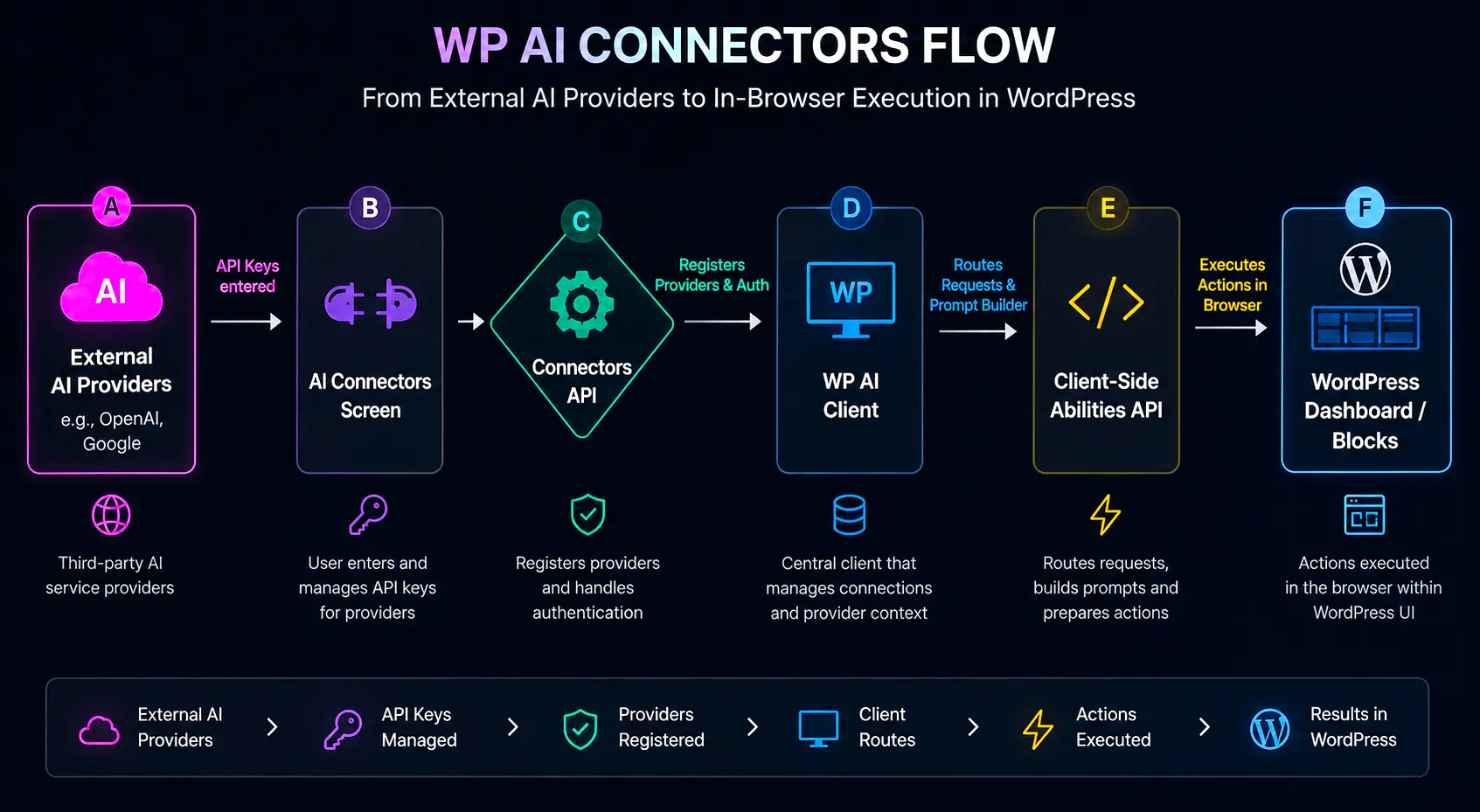
This is a watershed moment. WordPress has introduced four foundational building blocks that form its native AI architecture. Let’s walk through them like I’m explaining it to a colleague over coffee.
The Four AI Building Blocks
| Building Block | What It Does | Why It Matters to You |
|---|---|---|
| WP AI Client | A central, provider-agnostic interface for plugins to talk to AI models. | Developers don’t have to build separate integrations for OpenAI, Google, etc. |
| Client-Side Abilities API | Lets AI take actual actions inside your browser (like inserting blocks or navigating). | AI becomes a doer, not just a writer. It interacts with your site. |
| AI Connectors Screen | A central dashboard in Settings to manage API keys and external AI services. | No more pasting API keys into five different plugin settings pages. |
| Connectors API | The backend extensibility layer that registers providers and handles authentication. | Gives developers a standardized, future-proof way to build AI tools. |
1. WP AI Client: The Universal Translator
In the past, if a plugin developer wanted to use AI, they had to code a direct integration with OpenAI, then maybe Anthropic, then maybe Google. It was a nightmare to maintain. The WP AI Client solves this. It’s provider-agnostic. A plugin just says, “Hey, I need to generate some text,” and WordPress routes that request to whatever AI model the site owner has configured.
It even includes a Prompt Builder class and allows for model preference ordering—so if you want to use a cheaper, faster model for basic tasks and a heavy-duty model for complex logic, you can set that up.
2. Client-Side Abilities API: AI That Actually Does Things
This is my favorite part. Normally, AI generates text, and you have to copy, paste, and format it. The Abilities API allows AI tools to interact with WordPress from inside the browser.
Imagine an AI agent that can navigate your admin panel, insert a specific block, fill out the attributes, and run a workflow—all without you lifting a finger. AI is no longer just a text generator outside the CMS; it operates within the WordPress environment.
3. AI Connectors Screen: Your AI Dashboard
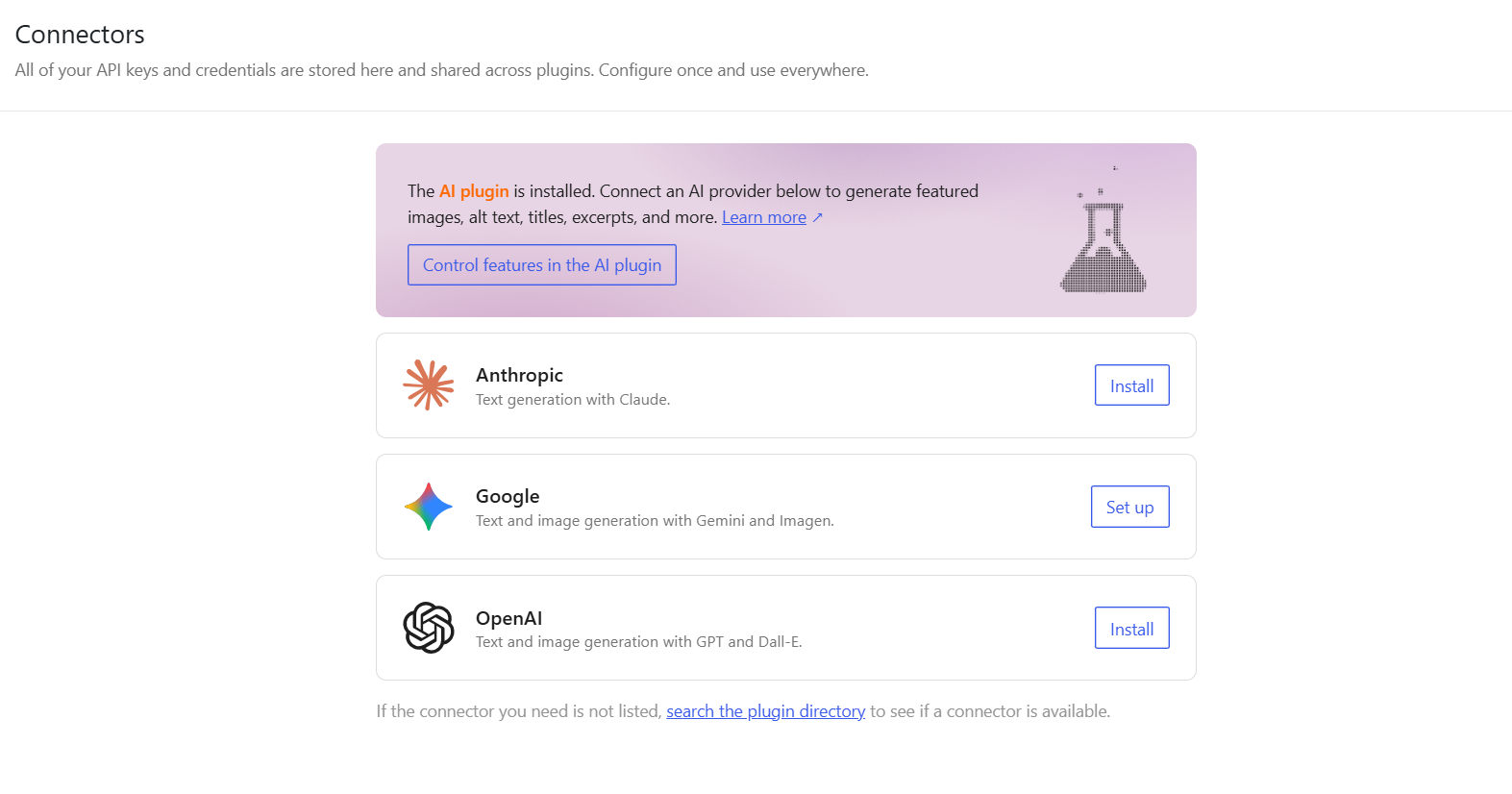
If you’re a site owner, you’ll love this. The Connectors Screen (found under Settings > Connectors) is where you manage all your external AI services. You enter your API keys here, and they are funneled securely through the Connectors API. It’s centralized, clean, and safe.
4. Connectors API: The Developer’s Backbone
For the devs in the room, the Connectors API is the engine behind the Connectors Screen. It handles the provider registry, authentication details, and metadata. It supports two authentication methods (api_key and none) and uses the WP AI Client’s default registry to auto-discover providers.
Here is a quick coding example of how a developer can override connector metadata using the new wp_connectors_init action:
add_action( 'wp_connectors_init', 'custom_override_connector_metadata' );

function custom_override_connector_metadata( $connectors ) {
    // Let's say we want to force a specific custom AI provider to use an API key
    if ( isset( $connectors['my-custom-ai-provider'] ) ) {
        $connectors['my-custom-ai-provider']['auth_method'] = 'api_key';
        $connectors['my-custom-ai-provider']['metadata']['priority'] = 10;
    }
    return $connectors;
}To visualize how these four pillars interact, take a look at this diagram:
A Fresh Coat of Paint: The Modern Admin Experience
Okay, take a break from AI for a second. Let’s talk about the user interface. If you’ve used WordPress for a while, the admin dashboard has always felt a bit… dated. It worked, but it didn’t exactly feel like modern publishing software.
WordPress 7.0 introduces the Modern admin theme, and it is a massive UI refresh. It feels cohesive, clean, and just plain nice to look at.
Here’s what you’ll notice right away:
- A refreshed color palette: Things look softer but more professional.
- Higher-contrast styling: Text is easier to read. No more squinting at light-grey fonts.
- Updated typography: The fonts feel crisper and more modern.
- Updated admin headers & Customizer: The spacing and layout just make sense now.
- Refreshed multisite signup screens: If you run a multisite network, your users will get a much smoother onboarding experience.
View Transitions: Goodbye Jarring Reloads
This is a subtle but beautiful change. View Transitions add smooth animations when you navigate between different admin screens. Instead of a harsh, white-flash page reload, elements fade or slide naturally.
What I really appreciate is that WordPress built this with accessibility in mind. The transitions automatically respect your operating system’s reduced-motion settings. If you prefer no animations, WordPress will politely sit still.
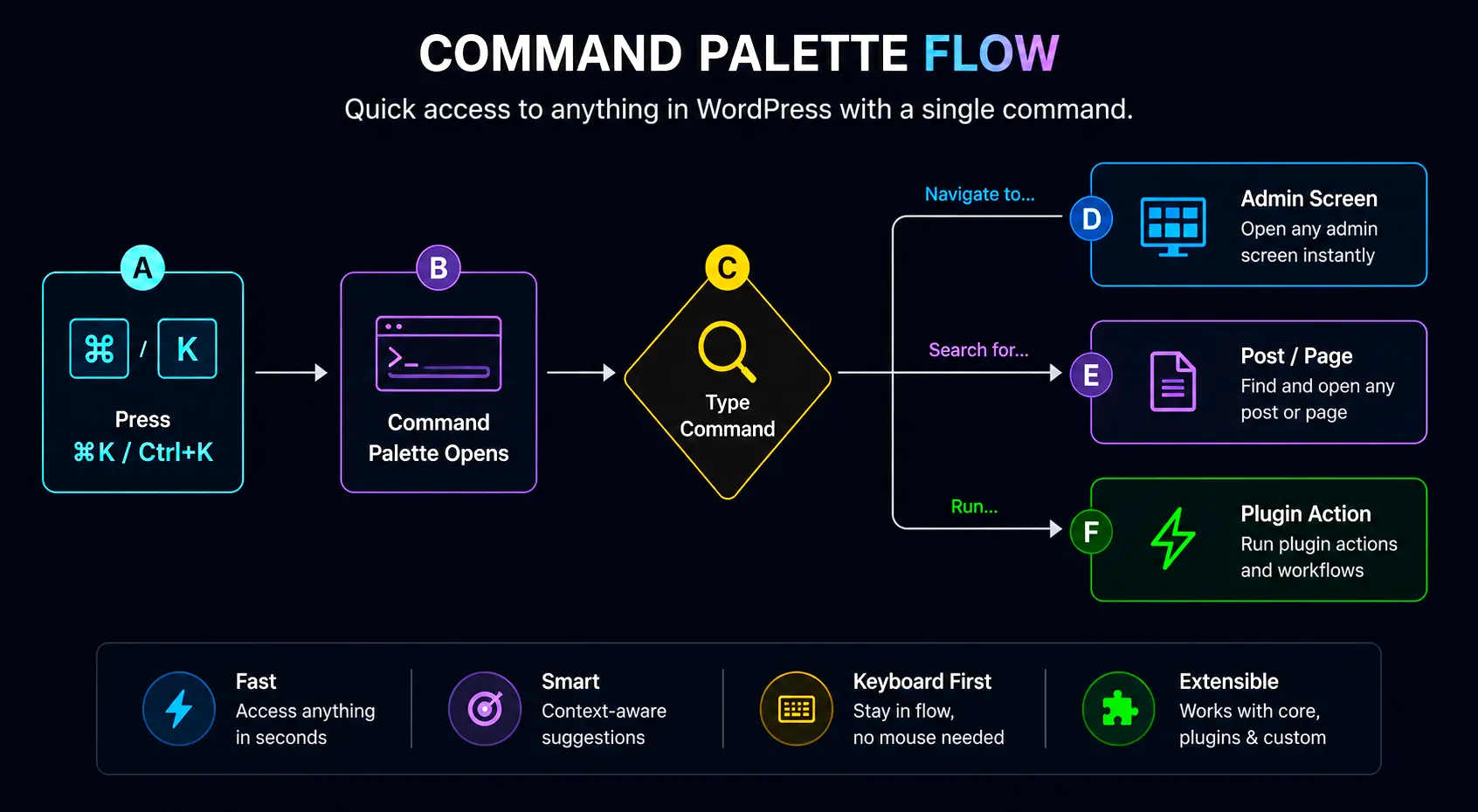
The Command Palette Icon (⌘K / Ctrl+K)
Power users, rejoice! You know how in VS Code or Slack you can hit Cmd+K or Ctrl+K to open a search bar that does literally everything? WordPress 7.0 adds a Command Palette icon right in the upper admin bar.
Click it (or use the keyboard shortcut), and you can instantly jump to any page, post, or setting without taking your hands off the keyboard. It’s a massive time-saver.
Design Freedom: Typography and Layout Control
As someone who spends hours tweaking designs, the block editor updates in Armstrong make me do a happy dance. WordPress 7.0 expands native design tools significantly, giving us control that used to require custom CSS or third-party page builders.
The Font Library Management Screen
Fonts have historically been a pain in WordPress. You either had to use a plugin, a third-party service, or edit your functions.php file. Not anymore.
WordPress 7.0 introduces a dedicated Font Library management screen. You can now upload, install, and manage fonts right from the dashboard. The best part? It works flawlessly across block, hybrid, and classic themes. You can finally keep all your typography assets in one logical place.
New Blocks on the Block
We got some highly requested new blocks:
- Heading Block: Now with even more granular controls.
- Icons Block: No more hunting for SVG code or using clunky icon plugins. Native icons are here!
- Breadcrumbs Block: This is huge for SEO. You can now automatically show a page’s location within your site structure. You can drop this globally into a theme header, and developers get filters to modify the output (like changing taxonomy behavior).
Here’s a quick snippet showing how a developer can filter the new Breadcrumbs block output to exclude a specific taxonomy:
add_filter( 'wp_breadcrumbs_taxonomy_args', 'custom_breadcrumb_taxonomy_filter' );

function custom_breadcrumb_taxonomy_filter( $args ) {
    // Let's remove 'post_tag' from our breadcrumbs
    if ( isset( $args['taxonomies'] ) ) {
        $key = array_search( 'post_tag', $args['taxonomies'] );
        if ( $key !== false ) {
            unset( $args['taxonomies'][$key] );
        }
    }
    return $args;
}Layout and Typography Goodies
The granular controls are staggering. You can now control:
- Text indentation
- Text columns
- Width and height controls
- Dimension presets
- Aspect ratios for wide and full images (no more squished hero images!)
Block-Level Custom CSS
Sometimes, you just need a little snippet of CSS for one specific block. Before 7.0, you’d have to add a custom CSS class, go to the customizer, and write your CSS there, hoping you didn’t break something else.
Now, you can apply Block-level custom CSS directly inside the block’s settings sidebar. It keeps the workflow visual and contained. You write the CSS right where the block lives, and it only applies to that specific block. It’s a massive win for precision styling.
Mobile Navigation: Finally Taking Control
If there’s one area where WordPress has traditionally lagged, it’s mobile menu design. We’ve all been there: you design a beautiful desktop site, but on mobile, the hamburger menu is a rigid, ugly, unstyled list that drops down over your content.
WordPress 7.0 changes the game completely by letting site owners customize hamburger menu overlays directly in the Site Editor.
Building Mobile Menus with Blocks
Instead of a fixed overlay design, you can now build your mobile menu overlays using blocks and patterns. Yes, you read that right. Your mobile menu is now just another canvas.
- Custom Layouts: Want a two-column mobile menu with a logo on the left and links on the right? You can do it.
- Custom Content: You can add a search bar, social icons, or even a promotional banner right inside the mobile overlay.
- Dedicated Close Button: You can place and style a close button wherever you want.
For theme developers, this is a goldmine. You can now package default overlay templates and overlay patterns. When a user installs your theme, they get a beautifully designed mobile menu right out of the box, which they can then tweak to their heart’s content.
Responsive Editing Moves Further Into Core
Responsive design isn’t just about mobile menus; it’s about controlling exactly what content shows up on what device. WordPress 7.0 brings responsive editing deeper into the core workflow, moving it away from being a “developer-only” task.
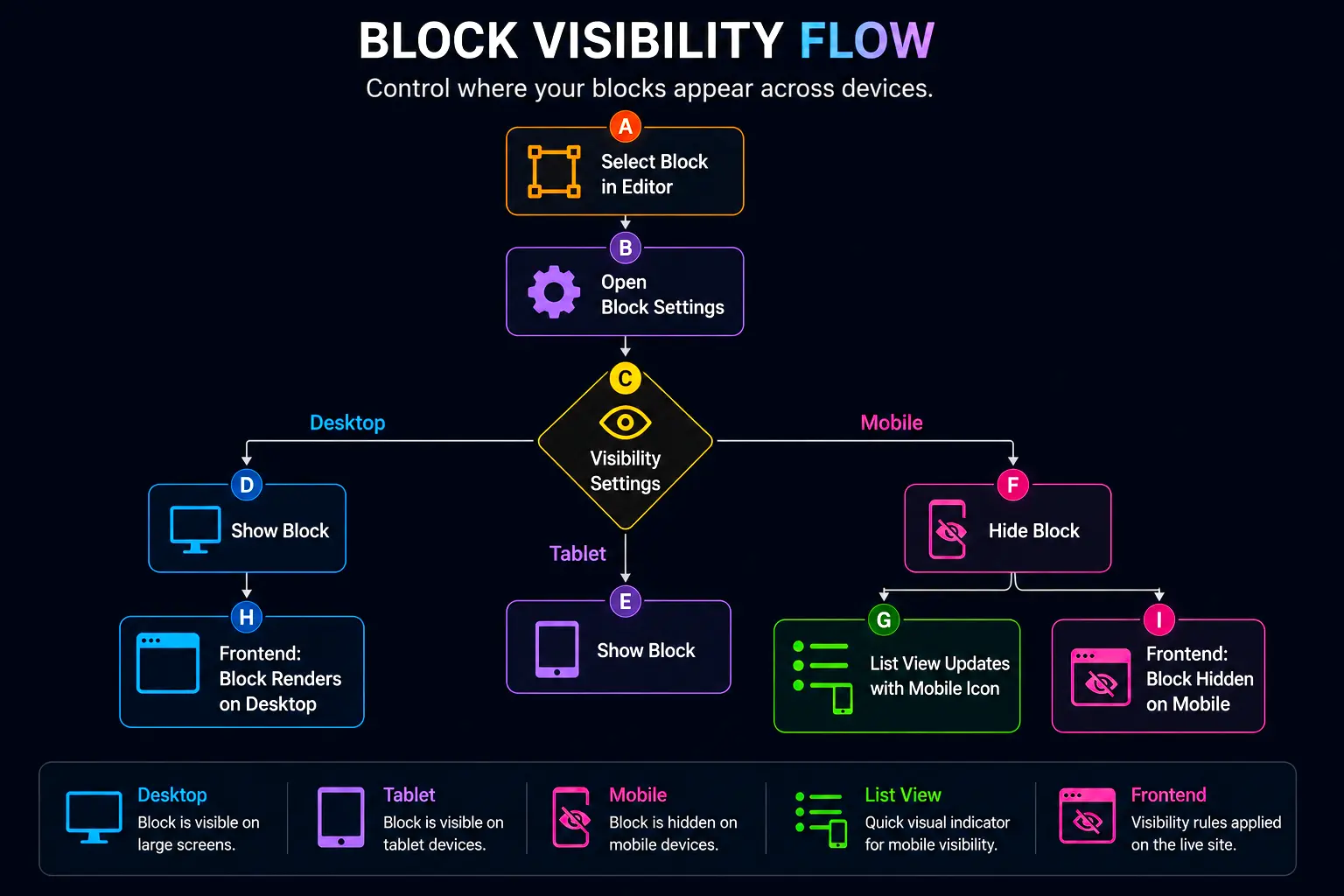
Device-Specific Block Visibility
You can now decide whether a specific block appears or remains hidden on different device types. Want a large, sprawling image gallery on desktop but a single, swipeable carousel on mobile?
You can set the gallery block to show on desktop and hide on mobile, and place the carousel block right below it set to hide on desktop and show on mobile. No custom code, no complicated CSS media queries.
Visibility Indicators in List View
If you start hiding blocks based on device size, things could get confusing fast. How do you remember which block is hidden where? WordPress 7.0 solves this by adding visibility indicators in the List View. You can see exactly which blocks have device-specific rules applied at a glance.
Expanded Breakpoint Control
This release also expands breakpoint control, allowing for different styling at different screen sizes directly within the editor. It makes responsive design feel like a natural part of publishing rather than an afterthought.
Here is a flowchart showing how simple it is to manage responsive visibility now:
Publishing Power-Ups: Visual Revisions and Galleries
Visual Revisions: Seeing is Believing
Comparing revisions in WordPress used to be a painful exercise in comparing lines of code or plain text. If you moved a block around or changed an image, the text-diff view was practically useless.
Enter Visual Revisions. This is an absolute lifesaver. Inside the editor, you can now visually compare two revision versions using a slider bar.
As you drag the slider, you see the actual layout change. The document inspector shows a summary of changes, with color indicators and change sizes for each location. If you see a change you want to inspect, just click it, and the editor jumps directly to that specific spot on the page. It makes reviewing edit history intuitive and fast.
Lightbox Support for Gallery Blocks
It’s the little things that make a difference. We finally have native lightbox support for Gallery blocks. When a user clicks an image in a gallery, it smoothly expands into a fullscreen lightbox overlay without requiring a third-party plugin like FancyBox or Lightbox JS.
Dynamic URL Support for Navigation Links
The Navigation Link block now supports dynamic URLs. This means you can use dynamic data (like a post’s permalink or a custom field URL) within your navigation menus, making it easier to build complex, data-driven sites.
Security: Safer Defaults for User Registration
I’ve seen too many sites get compromised because of a simple settings mistake. One of the most dangerous is the default user role for new registrations. If you leave it set to Administrator or Editor, anyone who registers on your site gets the keys to the castle.
WordPress 7.0 introduces safer defaults by removing the Administrator and Editor roles from the default role selector in General Settings. It’s a common-sense change that prevents catastrophic accidents.
What if you had previously selected one of those roles before updating? Don’t worry, WordPress has your back. Site Health will now throw an alert warning you if one of those powerful roles was previously selected. Developers can still override this via a filter if they really need to, but the default behavior now protects site owners from themselves.
Wrapping UP: It’s Not Phase 4, But It Makes Sense
When the WordPress roadmap was first laid out, Phase 4 was supposed to be all about Real-Time Collaboration (RTC). While RTC didn’t make the cut for 7.0, what we got instead might actually be more important for the long-term survival and dominance of WordPress.
The native AI integration isn’t just a flashy feature; it is foundational infrastructure. By building the WP AI Client, Abilities API, and Connectors, WordPress is preparing for a future where AI agents build, manage, and optimize websites natively. No other CMS has the massive, global developer community that WordPress does, and giving that community a standardized way to build AI tools is going to accelerate innovation wildly.
But even beyond the AI, Armstrong wins on the everyday details. The Modern admin theme makes the dashboard feel like software from this decade. Responsive editing and customizable mobile menus give us the design control we’ve been begging for. Visual Revisions save us from pulling our hair out. And safer default settings keep our sites secure.
WordPress 7.0 isn’t just an update; it’s a cohesive evolution of the platform. The editing, publishing, and design environments finally feel tied together, giving the AI features a rock-solid foundation to stand on. This might just be the most consequential CMS release to date, and I, for one, am thrilled to be along for the ride.
References:
- https://make.wordpress.org/core/7-0/
- https://wordpress.org/download/releases/7-0/
- wordpress-7-features-how-phase-3-fix-workflows/
FAQs
What is the biggest deal about WordPress 7.0?
The biggest highlight is definitely the native AI integration. Instead of just slapping a chatbot onto the editor, WordPress built an entirely new foundation. This means AI can now interact with your website, help you build pages, and even take actions inside your dashboard, rather than just generating text for you to copy and paste.
I heard WordPress 7.0 was supposed to have real-time collaboration. Is it included?
No, real-time collaboration (like working on the exact same post at the exact same time as someone else) didn’t make it into this update. The WordPress team felt it needed more work before releasing it. Instead, they shifted their focus to the AI features and the massive design and interface improvements, which ended up making this a much stronger release anyway.
Does the WordPress dashboard look different now?
Yes! WordPress 7.0 introduces the “Modern” admin theme. It gives the dashboard a much-needed facelift with cleaner colors, easier-to-read text, and better contrast. Plus, when you click between different admin pages, the transitions are smooth instead of giving you a jarring white flash. It finally feels like modern software.
What is the Command Palette icon in the top admin bar?
It is a massive time-saver. If you click that icon (or press Ctrl+K on Windows / Command+K on Mac), a search bar pops up. You can just type what you are looking for—like “Add New Post” or “Menus”—and jump straight there without having to click through multiple sidebar menus.
Can I finally design my mobile menu easily?
Absolutely, and this is a huge win. In the past, the mobile hamburger menu was basically a rigid, ugly list. Now, you can design your mobile menu overlay using regular blocks and patterns. You can add your logo, a search bar, social icons, or even a promotional banner right inside the mobile menu, exactly how you want it.
How do I hide a specific block on mobile devices?
WordPress 7.0 makes this incredibly easy. You can now select any block and choose to show or hide it based on the device type (desktop, tablet, or mobile). No custom coding is required! The editor will also show a little visibility icon in the List View so you don’t forget which blocks are hidden where.
What are Visual Revisions?
Before this update, comparing changes to a post meant looking at confusing lines of text code. With Visual Revisions, you can now compare two saved versions of your page using a slider bar. You actually get to see how the layout changed visually, and you can click on a specific change to jump right to that spot on the page.
Do I need to know how to code to use the new AI features?
Not at all. WordPress added a new “Connectors” screen in your settings. This is a central hub where you simply paste in your AI API keys (like the ones you might get from OpenAI or Google). Once you add your keys there, WordPress handles the rest, and any compatible plugin can start using those AI tools safely.
How does the new Font Library work?
Managing fonts is finally built right into WordPress. You now have a dedicated Font Library screen in your dashboard where you can upload, install, and organize your fonts. It works smoothly with block themes, classic themes, and hybrid themes, so you don’t need to install a third-party plugin just to use a custom font anymore.
Are there any new security updates?
Yes, they added a very smart safety feature to prevent accidental security breaches. By default, WordPress 7.0 removes the “Administrator” and “Editor” roles from the dropdown menu for new user registrations. This stops you from accidentally giving a stranger full control of your site. If you had those roles set before the update, WordPress will actually warn you about it in your Site Health check.