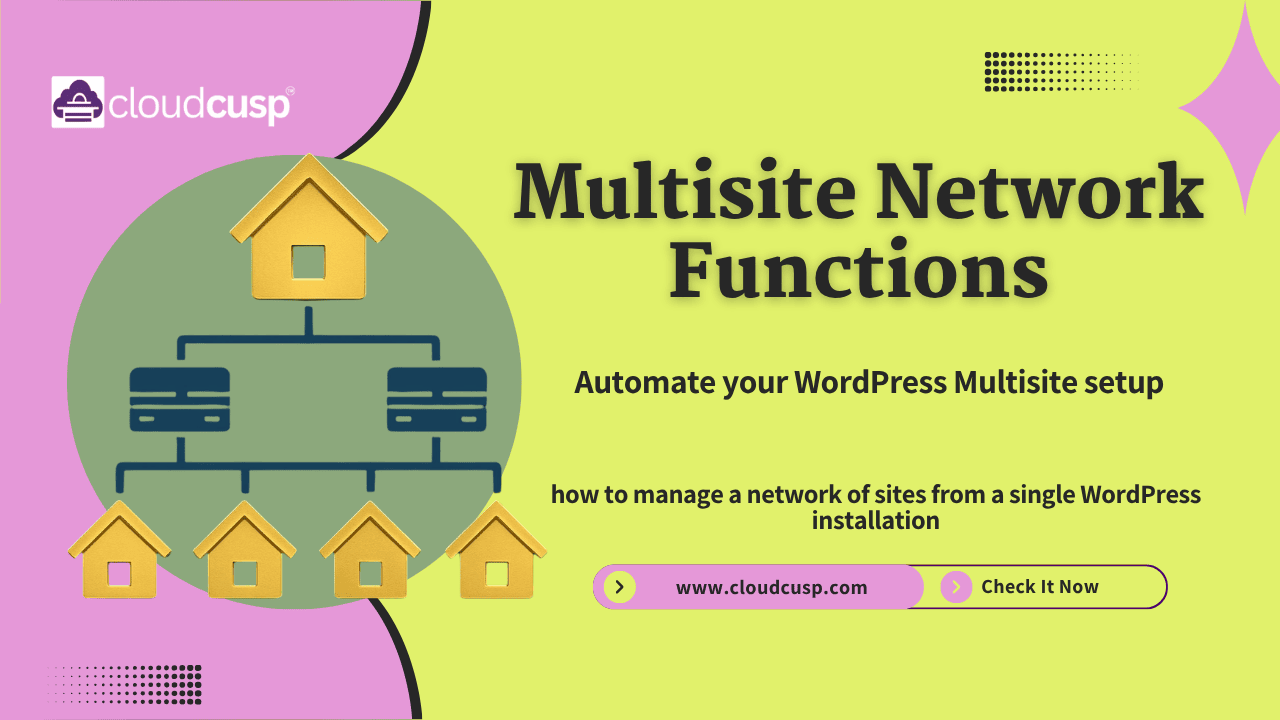
If you have ever managed more than a few WordPress websites, you know the drill: log in here, update a plugin there, check the spam folder on another site, and repeat. It gets exhausting. WordPress came up with a brilliant solution for this called WordPress Multisite. It allows you to run a whole network of websites from a single WordPress installation.
But here is the thing: having a Multisite network is only half the battle. The real magic happens when you learn how to control it programmatically. That is exactly where Multisite Network Functions come into play.
In this article, we will look at what they are, why they matter, and how you can use them to manage your network like a seasoned developer. No overly technical jargon —just a practical breakdown of how to make Multisite work for you.
Table of Contents
The Big Picture: How a Multisite Network Actually Works
Before we start throwing function names around, let’s get our mental model straight. Imagine a traditional WordPress site as a single-family home. It has its own front door, its own plumbing, and its own electrical system.
A WordPress Multisite is more like an apartment complex. All the apartments (your individual websites) share the same foundation, the same main water line, and the same underlying architecture. However, each apartment has its own locked door, its own interior design, and its own tenants.
To manage this apartment complex, you need a master key and an intercom system. In WordPress, the master dashboard (Network Admin) is your intercom, but the Multisite Network Functions are your master keys. They allow your code to walk into any apartment, check the plumbing, change a lightbulb, or even build a new apartment from scratch.
Here is a visual representation of how this architecture looks under the hood:
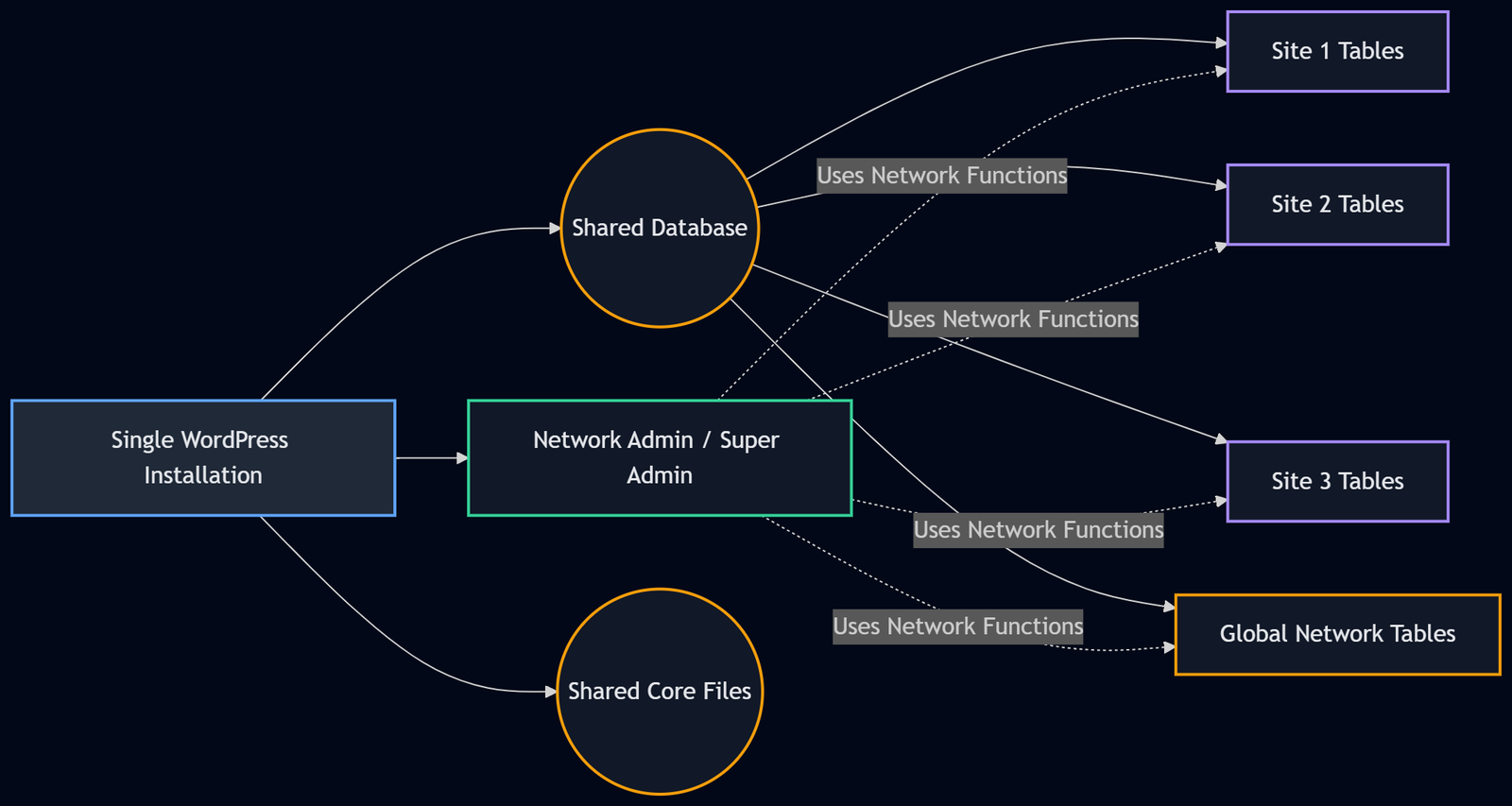
Note: You might notice that in the WordPress core code, individual sites within a network are often referred to as “blogs.” Don’t let this confuse you. A “blog” in the coding world of Multisite just means an individual site. A school website and a separate teacher blog are both technically “blogs” in the database table wp_blogs.
Category 1: Gathering Intelligence (The “Who Am I?” Functions)
When you are writing code in a normal WordPress environment, functions like get_the_ID() or home_url() work perfectly because there is only one site. But in a Multisite environment, your code could be executing anywhere. Before you do anything, you need to know exactly where you are.
1. get_current_blog_id()
This is the most basic, yet most crucial function. It simply returns the numeric ID of the site the user is currently viewing.
- Why it matters: If you want to show a special banner only on Site ID #3, you need this function to figure out if you are on Site ID #3.
2. get_blog_details( $blog_id )
While the previous function just gives you a number, this function gives you the whole profile. If you feed it a Site ID, it hands back an object packed with information.
- What it returns: The site’s domain, path, registered date, last updated date, whether it’s public or archived, and more.
- Real-world example: Let’s say you are building a central dashboard widget for the Super Admin. You want to list all the sites in your network and show when they were last updated. You would loop through your sites and use
get_blog_details()to grab thatlast_updateddate.
3. get_network()
Sometimes you need information about the entire network itself, not just a single site. This function returns an object containing the network’s ID, domain, path, and the site ID of the main site.
Category 2: Traveling Between Sites (The “Jump” Functions)
This is where Multisite development gets really fun, and slightly dangerous if you aren’t careful. In a standard WordPress setup, the database is entirely focused on one site. In Multisite, every site has its own set of database tables (e.g., wp_2_posts, wp_2_options).
If you are on Site 1 and you want to query the posts of Site 2, standard WP_Query won’t work out of the box. You have to physically “jump” your code over to Site 2.
1. switch_to_blog( $blog_id )
Think of this function as a teleportation device. When you call switch_to_blog( 5 ), WordPress essentially changes the global variables in the background to point to Site 5. Now, get_option() pulls data from Site 5’s options table, and WP_Query pulls posts from Site 5’s posts table.
2. restore_current_blog()
This is the most important rule of Multisite development: Every time you jump, you MUST jump back. If you use switch_to_blog() and forget to use restore_current_blog(), the rest of your page will think it is still on the switched site. Things will break. Menus will display wrong. Styles might disappear. Always pair these two functions together.
Here is exactly how that jump process looks in the code’s memory:

A Quick Coding Example
Let’s say you want to display the title of the latest post from Site ID #4 on your current site. Here is how you do it safely:
// Save the current blog ID just in case
$current_id = get_current_blog_id();

// Jump to Site 4
switch_to_blog( 4 );

// Run a standard WordPress query
$args = array( 'posts_per_page' => 1, 'orderby' => 'date' );
$latest_posts = new WP_Query( $args );

if ( $latest_posts->have_posts() ) {
    while ( $latest_posts->have_posts() ) {
        $latest_posts->the_post();
        echo '<h2>' . get_the_title() . '</h2>';
    }
}
// Reset the post data (good practice)
wp_reset_postdata();

// JUMP BACK! Do not skip this step.
restore_current_blog();Category 3: Managing Sites (The “Create, Read, Update, Delete” Functions)
As a Super Admin, you can create and delete sites from the Network Admin UI. But what if you are building an onboarding system where users fill out a form, pay a fee, and a site is automatically generated for them? You need CRUD (Create, Read, Update, Delete) functions.
1. wp_insert_site( $args )
This function creates a new site in the network. You pass it an array of arguments, and it handles the heavy lifting of creating the database tables and adding the entry to the global wp_blogs table.
- What you need to pass: At a minimum, you need a
domain, apath(like/newsite/), and anetwork_id. - Gotcha: This function does not automatically populate the new site with default themes, widgets, or pages. It just creates the empty shell. You usually have to hook into the
wp_initialize_siteaction to set those up.
2. wp_update_site( $site_id, $args )
Need to change a site from public to private? Want to change its domain name? This function lets you update the metadata of an existing site.
3. wp_delete_site( $site_id )
This is the nuclear option. It completely removes a site from the network and drops all of its database tables.
- Warning: There is no “Are you sure?” prompt in code. Once you call this, the data is gone forever. Use it with extreme caution, and usually, you want to check user capabilities (like
current_user_can('delete_sites')) before running it.
Category 4: Handling Users Across the Network (The “Bouncer” Functions)
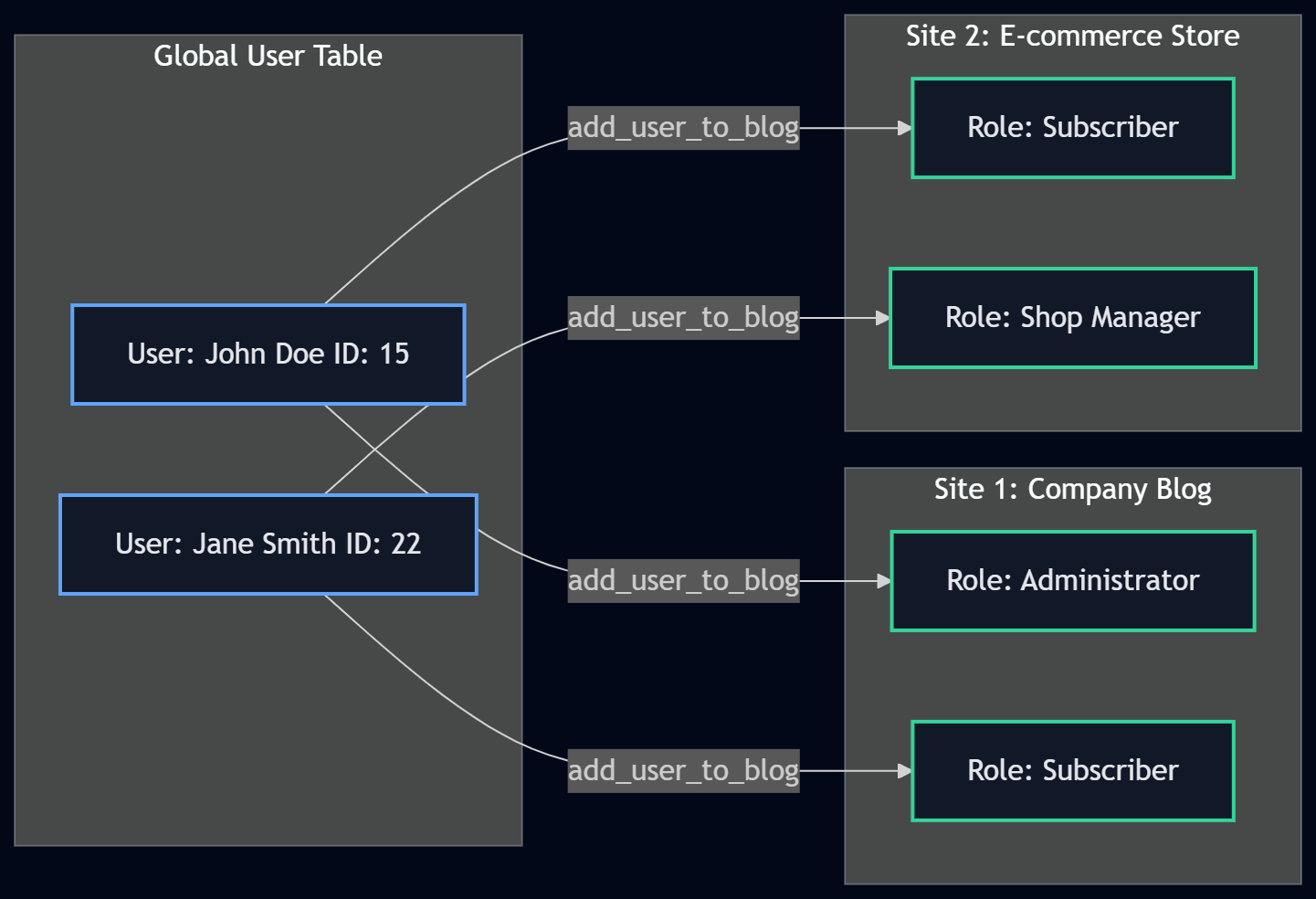
User management in Multisite is wildly different than in a standard setup. In standard WordPress, a user exists in that one site. In Multisite, a user has a Global Account (stored in the main wp_users table), but their role (Admin, Editor, Subscriber) is specific to each individual site.
You can be an Administrator on Site A, but just a Subscriber on Site B. To manage this complex dance, we use specific user functions.
1. add_user_to_blog( $blog_id, $user_id, $role )
This function takes an existing global user and assigns them a specific role on a specific site.
- Example: If you have a university Multisite, and a student signs up for a new class (which is a separate site), you would use this function to add their user ID to the class site with the ‘student’ role.
2. remove_user_from_blog( $user_id, $blog_id )
The exact opposite. It strips the user’s role and access from a specific site.
- Important note: This does not delete the user’s global account. It just kicks them out of that specific “apartment.” If they are only a member of that one site, they become a global user with zero site access (which is fine, they can still log in to edit their global profile if allowed).
3. is_user_member_of_blog( $user_id, $blog_id )
A simple true/false check. You ask it, “Does Bob have access to Site 3?” and it replies with a boolean. This is incredibly useful for conditional logic. For example, you might write a function that says: If the user is a member of the main blog, show them the company-wide announcement banner; otherwise, hide it.
Here is how the user architecture breaks down visually:
Category 5: Network-Wide Settings (The “Boss Level” Options)
In regular WordPress, you use get_option() and update_option() to save things like site title or background color. In Multisite, you have two levels of settings: Site Options (local to one apartment) and Network Options (apply to the whole apartment complex).
For network-wide settings, we use a completely different set of functions.
1. get_network_option( $network_id, $option_name, $default )
This retrieves a setting that applies to the entire network.
- Examples of Network Options: “Are new site registrations allowed?” “Should uploaded files be organized by month and year?” “What is the default theme for new sites?” (For example, the setting
site_adminsis a network option that stores an array of users who have Super Admin rights).
2. update_network_option( $network_id, $option_name, $value )
This saves or updates a network-wide setting.
- Why not just use
update_option? If you useupdate_optionon a Multisite network, it saves that setting to the current site’s options table. If you switch to another site, that setting won’t be there.update_network_optionwrites directly to thewp_sitemetatable, making it globally accessible.
3. delete_network_option( $network_id, $option_name )
Exactly what it sounds like. It permanently removes a network-wide setting from the database.
To make this crystal clear, let’s compare the two side-by-side:
| Feature | Site Options | Network Options |
|---|---|---|
| Database Table | wp_X_options (where X is site ID) | wp_sitemeta |
| Scope | Affects only the specific site | Affects the entire Multisite network |
| Get Function | get_option( 'key' ) | get_network_option( null, 'key' ) |
| Update Function | update_option( 'key', 'value' ) | update_network_option( null, 'key', 'value' ) |
| Typical Use Cases | Site title, specific plugin settings, local contact info | Global file upload limits, allowed registration types, Super Admin list |
| Who can edit? | Site Administrators | Super Admins only |
(Note: Passing null as the $network_id in network functions automatically targets the current network, which is what you want 99% of the time).
Putting It All Together: A Real-World Scenario
Let’s imagine you are building a plugin for a franchise business. The franchise has 50 locations, each with its own site in your Multisite network. The CEO comes to you and says: “I need a button on my Super Admin dashboard that, when clicked, turns on ‘Maintenance Mode’ across ALL 50 sites at the exact same time.”
How would you use the functions we just talked about to achieve this? Here is the mental process and the code:
- First, you need to get a list of all the sites in the network. You can do this using
get_sites(). - Then, you need to loop through each site.
- For each site, you need to
switch_to_blog(). - While inside that site, you use
update_option()to set a local site option calledmaintenance_modetotrue. - Finally, you
restore_current_blog()before moving to the next site in the loop.
Here is what that looks like in code:
function activate_global_maintenance_mode() {
    // Ensure only a Super Admin can run this
    if ( ! is_super_admin() ) {
        return;
    }

    // Get an array of all sites in the network
    $all_sites = get_sites();

    // Loop through every site
    foreach ( $all_sites as $site ) {
        // Jump to the specific site
        switch_to_blog( $site->blog_id );

        // Turn on maintenance mode for this specific site
        update_option( 'maintenance_mode_active', '1' );

        // Jump back to the original site
        restore_current_blog();
    }
}This small snippet perfectly demonstrates the power of Multisite functions. Without get_sites(), switch_to_blog(), update_option(), and restore_current_blog(), you would have to manually log into 50 different dashboards and click a checkbox 50 times.
The Pitfalls: What Can Go Wrong?
As awesome as these functions are, Multisite development comes with a few traps that catch beginners off guard. Let me save you some headaches.
The Memory Leak Trap
Every time you call switch_to_blog(), WordPress has to load new data into memory—new options, new taxonomies, new rewrite rules. If you put switch_to_blog() inside a foreach loop of 500 sites, and you forget to call restore_current_blog(), your server will run out of memory and crash. Always, always, always restore the blog.
The “Global” Plugin Trap
If you activate a plugin on the Network Admin level (Network Activate), its code runs on every single site. If your plugin uses a standard WP_Query without checking the current context, it might accidentally mix up posts from different sites if another plugin on the same page is using switch_to_blog(). Always scope your queries carefully.
Caching Complexities
Multisite caching is a beast. If you use a persistent object cache like Redis or Memcached, the keys for get_option() are usually namespaced by site ID. However, get_network_option() keys are namespaced by network ID. If you write custom caching logic, mixing up these namespaces will serve Site A’s cached data to Site B.
WrapUP
Managing a WordPress Multisite network manually is perfectly fine if you have three sites and a lot of free time. But if you are running a serious network—be it a university, a newspaper, or a franchise—relying on the UI alone will eventually bottleneck your growth.
Understanding Multisite Network Functions flips the script. It turns you from someone who maintains a network into someone who architects it. By mastering how to gather site details, safely jump between databases with switch_to_blog, manage global user roles, and separate site options from network options, you unlock the true power of what WordPress Multisite was designed to do.
Take these functions, play with them in a safe testing environment, and start automating your network. You’ll wonder how you ever lived without them.
References
- WordPress Developer Handbook: Multisite Functions
- WordPress Developer Handbook: switch_to_blog()
- WordPress Developer Handbook: get_network_option()
FAQs
What exactly is the difference between a regular WordPress site and a Multisite network?
Think of a regular WordPress site like a single-family house. It has its own yard, its own mailbox, and stands completely on its own. A Multisite network is like an apartment building. All the apartments share the same foundation, the same plumbing, and the same main address, but each apartment has its own locked door, its own interior design, and its own residents. In technical terms, it is one set of core WordPress files and one main database, but it is smart enough to keep the content and settings for each individual website separate.
I keep hearing about the “switch to blog” function. What does that actually do?
In the coding world, this is like having a master keycard for a hotel. Normally, if your code is running on the homepage of Site A, it only knows about Site A. If you use the “switch to blog” function and tell it to go to Site B, your code literally walks through the digital door of Site B. From that moment on, any command you give—like “show me the latest posts” or “what is the site title”—will pull that information from Site B instead of Site A.
Do I need to know how to code to run a Multisite network?
Not at all. If you just want to create a network of sites, you can do the entire setup through your normal WordPress dashboard. You can create new sites, add users, and install plugins just by clicking buttons. The specific network functions we talked about are only necessary if you want to build custom features, automate tasks, or create your own plugins to manage the network in ways the dashboard does not allow by default.
Can I just install any normal plugin on a Multisite network?
Yes and no. Most plugins will work perfectly fine. However, when you go to install a plugin as a Super Admin, WordPress asks if you want to “Network Activate” it or just activate it on one site. If you network activate it, the plugin runs on every single site in the building. Some older or poorly coded plugins were not built to handle this and might get confused because they are suddenly running in 10 different environments at the same time. Always test a plugin on a single site first before network activating it.
What happens if I use a switching function but forget to switch back?
Things get messy very quickly. Imagine you used your master keycard to walk into Site B to grab a piece of information, but you forgot to walk back out. Your website is now officially “stuck” in Site B’s brain. If a visitor loads your homepage on Site A, the website might accidentally display Site B’s menus, Site B’s logo, or even throw a fatal error because it cannot find the files it expects to see on Site A. That is why the “restore current blog” function is so strictly important.
If I change a setting on one site, does it change it for all the other sites?
Usually, no. By default, settings are isolated. If you change the background color on Site A, Site B stays exactly the same. They have their own separate settings tables in the database. The only time a setting affects the whole network is if it is specifically saved as a “Network Option.” Things like file upload limits for the whole network or turning off user registrations are network options. Everything else is kept strictly local to that specific site.
What is the actual difference between a regular Admin and a Super Admin?
A regular Admin is like a tenant who has the keys to their own apartment. They can paint the walls, move the furniture, and invite guests over (manage their own site). But they cannot touch the apartments next door. A Super Admin is the building manager. They have the master keys to every single door. They can create new apartments, kick out tenants, and change the rules for the entire building. Only Super Admins can access the special network dashboard to manage all the sites.
Do all the sites in my network have to look exactly the same?
Not unless you want them to. While they share the same underlying code, you can assign a different theme to every single site. Your main company site could be a massive corporate theme, while the individual employee blogs could be using a simple, minimalist theme. As a Super Admin, you can even control which themes are available for people to pick from when they create a new site.
Does running a bunch of sites on one installation make my server slower?
It actually can make things more efficient if you have a lot of sites, because they are all sharing the same core code instead of you having fifty separate copies of WordPress clogging up your hard drive. However, if your sites get a ton of traffic, or if you have poorly coded plugins running across the whole network, it can certainly slow things down because they are all fighting for the same database resources at the same time. Good hosting and proper caching solve this 99 percent of the time.
If I set up a Multisite, am I stuck with it forever? Can I pull one site out?
You are not stuck, but pulling a single site out of a Multisite network to make it a standalone site is not a simple one-click process. Because the database tables are tangled together (for example, users are shared globally), you have to export the specific data for that one site, create a brand new standalone WordPress installation somewhere else, and carefully import that data so it maps to the new standalone tables. It is totally doable, but it usually requires a developer to ensure no data is left behind or broken.