Let’s be honest for a second. If you’ve been using WordPress for a while, the jump from the Classic Editor to Gutenberg (the Block Editor) felt like landing on a different planet. I remember staring at that blank white screen with a single lonely paragraph block, wondering, “Where do I even put my HTML? How do I add a margin?”
For a long time, I treated Gutenberg like just another visual page builder—something I had to tolerate because it was becoming the standard. But the more I dug into it, the more I realized it isn’t just a fancy text box. It’s a complete shift in how WordPress thinks about content.
Today, I want to walk you through how Gutenberg Blocks actually work. Not just “how to click them,” but what is happening under the hood when you drag a Heading block onto the page or hit “Publish.” I’m going to break this down into plain English, just like I wish someone had explained it to me over a coffee three years ago.
Table of Contents
The Big Mindset Shift: From “Soup” to “Lego”
To understand how blocks work, we first need to unlearn how the old WordPress worked.
The Old Way (The Classic Editor)
In the Classic Editor, when you wrote a post, you were essentially creating one giant bowl of alphabet soup. You typed text, maybe bolded a word, added an image, and switched between the “Visual” and “Text” tabs.
Behind the scenes, WordPress stored all of that as a single giant string of HTML inside the database. It looked something like this:
<h2>My Trip to Paris</h2>
<p>We had a great time. Here is a photo:</p>
<img src="paris.jpg">
<p>The food was amazing.</p>It was all just one big chunk of code. If you wanted to move that image to the top, you had to cut and paste code or drag it around blindly.
The New Way (Gutenberg)
Gutenberg changes this completely. Instead of one big chunk of HTML, it treats your content as a collection of distinct objects—Blocks.
Think of it like Lego bricks.
- One brick is a Paragraph.
- One brick is an Image.
- One brick is a Heading.
When you build a page, you are snapping these bricks together.
Why does this matter? Because each brick knows what it is. An “Image Block” knows it holds an image. A “Quote Block” knows it’s a citation. Because they are self-aware, WordPress can manipulate them individually without breaking the rest of the page.
The Anatomy of a Block: What’s Inside?
So, what exactly makes up a block? Is it magic? No, it’s actually just structured data. Every single block on your page—whether it’s a simple text block or a complex pricing table—is made up of three main ingredients. Let’s visualize this :
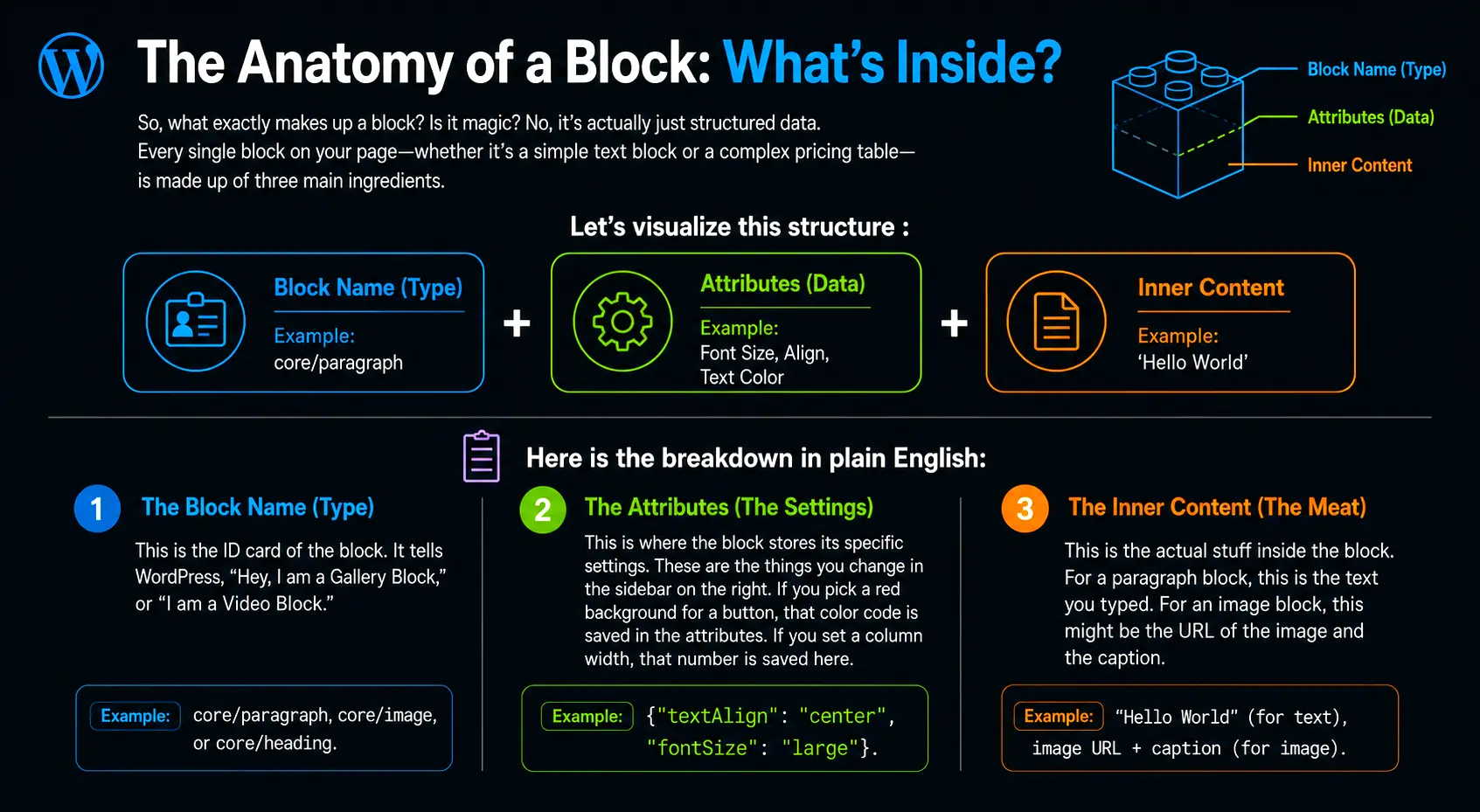
Here is the breakdown :
1. The Block Name (Type)
This is the ID card of the block. It tells WordPress, “Hey, I am a Gallery Block,” or “I am a Video Block.”
- Example:
core/paragraph,core/image, orcore/heading.
2. The Attributes (The Settings)
This is where the block stores its specific settings. These are the things you change in the sidebar on the right. If you pick a red background for a button, that color code is saved in the attributes. If you set a column width, that number is saved here.
- Example:
{"textAlign": "center", "fontSize": "large"}.
3. The Inner Content (The Meat)
This is the actual stuff inside the block. For a paragraph block, this is the text you typed. For an image block, this might be the URL of the image and the caption.
The “Block Comment” Wrapper
Now, here is the cool part that you don’t see. When you save your post, WordPress wraps these blocks in special HTML comments. If you ever peek into the “Code Editor” view in Gutenberg, you’ll see them. It looks like this:
<!-- wp:paragraph {"align":"center"} -->
<p class="has-text-align-center">Hello, this is a block!</p>
<!-- /wp:paragraph -->See that? The <!-- wp:paragraph ... --> part is the hidden instruction manual for WordPress. It says, “Everything between these comments is a Paragraph block, and by the way, the user wanted it centered.”
When you load the page on the front end of your site, WordPress reads these comments, rips them out (so your visitors don’t see them), and replaces them with the proper HTML styling.
How Data Flows: The Lifecycle of a Block
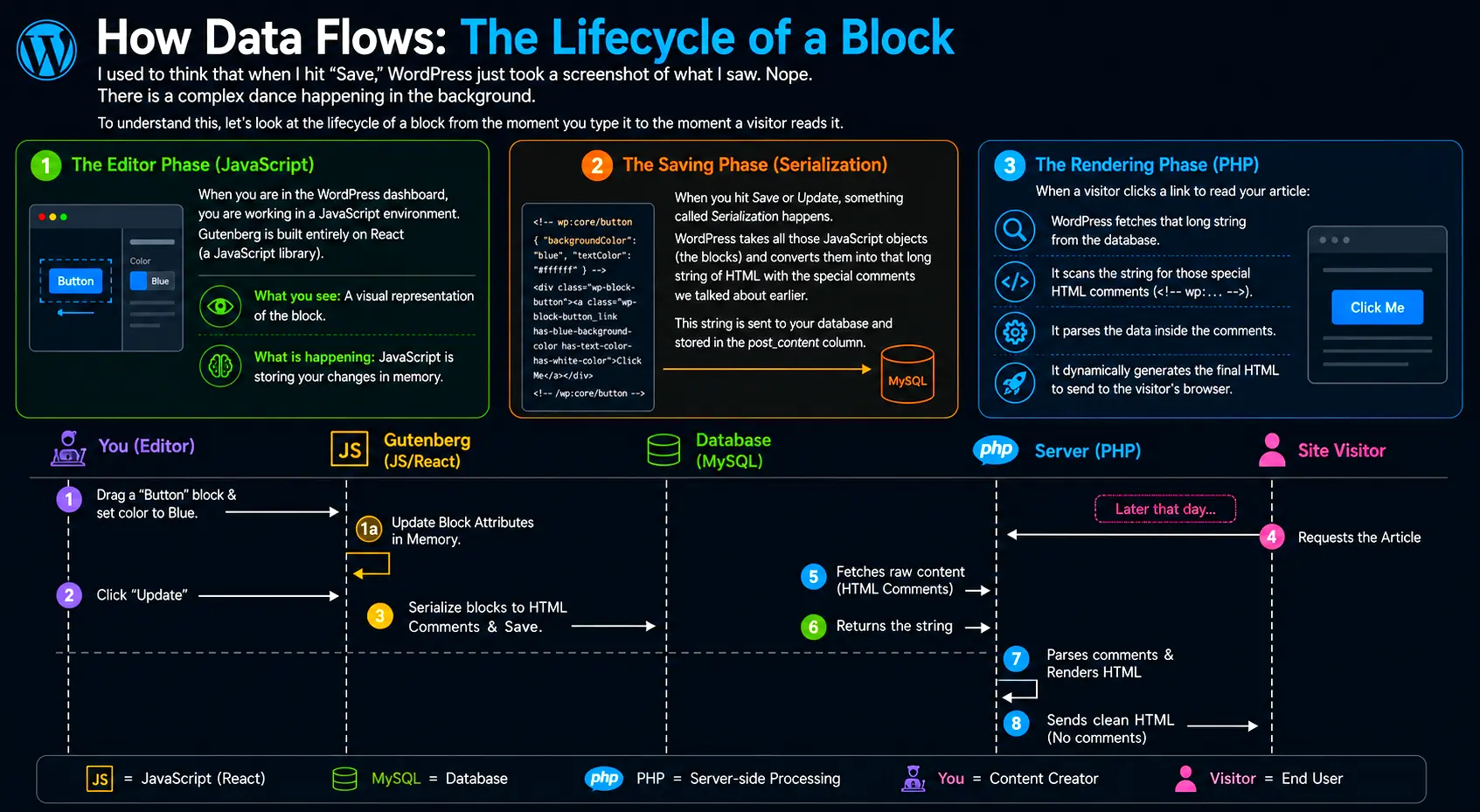
I used to think that when I hit “Save,” WordPress just took a screenshot of what I saw. Nope. There is a complex dance happening in the background.
To understand this, let’s look at the lifecycle of a block from the moment you type it to the moment a visitor reads it.
The Editor Phase (JavaScript)
When you are in the WordPress dashboard, you are working in a JavaScript environment. Gutenberg is built entirely on React (a JavaScript library).
- What you see: A visual representation of the block.
- What is happening: JavaScript is storing your changes in memory.
The Saving Phase (Serialization)
When you hit Save or Update, something called Serialization happens. WordPress takes all those JavaScript objects (the blocks) and converts them into that long string of HTML with the special comments we talked about earlier. This string is sent to your database and stored in the post_content column.
The Rendering Phase (PHP)
When a visitor clicks a link to read your article:
- WordPress fetches that long string from the database.
- It scans the string for those special HTML comments (
<!-- wp:... -->). - It parses the data inside the comments.
- It dynamically generates the final HTML to send to the visitor’s browser.
Here is a diagram of that flow to make it clearer:
Static vs. Dynamic Blocks: A Crucial Distinction
This is the part that trips most people up. Not all blocks are created equal. There are two main types of blocks, and knowing the difference is key to understanding how WordPress performs.
1. Static Blocks
These are your bread-and-butter blocks. Paragraphs, Headings, Lists, Images (usually).
- How they work: The HTML for the content is saved directly into the database.
- Example: If you write “Hello World” in a paragraph block, “Hello World” is literally saved in the database.
- Pros: Very fast to load. The database just spits out the text.
2. Dynamic Blocks
These are the “living” blocks. Examples include the Latest Posts block, the Calendar, or blocks from plugins like WooCommerce (e.g., “Add to Cart”).
- How they work: The database does not save the final HTML. Instead, it saves a tiny instruction that says, “When the page loads, run the PHP function to build this.”
- Example: If you add a “Latest Posts” block, it doesn’t save the list of posts right now. It saves a reference to that block. When a visitor arrives next week, PHP runs a query, finds your newest post, and builds the HTML on the fly.
- Pros: Always up to date. If you publish a new blog post, your “Latest Posts” block updates automatically across your site without you editing the page.
Comparison Table:
| Feature | Static Block | Dynamic Block |
|---|---|---|
| Storage | Full HTML content is stored in the DB. | A function reference (block name) is stored. |
| Processing | Rendered once when saved. | Rendered every time a user visits the page. |
| Examples | Paragraph, Image, HTML, Columns. | Latest Posts, Navigation Menu, Shortcodes. |
| Update Behavior | Stays the same until you edit it. | Changes automatically if content changes. |
How Blocks Talk to Each Other: The InnerBlocks System
Have you ever used a “Columns” block? You drop it in, and then you drop other blocks inside the columns. How does that work?
This is thanks to a feature called InnerBlocks.
Think of the Columns Block as a parent, and the Paragraph Blocks inside it as children. The parent block is essentially an empty container that says, “I hold other blocks.”
From a code structure perspective, it looks like a nested tree.
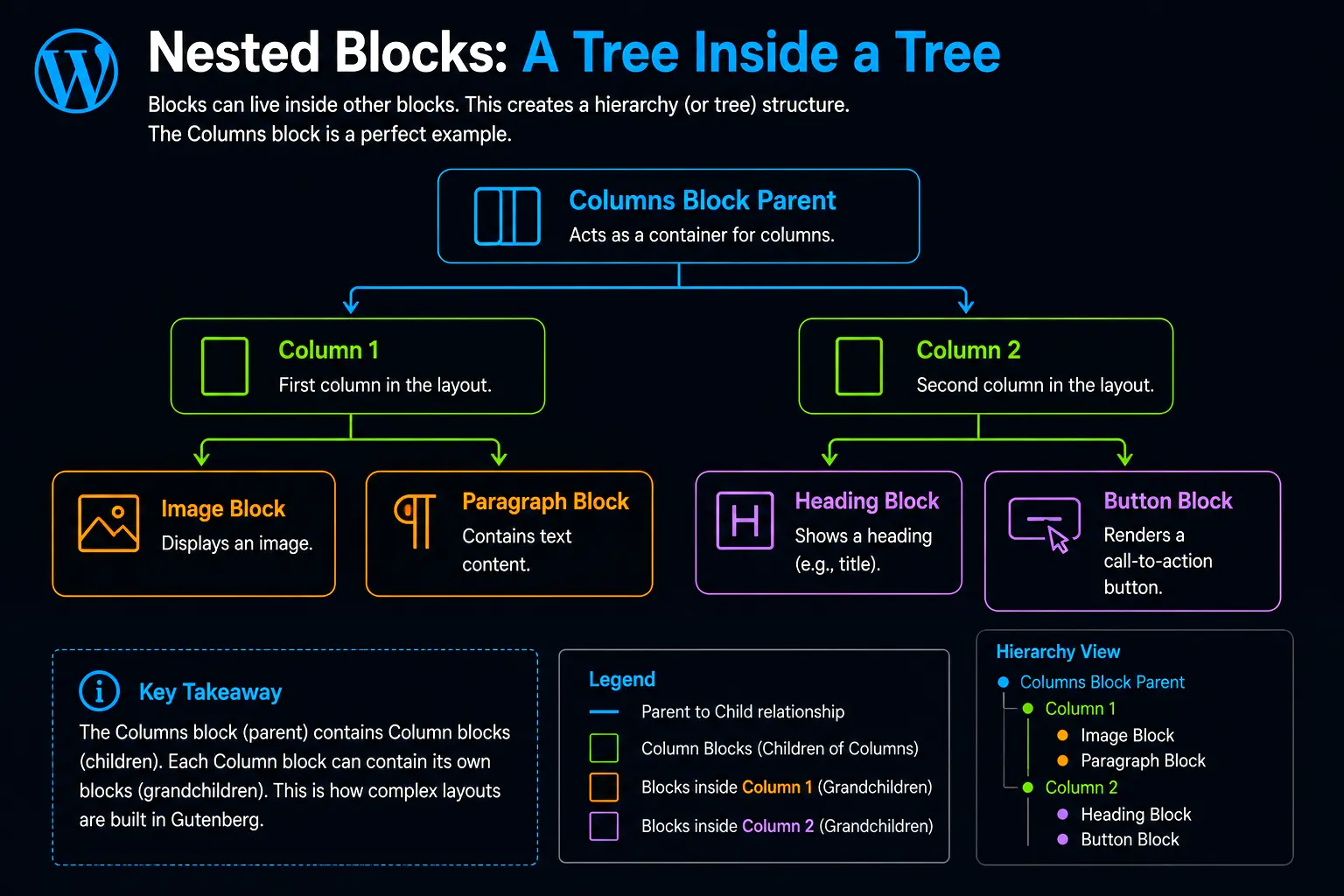
This nesting is infinite. You can put a Columns block inside a Group block, inside another Columns block. Because everything is a block, they all stack together perfectly like Russian dolls. This flexibility is what allows you to build complex layouts without knowing a single line of CSS.
A Peek Under the Hood: How Blocks Are Built (For the Curious)
You don’t need to be a coder to use Gutenberg, but understanding how a block is defined helps explain why they are so powerful.
Developers create blocks using JavaScript (specifically React). A block definition usually consists of two main functions:
edit: This defines what the block looks like in the editor (the dashboard). It includes the toolbar, the input fields, and the sidebar settings.save: This defines what gets saved to the database. It returns the HTML that wraps the content.
Here is a simplified, conceptual example of how a developer defines a block. Don’t worry if you don’t know JavaScript—just look at the logic:
// This is a simplified concept of a block definition
wp.blocks.registerBlockType('my-plugin/special-box', {
    title: 'My Special Box',

    // 1. What happens in the Editor?
    edit: function( props ) {
        return (
            <div className="special-box-editor">
                <input
                    value={ props.attributes.content }
                    onChange={ (e) => props.setAttributes( { content: e.target.value } ) }
                />
                <p>Preview: { props.attributes.content }</p>
            </div>
        );
    },

    // 2. What gets saved to the Database?
    save: function( props ) {
        return (
            <div className="special-box-final">
                { props.attributes.content }
            </div>
        );
    }
});See the split?
- The
editfunction gives you the input box to type in. - The
savefunction takes that text and wraps it in adivtag to be stored.
This separation allows the editor to look completely different from the final website, which is why you can see “placeholder” images or grey boxes in the editor that look beautiful on the live site.
Why “Block Patterns” and “Reusable Blocks” Change Everything
Now that you know how blocks work (as structured data), you can understand two of the most powerful features in WordPress: Reusable Blocks and Block Patterns.
Reusable Blocks (Synced)
Since a block is just data stored in the database, what if we reference that same data in multiple places?
Let’s say you have a “Call to Action” block that you want at the bottom of every blog post.
- You create the block once.
- You click “Add to Reusable Blocks.”
- You give it a name.
WordPress now saves this block in a separate global list. When you insert that “Reusable Block” into 50 different pages, you aren’t copying the HTML. You are essentially pasting a shortcut that points to that master block.
If you edit the master block? It updates instantly on all 50 pages. That is the power of structured data over static HTML.
Block Patterns
Patterns are simply a pre-arranged collection of blocks. Instead of manually adding a Heading, then three Columns, then three Images, then three Buttons… a “Pattern” is a recipe that says, “Here, dump all these blocks onto the page at once in this exact order.”
It lowers the barrier to design. You don’t build the Lego castle brick by brick anymore; you grab a pre-built section and snap it on.
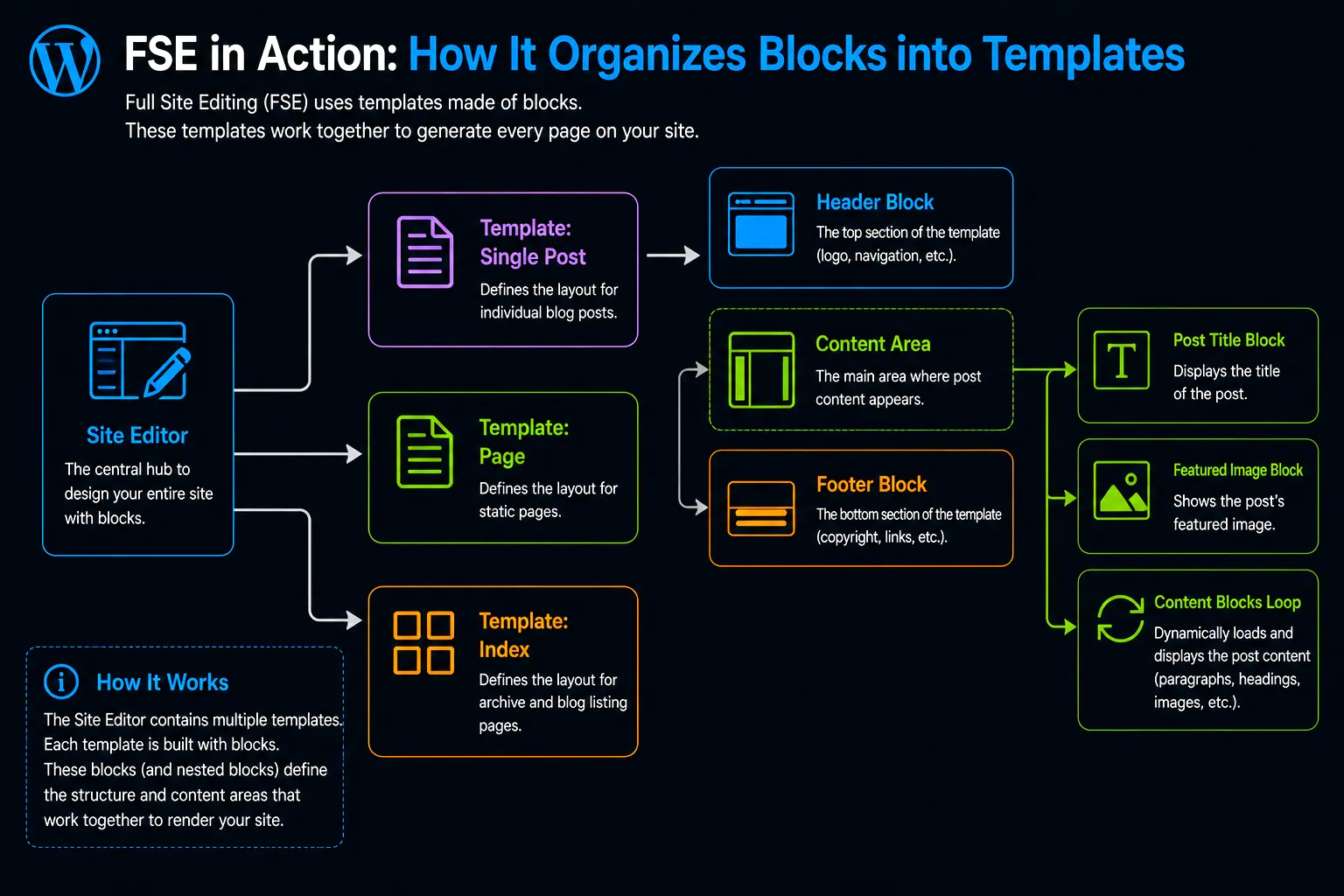
The Future of the Web: Full Site Editing (FSE)
I want to touch on where this is all going. For years, themes controlled everything. If you wanted a different header, you had to switch themes or hack PHP files.
Because blocks work so well, WordPress introduced Full Site Editing.
Now, your Header? It’s a block. Your Footer? It’s a block. Your 404 page? It’s a collection of blocks.
This means the entire visual interface of your site is using the same “Lego” system we just discussed. You aren’t limited to a Theme’s options anymore. You can drag your header, move the logo to the left, change the menu color—all using the same block logic.
Here is a visual representation of how FSE organizes these blocks into templates:
Common Pain Points and How to Handle Them
I don’t want to paint a picture that everything is perfect. Working with blocks has its frustrations.
1. “My spacing is all weird.”
In the old days, we used margin-bottom in CSS. Now, blocks have their own spacing settings (Padding and Margin controls in the sidebar).
- The Fix: Look for the “Dimensions” panel in the block settings. Don’t try to force spacing with
characters (non-breaking spaces). Use the block’s native spacing tools.
2. “I can’t style this specific element the way I want.”
Sometimes you just want to change one tiny thing, and the block settings don’t allow it.
- The Fix: Use the “Additional CSS Class” setting found in the Advanced tab of almost every block. You can give a block a name like
my-custom-red-boxand then write standard CSS in the Customizer:css.my-custom-red-box {border: 2pxsolidred;}
This bridges the gap between the no-code block editor and traditional CSS.
3. “There are too many blocks!”
Scrolling through 100 different blocks to find “Spacer” is annoying.
- The Fix: Use the “/” shortcut. Type
/followed by the block name you want (e.g.,/imageor/gallery) directly in the editor. It’s a massive time saver.
Wrapping It Up
Learning Gutenberg was like learning a new language for me. At first, it felt restrictive compared to the freedom of raw HTML. But once I understood that Blocks are just structured data objects wrapped in HTML comments, it clicked.
They work because they separate content (what you say) from structure (how it’s organized) and presentation (how it looks).
- Structure is handled by the Block API.
- Content is handled by the Database.
- Presentation is handled by the Theme and CSS.
By treating every piece of content as an independent “brick,” WordPress has given us the ability to build complex, responsive websites without needing to be a full-stack developer. It’s not just a text editor anymore; it’s a visual website construction kit.
So, next time you drag a block onto the canvas, remember: you aren’t just typing. You’re assembling data structures. And honestly? That’s pretty cool.
References
If you want to dive deeper into the technical side or just want to read the official documentation, check these out:
- WordPress Block Editor Handbook
- Gutenberg Explained: A Deep Dive into the Block Editor
- An Introduction to Dynamic Blocks
FAQs
What exactly is a “Block” in simple terms?
Think of a block as a single piece of content. In the old days, WordPress treated your whole page as one giant blob of text. Now, it breaks things down. A paragraph is a block. An image is a block. A button is a block. It is like using Lego bricks; you snap different pieces together to build a page instead of carving it out of one giant stone.
Do I need to know how to code to use Gutenberg?
Not at all. That is the whole point of Gutenberg. It was built so that everyday users can build complex layouts without touching a single line of HTML or CSS. You can change colors, add columns, and resize images just by clicking buttons and dragging sliders in the sidebar.
Will my old blog posts break if I switch to Gutenberg?
No, they won’t. WordPress is smart enough to handle your old content. When you open an old post created with the Classic Editor, WordPress automatically wraps all that old content inside a “Classic Block.” It looks and acts exactly like the old editor, so your past work is completely safe.
What is the difference between a “Static” and a “Dynamic” block?
A Static block is like writing in pen. Once you publish it, it stays exactly that way until you manually change it. A Dynamic block is like a live feed. It pulls information fresh from your database every time someone visits the page. For example, a “Latest Posts” block is dynamic because it updates automatically whenever you write a new article.
Can I still use custom HTML or CSS if I want to?
Yes, you can. If you feel limited by the visual controls, you can add a “Custom HTML” block and paste in your own code. Also, almost every block has an “Advanced” section where you can add a special CSS class name, allowing you to style that specific block however you want using your theme’s customizer.
What are “Reusable Blocks” and why are they useful?
Reusable blocks are like a “save and copy” feature on steroids. Let’s say you have a specific email signup box that you want at the bottom of every post. You turn it into a Reusable Block. Now, whenever you update that one block, it updates automatically on every single page where you used it. It saves you a ton of time.
Why does the editor look different from my actual website?
Don’t panic if things look slightly different in the editor compared to the live site. The editor is a workspace. Your actual WordPress Theme controls the final styling (fonts, colors, spacing) on the front end. The editor gives you a rough idea, but the theme applies the makeup before the visitors see it.
What is the easiest way to find the block I need?
You don’t have to hunt through menus all day. The quickest trick is to type a forward slash / directly into the editor where you want the block to go. A menu will pop up instantly. Just start typing the name of the block (like “image” or “heading”) and hit enter. It’s a huge time saver.
Can I move things around easily once I write them?
Yes, this is one of the best features. In the old editor, moving an image from the bottom to the top of a page meant cutting and pasting code and hoping you didn’t break anything. With blocks, you just hover over the block, click the “Move” arrows (or the drag handle), and drop it exactly where you want it.
Are “Block Patterns” the same as “Reusable Blocks”?
No, they are different. Reusable Blocks are content you created yourself that you want to sync across multiple pages. Block Patterns are pre-designed layouts created by WordPress or your theme designer. Think of patterns as templates—you click one, and it dumps a full layout (like a two-column text and image setup) onto the page for you to fill in.