Hey there, WordPress friends. If you felt a little whiplash yesterday trying to keep up with your dashboard updates, you are definitely not alone.
Usually, WordPress updates are pretty straightforward. You get a notification, you click update, you drink your coffee, and life goes on. But the last 24 hours have been anything but normal. We saw a security release that was supposed to fix ten vulnerabilities, but instead, it turned into a bit of a drama. Some sites crashed, developers scrambled, and before we knew it, we had two more updates landing on our doorstep in a single day.
Let’s sit down and break this whole saga down. I want to walk you through exactly what happened with WordPress 6.9.2, why it broke some websites, and why you really need to update to version 6.9.4 right now.
Table of Contents
How It All Started: The Security Alert
It all started with WordPress 6.9.2. This was planned as a crucial security release. For those who don’t know, a security release isn’t about shiny new features or a cooler block editor; it is strictly about locking the doors and windows of your website to keep the bad guys out.
The WordPress team identified ten vulnerabilities. That sounds scary, and honestly, ignoring it is a bad idea. However, things didn’t go exactly as planned. When users started hitting that “Update Now” button, a portion of the community found themselves staring at a terrifying sight: a completely blank white screen.
This phenomenon, affectionately known in the tech world as the White Screen of Death (WSOD), basically means your site is loaded but nothing is rendering. You can’t see your content, your visitors can’t see anything, and panic sets in.
The Timeline of the Crash
To understand the chaos, let’s look at how the events unfolded. It wasn’t a long, drawn-out process; this happened fast.
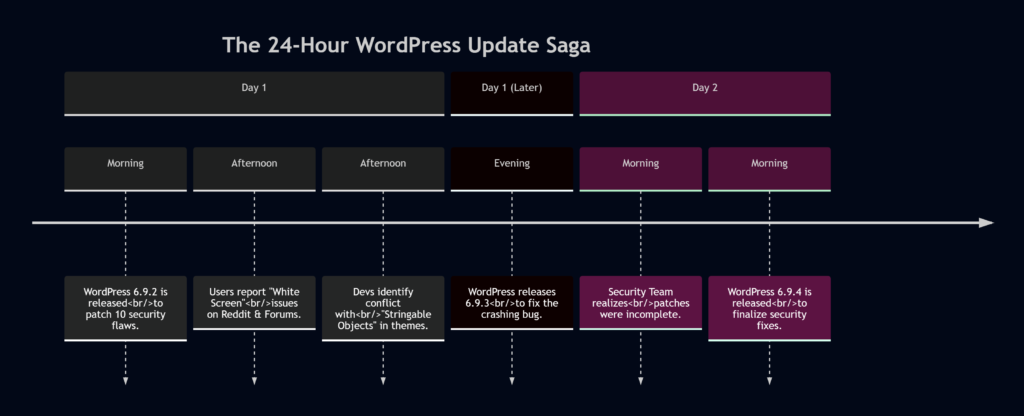
User Reactions and The “White Screen” Panic
Imagine waking up, checking your email, and seeing a notification from your host saying your site auto-updated. You click the link to check your site, and… nothing. Just white.
That’s exactly what happened to a user on the DreamHost platform. They reported that after the auto-update to WordPress 6.9.2, their front end vanished. The weird part? The back end (the admin dashboard) worked fine. They could log in, edit pages, and see their content in the editor, but the actual website was invisible.
Here is a snippet of the frustration shared in the forums:
“Now any page I try to load is coming up blank. I can still log into the back end, the pages are still there for editing… but when I go to the home page… nothing is displaying (view source is also empty.)”
This wasn’t an isolated incident. Discussion threads on Reddit and the official WordPress forums lit up. People were speculating about “vibe coding” or conflicts with specific themes like the Crio theme.
Why Did The Sites Crash? (The Technical Explanation)
So, what was the culprit? Was it a hack? Was the update corrupted?
Nope. It came down to how some themes handle files.
WordPress works by loading “templates.” When you visit a page, WordPress runs a chain of code to figure out which template file to show you. In the 6.9.2 update, the security team hardened how files are loaded to prevent attacks. In doing so, they tightened the rules on the template_include filter.
Here is where it gets technical, but stay with me.
Standard WordPress practice says that a template path should be a string (text). However, some clever (or perhaps confused) theme developers were using something called a Stringable Object.
What is a Stringable Object?
In simple programming terms, a “Stringable Object” is an object (a complex data type) that can behave like a simple text string. It’s a bit like a chameleon. It looks like an object, but when you try to use it as text, it transforms.
The problem? The security patch in 6.9.2 said, “I am only accepting pure strings. No chameleons allowed.” This strictness is good for security, but bad for themes that were relying on that chameleon behavior.
A Code Example
If you are a developer or just curious, here is what the conflict looked like conceptually.
The “Wrong” Way (Unsupported but worked before 6.9.2):
class My_Custom_Template_Loader {
    // This magic method allows the object to act like a string
    public function __toString() {
        return '/themes/mytheme/custom-template.php';
    }
}

// A theme might have done this:
add_filter( 'template_include', function() {
    // Returning an Object, not a String
    return new My_Custom_Template_Loader();
} );What WordPress 6.9.2 Did:
It checked the return value and said, “Hey, this is an Object, not a String! I don’t know how to load this.” And since it didn’t know what to do, it just loaded… nothing. Hence, the White Screen.
The Rescue: Enter WordPress 6.9.3
To their credit, the WordPress core team moves fast when things break. Within hours, they identified that while the theme developers were technically using an “unsupported” method, breaking live websites was not an acceptable outcome.
They released WordPress 6.9.3. This was a bugfix release.
The update didn’t remove the security fixes; instead, it added a layer of tolerance. It essentially told WordPress, “Okay, if a theme gives you a ‘Stringable Object,’ try to convert it to a string before you give up.”
As the official notes explained:
“Although this is not an officially supported approach… it nevertheless caused some sites to break so the team have decided to address this in a fast follow 6.9.3 release.”
So, problem solved, right? Sites were coming back online. The community breathed a sigh of relief.
But the day wasn’t over yet.
The Twist: Why We Needed 6.9.4
Just when we thought it was safe to go back to the dashboard, WordPress dropped version 6.9.4. You might be thinking, “Oh great, what broke now?”
Actually, nothing broke this time. This was a correction to the security release itself.
It turns out that during the chaos of fixing the white screen issue, the WordPress Security Team discovered something alarming: not all of the security fixes were fully applied in the 6.9.2 release.
Let that sink in. Version 6.9.2 patched ten vulnerabilities, but due to an oversight in how the patches were deployed, some of those fixes weren’t actually active. Version 6.9.3 fixed the crash, but the security gap remained.
WordPress 6.9.4 is the final, complete package. It contains the necessary additional fixes to ensure all ten vulnerabilities are actually patched, and it keeps the bugfix from 6.9.3 that stops the white screen issue.
Deep Dive: The Vulnerabilities We Are Fixing
Now that we have the timeline sorted, let’s talk about the “why.” Why were three updates necessary? Because the risks were real.
Security firm Wordfence published an advisory detailing four of the ten vulnerabilities. These weren’t just minor glitches; they represented real doors that hackers could walk through.
Here is a summary of the risks:
The Vulnerability Breakdown
| Vulnerability Name | Severity (CVSS) | What It Does | Who Can Exploit It? |
|---|---|---|---|
| XXE via getID3 Library | 6.5 (Medium) | Allows attackers to read sensitive files from the server (like wp-config.php). | Authors (and up) |
| Stored XSS in Nav Menus | 4.4 (Medium) | Injects malicious scripts into navigation menus to hijack admin sessions. | Administrators |
| AJAX Query Attachments Bypass | 4.3 (Medium) | Allows users to see media files they shouldn’t have access to. | Authors (and up) |
| Arbitrary Note Creation | 4.3 (Medium) | Allows creation of notes via REST API without proper permission. | Subscribers (and up) |
Understanding the Dangers
Let’s break down the scariest ones in plain English.
1. The XML External Entity (XXE) Injection
This was the most serious flaw rated at 6.5. It involves a library called getID3, which WordPress uses to read metadata from media files (like MP3s or videos).
- The Scenario: An attacker with “Author” permissions (someone who can write posts) uploads a special audio file.
- The Hack: Hidden inside that audio file is malicious XML code.
- The Result: When WordPress processes this file, the code executes, potentially revealing the contents of sensitive files on your server, such as configuration files containing database passwords.
2. Stored Cross-Site Scripting (XSS)
This one is sneaky. It allows an attacker to inject malicious scripts into your website.
- The Scenario: An admin (or someone with high privileges) is tricked into clicking a link or viewing a menu item that has been tampered with.
- The Hack: The malicious code runs in the admin’s browser.
- The Result: The attacker can hijack the admin session, create new admin users, or take over the site completely without the real admin knowing.
3. The “Subscriber” Risk
One interesting detail is that some of these vulnerabilities could be triggered by Subscribers. In WordPress, a “Subscriber” is the lowest level of user access—usually just someone who can read posts or maybe leave comments.
However, if a site allows open registration, a hacker could sign up as a Subscriber and then exploit the Missing Authorization bug in the Notes feature or REST API to cause trouble. This is why these updates are critical, even for sites that don’t have high-level authors.
The Full List of Fixes
While Wordfence detailed four, WordPress.org listed a total of ten vulnerabilities. The remaining six included:
- A Blind SSRF (Server-Side Request Forgery) issue.
- A PoP-chain weakness in the HTML API.
- A Regex DoS (Denial of Service) weakness.
- Stored XSS via the data-wp-bind directive.
- A PclZip path traversal issue.
- An XSS allowing overrides of client-side templates.
That is a lot of holes to plug. Missing just one of these patches (which happened in the transition from 6.9.2 to 6.9.4) leaves your site exposed.
How to Update Safely
At this point, you might be hesitant to click that “Update” button after hearing about the crashes. I get it. But staying on an old version is dangerous, especially when we know security patches were incomplete.
Here is a safe workflow to update to WordPress 6.9.4 without the headache:
- Backup Your Site: This is rule number one. Before doing anything, use a plugin or your hosting provider’s tools to create a full backup.
- Check Your Theme: If you are using a custom theme or a lesser-known theme, check with the developer to ensure it is compatible with the latest WordPress standards. If you are using a major theme like Astra, GeneratePress, or official WordPress themes, you are likely fine.
- Disable Plugins (Optional): If you are extra cautious, disable your plugins temporarily, update WordPress, and then re-enable them one by one. This helps isolate conflicts.
- Update to 6.9.4: Do not stop at 6.9.3. You need the latest version.
- Test Your Site: Don’t just check the homepage. Check a blog post, your shop page (if you have WooCommerce), and your admin dashboard.
Why This Matters for the Future
This incident highlights a growing pain in the WordPress ecosystem. WordPress powers over 40% of the web. That makes it a massive target for hackers, but it also means that a simple coding mistake in a core update can affect millions of sites in minutes.
The reaction from the WordPress team—releasing two follow-up updates in 24 hours—shows how responsive they are. They didn’t wait for a monthly cycle. They saw a bug (the white screen) and a security gap (the incomplete patch) and fixed it immediately.
However, it also serves as a reminder to theme developers: stick to the WordPress Coding Standards. The sites that crashed were using “unofficial” ways of loading templates. While WordPress tried to accommodate them, relying on unsupported code is a ticking time bomb.
WrapUP
It has been a bumpy 24 hours for the WordPress community. We went from a standard security update to a widespread crashing issue, followed by a rapid bugfix, and finally a correction to ensure the security was actually doing its job.
If you are running a WordPress site, the message is clear: Update to 6.9.4 immediately. Don’t let the fear of the 6.9.2 crash stop you. The team has fixed the template loading bug and ensured that all ten security vulnerabilities are properly addressed. Ignoring this update leaves you open to risks that are easily preventable.
Stay safe, keep your backups handy, and happy blogging!
References
- WordPress.org News – WordPress 6.9.4 Security Release
- WordPress Support Forums – 6.9.2 White Screen Discussion
FAQs
Why did WordPress release three updates in just 24 hours?
It was essentially a chain reaction. The first update (6.9.2) was for security but accidentally broke some websites. The second update (6.9.3) rushed out to fix the broken websites. Then, the team realized the first security job wasn’t finished, so they released a third update (6.9.4) to ensure all the security holes were actually plugged.
What caused the “White Screen of Death” after update 6.9.2?
The issue was a conflict between the new security code and certain themes. The themes were using an unconventional method to load files. When WordPress tightened the rules for security purposes, it blocked those themes from working, resulting in a blank white screen for the visitor.
Is it safe to update my website to version 6.9.4 now?
Yes, it is highly recommended. Version 6.9.4 is the complete package. It fixes the bug that caused the white screen and ensures that all ten security vulnerabilities are properly patched. It is currently the safest version to run.
Do I need to install 6.9.2 and 6.9.3 before installing 6.9.4?
No, you do not. WordPress updates are incremental but you can jump straight to the finish line. If you are on an older version, you can update directly to 6.9.4 and it will include all the fixes from the previous versions.
Why was version 6.9.2 considered “incomplete”?
It was a human error. While the WordPress Security Team intended to patch ten vulnerabilities, they discovered that some of the code fixes were not fully applied during the release process. Version 6.9.4 was released specifically to apply those missing fixes.
What is the “XXE Injection” vulnerability mentioned in the reports?
This was one of the more serious flaws. In simple terms, it allowed a hacker with an “Author” account to upload a special media file. When the site processed this file, it could trick the server into revealing sensitive information, like passwords or configuration files.
How can I prevent update problems like this in the future?
The best practice is to always have a recent backup before hitting “update.” If you are managing a critical business site, it is smart to test updates on a “staging” copy of your site first, rather than updating your live site immediately.