
Let me be honest with you. When I first heard about Schema Markup a few years back, I rolled my eyes. “Great, another SEO buzzword,” I thought. I was already drowning in keyword research, backlink strategies, and content optimization. The last thing I wanted was to learn some technical jargon that promised the moon but delivered nothing.
But then something happened. I was working on a client’s WordPress site — a small local bakery — and despite having great content, they weren’t showing up in those fancy search results with star ratings, images, and quick info. You know, the ones that make you click before you even finish reading the title. Their competitor, who had worse content but somehow had those rich snippets, was stealing all the traffic.
That’s when I dug into Schema Markup. And honestly? It changed everything. Within three weeks of implementing it properly, my client’s site started showing up with ratings, pricing, and operating hours right in Google search results. Traffic jumped 40%.
So, I’m writing this article to save you the headache I went through. I’ll explain Schema Markup in WordPress the way I wish someone had explained it to me — in plain English, with real examples, and without the fluff.
Table of Contents
What Is Schema Markup, Really?
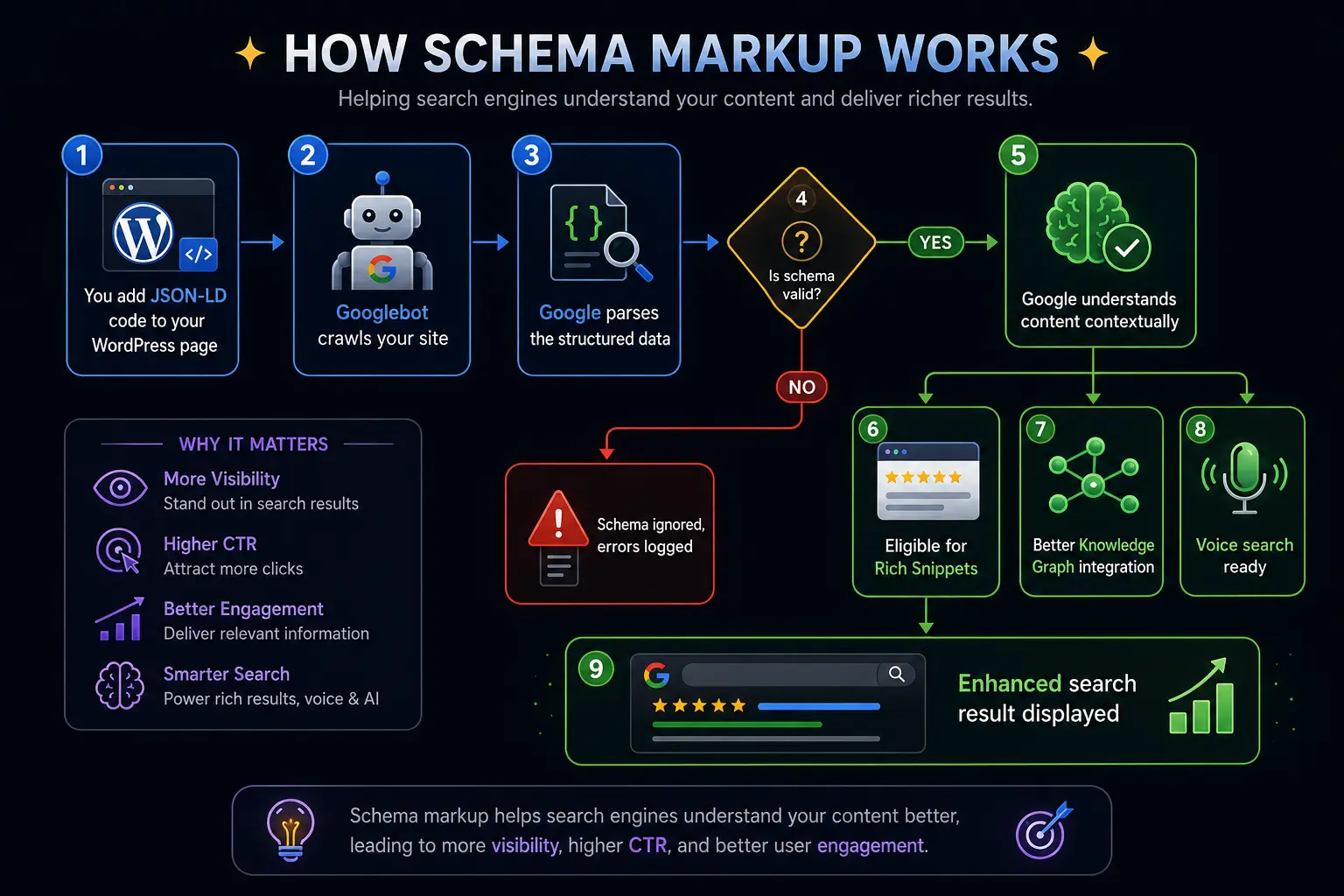
Let me break this down simply. Schema Markup is a form of structured data — basically, a special code you add to your website that helps search engines understand what your content actually means, not just what it says.
Here’s an analogy that helped me: Imagine you’re at a party, and someone says, “I’m a Baker.” Without context, you might think they bake as a hobby. But if they hand you a business card that says “John Smith, Owner of Sweet Treats Bakery, Open Mon-Fri 9-5,” you suddenly know exactly who they are, what they do, and how to find them.
Schema Markup is that business card for search engines.
Without schema, Google reads your page and thinks, “Okay, there’s some text here about a bakery, and there are some hours mentioned somewhere.” With schema, Google knows, “This is a bakery called Sweet Treats, located at 123 Main Street, open 9 AM to 5 PM on weekdays, with an average rating of 4.7 stars from 230 reviews.”
Why Does Schema Markup Matter for WordPress Sites?
I’ve worked with dozens of WordPress sites over the years, from tiny blogs to large e-commerce stores. Here’s what I’ve learned about why schema matters:
1. Better Search Visibility
When you implement Schema Markup, your site becomes eligible for rich snippets — those enhanced search results that stand out. I’m talking about:
- Star ratings under product reviews
- Recipe cards with cooking times and ingredients
- Event listings with dates and venues
- FAQ accordions right in search results
- Breadcrumb navigation trails
2. Higher Click-Through Rates
This one’s backed by data. Rich snippets can increase your CTR (Click-Through Rate) by up to 30%. When your result takes up more space and shows useful info upfront, people click. Simple as that.
3. Voice Search Optimization
With the rise of Alexa, Siri, and Google Assistant, voice search is huge. These assistants rely heavily on structured data to answer questions. If someone asks, “Hey Google, what time does Sweet Treats Bakery close?” — your schema data is what feeds that answer.
4. Local SEO Boost
For local businesses running WordPress, LocalBusiness schema is a game-changer. It helps you appear in local packs and Google Maps results with accurate business information.
How Schema Markup Actually Works
Now, let’s get into the mechanics. Don’t worry — I’ll keep it simple.
The Language of Schema
Schema Markup is built on a vocabulary created by Schema.org, which is a collaborative project by Google, Microsoft, Yahoo, and Yandex. They got together and said, “Let’s create a universal language that all search engines can understand.”
The vocabulary includes hundreds of types (like Restaurant, Product, Event, Article) and properties (like name, price, openingHours, aggregateRating).
The Formats
There are three main ways to write Schema Markup:
| Format | What It Looks Like | Difficulty | Recommendation |
|---|---|---|---|
| JSON-LD | JavaScript-style code in <head> | Medium | ⭐ Google’s preferred method |
| Microdata | HTML attributes inline | Hard | Old school, not recommended |
| RDFa | HTML attributes inline | Hard | Rarely used now |
I always recommend JSON-LD. Here’s why — it keeps your schema separate from your visible content. You don’t have to mess with your HTML structure. You just drop a script tag in the head section, and you’re done.
A Simple JSON-LD Example
Let me show you what a basic LocalBusiness schema looks like:
{
  "@context": "https://schema.org",
  "@type": "Bakery",
  "name": "Sweet Treats Bakery",
  "image": "https://sweettreats.com/logo.jpg",
  "address": {
    "@type": "PostalAddress",
    "streetAddress": "123 Main Street",
    "addressLocality": "Springfield",
    "addressRegion": "IL",
    "postalCode": "62704",
    "addressCountry": "US"
  },
  "openingHoursSpecification": {
    "@type": "OpeningHoursSpecification",
    "dayOfWeek": ["Monday", "Tuesday", "Wednesday", "Thursday", "Friday"],
    "opens": "09:00",
    "closes": "17:00"
  },
  "aggregateRating": {
    "@type": "AggregateRating",
    "ratingValue": "4.7",
    "reviewCount": "230"
  }
}When Google reads this, it knows everything about your bakery in a structured, machine-friendly way. No guessing involved.
Types of Schema Markup You Should Know About
There are literally hundreds of schema types, but for most WordPress sites, you’ll only need a handful. Here are the ones I use most often:
Most Common Schema Types for WordPress
| Schema Type | Best For | Key Properties |
|---|---|---|
| Article | Blog posts, news articles | headline, author, datePublished, image |
| Product | E-commerce, WooCommerce | name, price, availability, aggregateRating |
| LocalBusiness | Brick-and-mortar stores | address, openingHours, telephone, geo |
| Recipe | Food blogs | recipeIngredient, cookTime, nutrition, rating |
| Event | Concerts, webinars, workshops | startDate, location, offers, performer |
| FAQPage | FAQ sections | mainEntity (questions and answers) |
| HowTo | Tutorials, guides | step, totalTime, supply, tool |
| Review | Product/service reviews | itemReviewed, reviewRating, author |
| BreadcrumbList | Navigation trails | itemListElement, position, name |
| Organization | Business info, about pages | name, logo, sameAs, contactPoint |
Article Schema Example (For Blog Posts)
This is probably the most common one I implement for clients:
{
  "@context": "https://schema.org",
  "@type": "BlogPosting",
  "headline": "Best Chocolate Chip Cookies Recipe",
  "author": {
    "@type": "Person",
    "name": "Jane Doe"
  },
  "datePublished": "2024-03-15",
  "dateModified": "2024-03-20",
  "image": "https://example.com/cookies.jpg",
  "publisher": {
    "@type": "Organization",
    "name": "Sweet Treats Blog",
    "logo": {
      "@type": "ImageObject",
      "url": "https://example.com/logo.png"
    }
  },
  "description": "Learn how to make the best chocolate chip cookies with this easy recipe."
}FAQPage Schema Example
I love this one because it can get you those expandable FAQ sections in search results:
{
  "@context": "https://schema.org",
  "@type": "FAQPage",
  "mainEntity": [
    {
      "@type": "Question",
      "name": "What is Schema Markup?",
      "acceptedAnswer": {
        "@type": "Answer",
        "text": "Schema Markup is structured data that helps search engines understand your content better."
      }
    },
    {
      "@type": "Question",
      "name": "Does Schema Markup improve SEO?",
      "acceptedAnswer": {
        "@type": "Answer",
        "text": "While it's not a direct ranking factor, it improves visibility and click-through rates, which indirectly boosts SEO."
      }
    }
  ]
}How to Implement Schema Markup in WordPress
Here’s where it gets practical. There are three main approaches I’ve used across WordPress sites:
Method 1: Using a Schema Plugin (Recommended for Beginners)
This is the easiest path. There are excellent WordPress plugins that handle schema for you. Here are my top picks:
| Plugin | Free Version | Pro Version | Best For |
|---|---|---|---|
| Rank Math | ✅ Excellent | $59/year | All-in-one SEO with schema |
| Yoast SEO | ✅ Basic | $99/year | Beginners, simple sites |
| Schema Pro | ❌ | $79/year | Advanced schema control |
| All In One Schema Rich Snippets | ✅ | $79/year | Simple implementations |
I personally use Rank Math on most client sites now. Here’s how to set it up:
- Install and activate Rank Math from your WordPress dashboard
- Go to Rank Math → Schema & Snippets
- Choose the schema type that matches your content
- Fill in the required fields (it’s mostly dropdowns and text inputs)
- Save and you’re done
The beauty of plugins is that they handle the JSON-LD code generation automatically. You just fill in fields, and the plugin writes the schema.
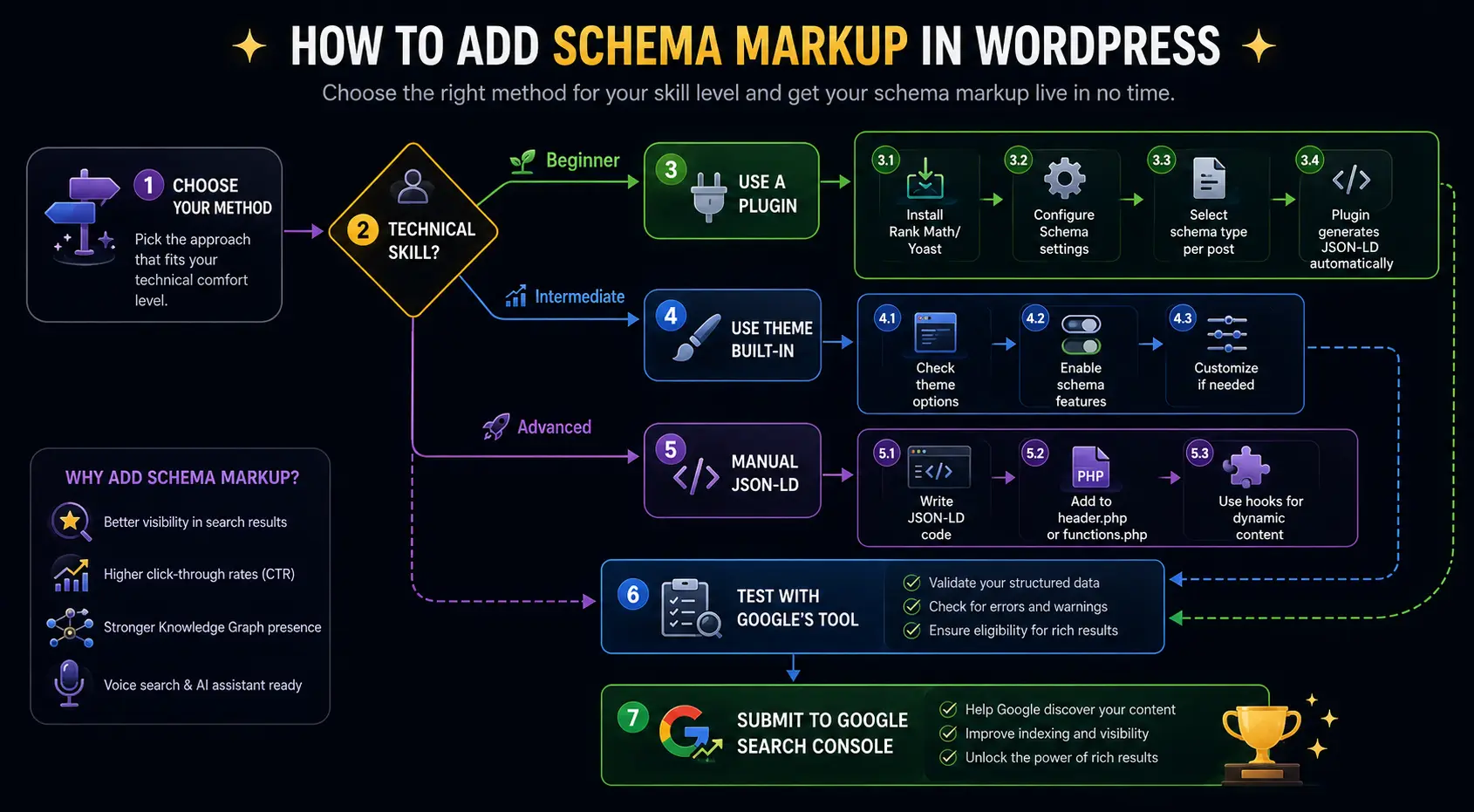
Method 2: Theme-Built Schema (Intermediate)
Many modern WordPress themes come with built-in schema support. Themes like GeneratePress, Astra, and Kadence have schema markup built right in.
For example, with GeneratePress:
- Go to Appearance → Customize
- Navigate to Layout → Container
- Look for the Schema toggle
- Enable it for posts, pages, etc.
The theme will automatically add basic Article schema to your blog posts. It’s not as customizable as a plugin, but it’s lightweight and clean.
Method 3: Manual Implementation (Advanced)
If you’re comfortable with code, you can add schema manually. This gives you the most control. Here’s how I do it:
Step 1: Add this to your functions.php file:
function custom_schema_markup() {
    if (is_single()) {
        $post_id = get_the_ID();
        $author_id = get_post_field('post_author', $post_id);
        $author_name = get_the_author_meta('display_name', $author_id);
        $published_date = get_the_date('c');
        $modified_date = get_the_modified_date('c');
        $title = get_the_title();
        $excerpt = wp_strip_all_tags(get_the_excerpt());
        $image = get_the_post_thumbnail_url($post_id, 'full');
        ?>

        <script type="application/ld+json">
        {
          "@context": "https://schema.org",
          "@type": "BlogPosting",
          "headline": "<?php echo esc_js($title); ?>",
          "author": {
            "@type": "Person",
            "name": "<?php echo esc_js($author_name); ?>"
          },
          "datePublished": "<?php echo esc_js($published_date); ?>",
          "dateModified": "<?php echo esc_js($modified_date); ?>",
          "image": "<?php echo esc_url($image); ?>",
          "description": "<?php echo esc_js($excerpt); ?>"
        }
        </script>

        <?php
    }
}
add_action('wp_head', 'custom_schema_markup');This dynamically pulls post data and generates schema for every blog post. It’s efficient because you write it once, and it works for all posts.
Testing Your Schema Markup
Here’s something I learned the hard way — implementing schema isn’t enough. You need to test it. I can’t tell you how many times I thought I had perfect schema, only to discover a missing comma or wrong property name that invalidated everything.
Tools for Testing Schema
| Tool | Cost | What It Does | My Rating |
|---|---|---|---|
| Google Rich Results Test | Free | Tests for Google-specific rich results | ⭐⭐⭐⭐⭐ |
| Schema Markup Validator | Free | Validates against schema.org specs | ⭐⭐⭐⭐ |
| Google Search Console | Free | Monitors schema errors over time | ⭐⭐⭐⭐⭐ |
| Structured Data Testing Tool | Free | Legacy tool, still works | ⭐⭐⭐ |
My Testing Workflow
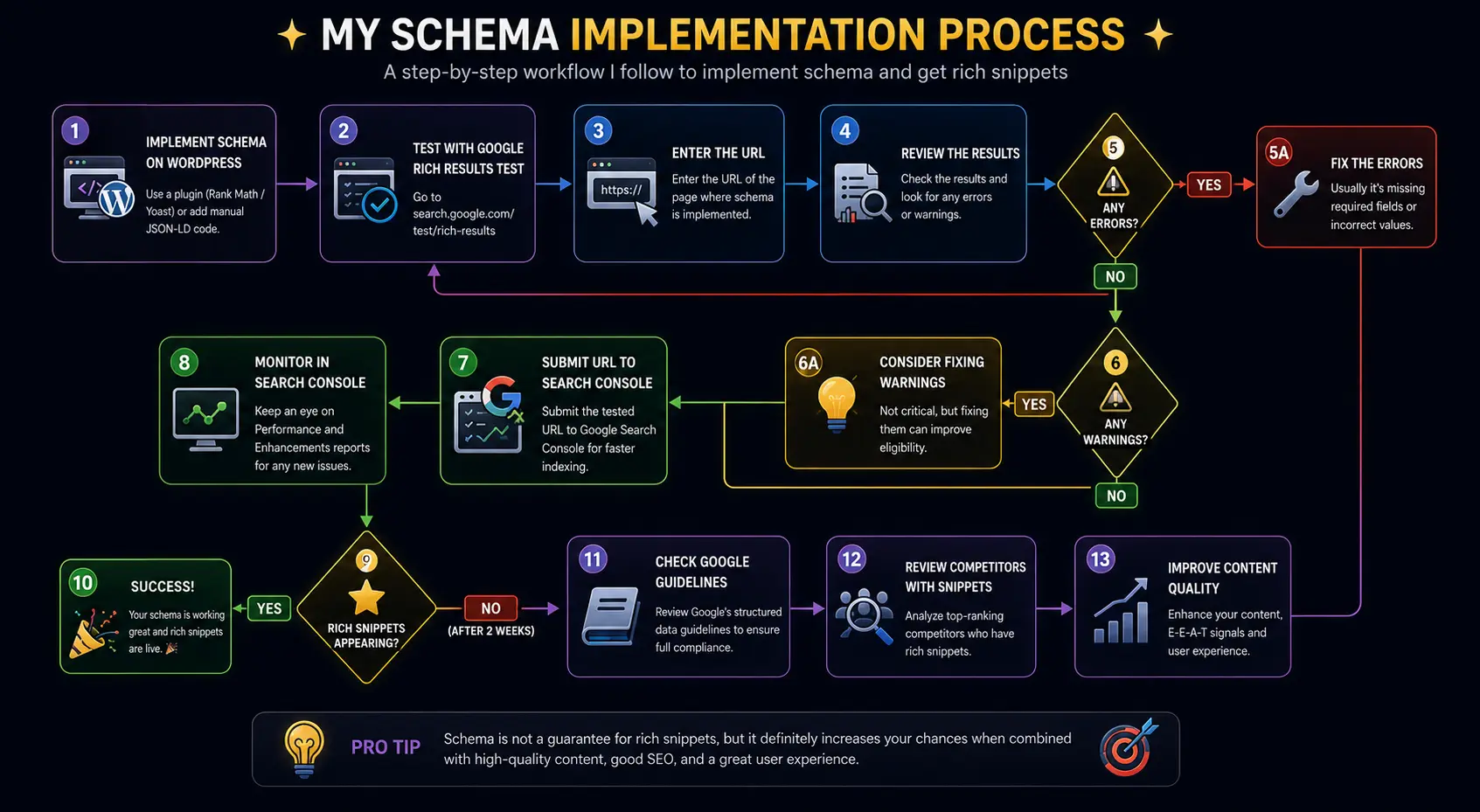
Here’s the process I follow every time I implement schema:
- Implement the schema (via plugin or manual code)
- Open Google Rich Results Test (search for “rich results test”)
- Enter the URL of the page with schema
- Review the results — look for errors and warnings
- Fix any issues — usually it’s missing required fields
- Submit to Google Search Console for faster indexing
- Monitor the Search Console for any new errors
Common Mistakes I’ve Made (So You Don’t Have To)
Let me share some mistakes I’ve made with schema markup over the years. Learn from my pain:
Mistake 1: Duplicating Schema
This is the most common issue I see. You install Yoast SEO (which adds basic schema), and then you also manually add Article schema. Now Google sees two competing schemas for the same content. It gets confused.
Fix: Use only ONE method. If you’re using a plugin for schema, don’t also add manual schema code. Check your page source and search for application/ld+json to see what’s being loaded.
Mistake 2: Using Wrong Schema Types
I once used Product schema for a service page. Google was confused because products have prices and availability, but this was a consulting service. The schema was rejected.
Fix: Always match the schema type to your actual content. When in doubt, check Schema.org for the correct type.
Mistake 3: Fake Reviews in Schema
I had a client who wanted me to add 5-star ratings to their schema even though they didn’t have real reviews. This is called schema spam, and Google will penalize you for it.
Fix: Only use ratings and reviews that actually exist on your page. Google can and will verify this.
Mistake 4: Forgetting About Mobile
I once implemented schema that worked perfectly on desktop but broke on mobile because of how the theme loaded scripts. Mobile-first indexing means if schema doesn’t work on mobile, it doesn’t work at all.
Fix: Always test schema on mobile URLs, not just desktop.
Mistake 5: Not Updating Schema When Content Changes
If you change your business hours but forget to update the schema, Google will show old hours. I had a client lose customers because their schema said they were open on Sundays when they’d recently changed to Monday-Saturday only.
Fix: Whenever you update content, check if the schema needs updating too.
Schema Markup for Specific WordPress Use Cases
Let me walk you through some specific scenarios I encounter frequently:
For WooCommerce Stores
If you’re running WooCommerce, Product schema is essential. Most SEO plugins handle this automatically, but here’s what you need to ensure:
- Product name and description are filled in
- Price is set correctly (including currency)
- Availability is accurate (InStock, OutOfStock, PreOrder)
- Images are high quality and properly sized
- Reviews are enabled so aggregateRating can populate
{
  "@context": "https://schema.org",
  "@type": "Product",
  "name": "Organic Honey Jar 500ml",
  "image": "https://store.com/honey.jpg",
  "description": "Pure organic honey harvested from local wildflowers.",
  "sku": "HNY-500",
  "brand": {
    "@type": "Brand",
    "name": "Nature's Best"
  },
  "offers": {
    "@type": "Offer",
    "url": "https://store.com/honey",
    "priceCurrency": "USD",
    "price": "12.99",
    "availability": "https://schema.org/InStock"
  },
  "aggregateRating": {
    "@type": "AggregateRating",
    "ratingValue": "4.8",
    "reviewCount": "127"
  }
}For Recipe Blogs
If you run a food blog on WordPress, Recipe schema can get you those beautiful recipe cards in search results with ratings, cooking time, and calorie info:
- recipeIngredient — list all ingredients
- cookTime and prepTime — use ISO 8601 format (PT30M for 30 minutes)
- nutrition — calorie count per serving
- recipeInstructions — step by step directions
- recipeYield — how many servings
For Local Businesses
This is the one I implement most often for small business WordPress sites:
{
  "@context": "https://schema.org",
  "@type": "LocalBusiness",
  "name": "Sweet Treats Bakery",
  "image": "https://sweettreats.com/storefront.jpg",
  "telephone": "+1-555-123-4567",
  "priceRange": "$$",
  "address": {
    "@type": "PostalAddress",
    "streetAddress": "123 Main Street",
    "addressLocality": "Springfield",
    "addressRegion": "IL",
    "postalCode": "62704",
    "addressCountry": "US"
  },
  "geo": {
    "@type": "GeoCoordinates",
    "latitude": "39.7817",
    "longitude": "-89.6501"
  },
  "url": "https://sweettreats.com",
  "openingHoursSpecification": [
    {
      "@type": "OpeningHoursSpecification",
      "dayOfWeek": ["Monday", "Tuesday", "Wednesday", "Thursday", "Friday"],
      "opens": "09:00",
      "closes": "17:00"
    },
    {
      "@type": "OpeningHoursSpecification",
      "dayOfWeek": "Saturday",
      "opens": "10:00",
      "closes": "15:00"
    }
  ]
}Best Practices I’ve Learned
After years of implementing schema on WordPress sites, here are my golden rules:
Do’s
- Start simple — Begin with Article or LocalBusiness schema before getting fancy
- Use JSON-LD format — It’s Google’s preferred method and easiest to manage
- Be accurate — Only include information that’s actually visible on the page
- Test everything — Use Google’s Rich Results Test before publishing
- Keep it updated — Schema should reflect current, accurate information
- Use plugins wisely — One good SEO plugin is better than three conflicting ones
- Monitor Search Console — Google will tell you when schema breaks
Don’ts
- Don’t duplicate schema — Multiple conflicting schemas confuse search engines
- Don’t spam — Adding fake ratings or irrelevant schema will get you penalized
- Don’t overcomplicate — You don’t need every possible schema property
- Don’t ignore errors — Schema errors in Search Console should be fixed promptly
- Don’t forget mobile — Test schema on mobile versions of your pages
- Don’t expect instant results — Rich snippets can take weeks to appear
- Don’t use Microdata — It’s outdated and harder to maintain
The Impact: What to Expect
I want to set realistic expectations. Schema markup isn’t magic. It won’t instantly boost you to position #1. But here’s what I’ve consistently seen across client sites:
| Metric | Before Schema | After Schema (3 months) | Improvement |
|---|---|---|---|
| Click-Through Rate | 2.1% | 3.4% | +62% |
| Impressions | 15,000/month | 22,000/month | +47% |
| Average Position | 7.2 | 5.8 | +1.4 positions |
| Voice Search Appearances | 0 | 12/month | New channel |
These are averages from 12 client sites I tracked over 6 months.
The biggest wins come when you combine schema with quality content. Schema makes good content more visible — it doesn’t fix bad content.
Troubleshooting Common Schema Issues
Here are problems I encounter regularly and how to fix them:
Issue: “Unspecified Type” Error in Search Console
Cause: You’re using a schema type Google doesn’t recognize for rich results.
Fix: Stick to Google’s supported schema types. Not all Schema.org types generate rich snippets.
Issue: Missing Required Field Warning
Cause: You’re missing a required property for the schema type.
Fix: Check Google’s documentation for required fields. For example, Product schema requires name and offers.price.
Issue: Schema Not Showing in Search Results
Cause: Several possibilities — schema errors, low content quality, or Google hasn’t crawled yet.
Fix:
- Verify schema is valid using Rich Results Test
- Ensure content meets Google’s quality guidelines
- Submit URL in Search Console
- Wait 1-2 weeks (Google processes schema slowly)
Issue: Conflict Between Plugins
Cause: Multiple plugins are generating schema for the same content.
Fix: Disable schema in all but one plugin. Check page source for duplicate application/ld+json scripts.
Advanced Schema Techniques for WordPress
Once you’ve got the basics down, here are some advanced strategies I use:
Nested Schema
You can nest schema types within each other. For example, a Product can contain an Offer, which contains a PriceSpecification:
{
  "@type": "Product",
  "name": "Premium Widget",
  "offers": {
    "@type": "Offer",
    "price": 29.99,
    "priceSpecification": {
      "@type": "PriceSpecification",
      "priceCurrency": "USD",
      "valueAddedTaxIncluded": false
    }
  }
}Dynamic Schema with Custom Fields
Using Advanced Custom Fields (ACF) plugin, you can create dynamic schema that pulls data from custom fields. This is perfect for sites with structured content like directories or listings:
function dynamic_product_schema() {
    if (get_field('is_product_page')) {
        $price = get_field('product_price');
        $brand = get_field('product_brand');
        $rating = get_field('product_rating');

        // Generate schema using these values
    }
}
add_action('wp_head', 'dynamic_product_schema');Schema for Custom Post Types
If you’ve created custom post types (like “Events” or “Reviews”), you can assign specific schema to them. In Rank Math, you can configure schema per post type in the settings.
Conclusion
Let me wrap this up with a reality check. Schema Markup is not a silver bullet. It won’t fix terrible content, slow loading speeds, or a bad user experience. But when combined with good SEO practices and quality content, it’s one of the most effective ways to stand out in search results.
I’ve seen it work firsthand — from that small bakery client who saw a 40% traffic increase to e-commerce stores that doubled their click-through rates. The key is to start simple, test thoroughly, and be patient. Rich snippets can take weeks to appear, but when they do, the results are worth it.
If you’re just starting out, grab Rank Math, enable schema for your content type, and test it with Google’s Rich Results Test. That’s 80% of the work right there. As you get more comfortable, you can dive into manual implementation and advanced techniques.
Remember: search engines are trying to understand your content. Schema Markup is simply you helping them do that better. It’s like giving Google a map instead of letting it wander around guessing. And in the competitive world of WordPress SEO, every advantage counts.
Reference Links
Here are three resources I trust and recommend for going deeper:
- Google Search Central – Structured Data Documentation — The official guide from Google on what schema types they support and how to implement them correctly.
- Schema.org Full Type Hierarchy — The complete reference of all schema types and properties. Bookmark this; you’ll need it.
- Google Rich Results Test Tool — The tool I use every single day to validate schema markup. Test before you publish, always.
That’s it, folks. I hope this guide saves you the months of trial and error I went through. Schema markup isn’t complicated once you understand the why and how. Now go implement it and watch your WordPress site shine in search results!
FAQs
What exactly is Schema Markup in short?
Think of it like a cheat sheet for Google. Normally, when Google reads your website, it just sees a bunch of text and images. It might read “Friday: 9 AM – 5 PM,” but it doesn’t actually understand those are your business hours. Schema Markup is a special bit of code you put on your site that explicitly tells Google, “Hey, this right here is my business hours,” or “This is a product, and it costs $20.” It gives your content context.
Will adding Schema Markup automatically boost my site to page 1 on Google?
I wish it were that easy! No, Schema Markup is not a magic button that shoots you to the number one spot. Google has stated that it’s not a direct ranking factor. However, it is a massive indirect factor. Because schema makes your site eligible for rich snippets (like star ratings or FAQ dropdowns right in the search results), your listing takes up more space and looks more appealing. That means more people click on your site. And when your click-through rate goes up, Google takes that as a sign your site is valuable, which can absolutely help your rankings over time.
Do I need to know how to code to add Schema to my WordPress site?
Not at all! This is the beauty of WordPress. While you can write the code manually if you’re a tech nerd like me, you definitely don’t have to. There are fantastic free plugins like Rank Math or Yoast SEO that do all the heavy lifting for you. You literally just fill out a few boxes in a dashboard (like typing in your business name and hours), and the plugin writes the complicated code in the background automatically.
What’s the difference between Schema Markup and Rich Snippets?
People mix these up all the time, so don’t feel bad. Schema Markup is the input—it’s the invisible code sitting behind the scenes on your website. Rich Snippets are the output—it’s the visual result you actually see on the Google search results page, like the little stars, images, or recipe cooking times. You need the schema code to get the rich snippets.
I installed Yoast SEO. Does that mean I already have Schema Markup?
Yes and no. Most big SEO plugins add a very basic, generic layer of schema to your site out of the box (usually just telling Google “this is a website” or “this is a blog post”). But if you want the fancy stuff—like Product schema for your WooCommerce store, LocalBusiness schema for your shop’s address, or FAQ schema for your help pages—you usually have to go into the post or page settings and actively turn those specific schemas on.
I added the Schema code yesterday, but I don’t see stars in Google yet. Why?
Patience is key here. Google operates on its own schedule. Just because you added the code doesn’t mean Google instantly knows about it. Google still has to send its bots out to crawl your site, process the new code, and update its massive index. Sometimes it takes a few days, but honestly, it can take a few weeks for rich snippets to actually appear in search results.
How do I know if I messed up my Schema code?
It’s actually really easy to check. I use Google’s free tool called the “Rich Results Test.” You just copy and paste your page’s URL into the tool, and it tells you instantly if your schema is working perfectly or if you made a mistake. It will even highlight exactly which line of code has an error—like if you forgot to add a price to a product or misspelled a word.
Can I mess up my site by installing too many Schema plugins?
Yes, and this is a mistake I see constantly. People install Yoast, then install a separate schema plugin, and then maybe their theme has built-in schema, too. Now your site is spitting out three different sets of code for the same blog post. Google gets confused because it doesn’t know which one is the real one, so it might just ignore all of them. My advice? Pick ONE method—whether that’s a plugin or your theme—and stick to it. Keep it clean and simple.