Let me take you back to a typical Tuesday morning a few months ago. I was sitting at my desk, coffee in hand, staring at a blank WordPress editor. I had just spent the better part of an hour trying to connect a fancy new AI writing assistant to my client’s WooCommerce store. The goal was simple: let the AI read the product inventory and automatically draft blog posts featuring products that were running low on stock.
Simple in theory. A complete nightmare in execution.
I had to mess around with REST API keys, set up custom webhooks, write a middleware script just to translate the AI’s requests into something WordPress could understand, and pray that the hosting provider’s firewall didn’t block the whole thing. It felt like I was trying to build a suspension bridge out of duct tape and popsicle sticks.
If you’ve ever tried to deeply integrate AI into WordPress, you probably know this pain. But recently, something entirely new has rolled into our world, and it is completely flipping the script. It’s called the Model Context Protocol (MCP), and honestly, it’s the biggest leap forward in WordPress integrations that I’ve seen in years.
Let’s sit down, grab a virtual coffee, and I’ll explain exactly what MCP is, why it’s changing the game for WordPress developers and site owners, and how you can start using it—without needing a computer science degree to understand it.
Table of Contents
The Old Days: Why Connecting AI to WordPress Used to Stink
Before we talk about the shiny new toy, we need to understand why the old toys were so frustrating.
Historically, if you wanted an AI (like ChatGPT or Claude) to interact with your WordPress website, you had to rely on the WordPress REST API or the XML-RPC API.
Here is how the old process usually looked:
- You ask the AI to do something (e.g., “Check my latest comments and flag the spammy ones.”)
- The AI realizes it needs data from your site.
- The AI sends a request to
yoursite.com/wp-json/wp/v2/comments. - WordPress demands authentication. You have to generate Application Passwords or set up OAuth.
- The AI gets a massive JSON response full of data it doesn’t really need.
- You often have to write a custom plugin just to create a custom API endpoint because the default ones don’t do exactly what you want.
It was messy, brittle, and highly technical. Every time you wanted to connect a new AI tool, you essentially had to rebuild the bridge.
Enter MCP: The “USB-C” for AI and WordPress
So, what is MCP?
MCP stands for Model Context Protocol. It was originally introduced by Anthropic (the makers of Claude) as an open standard, but it’s rapidly being adopted across the AI industry.
Think of MCP like the USB-C cable for your devices. Before USB-C, you had a drawer full of different chargers—one for your phone, one for your camera, one for your laptop. USB-C unified everything.
MCP does the exact same thing for AI. It creates a universal, standardized way for AI models to securely connect to external data sources and tools. And the brilliant part? WordPress now has its own official MCP Server.
Instead of the AI trying to decipher your site’s unique REST API structure, the WordPress MCP Server acts as a universal translator. It sits on your site, exposes specific “Tools” (like “create_post” or “get_users”), and any AI that speaks the MCP language can instantly use those tools.
Let’s Visualize the Difference
Here is a quick diagram to show you how much cleaner the architecture becomes with MCP:
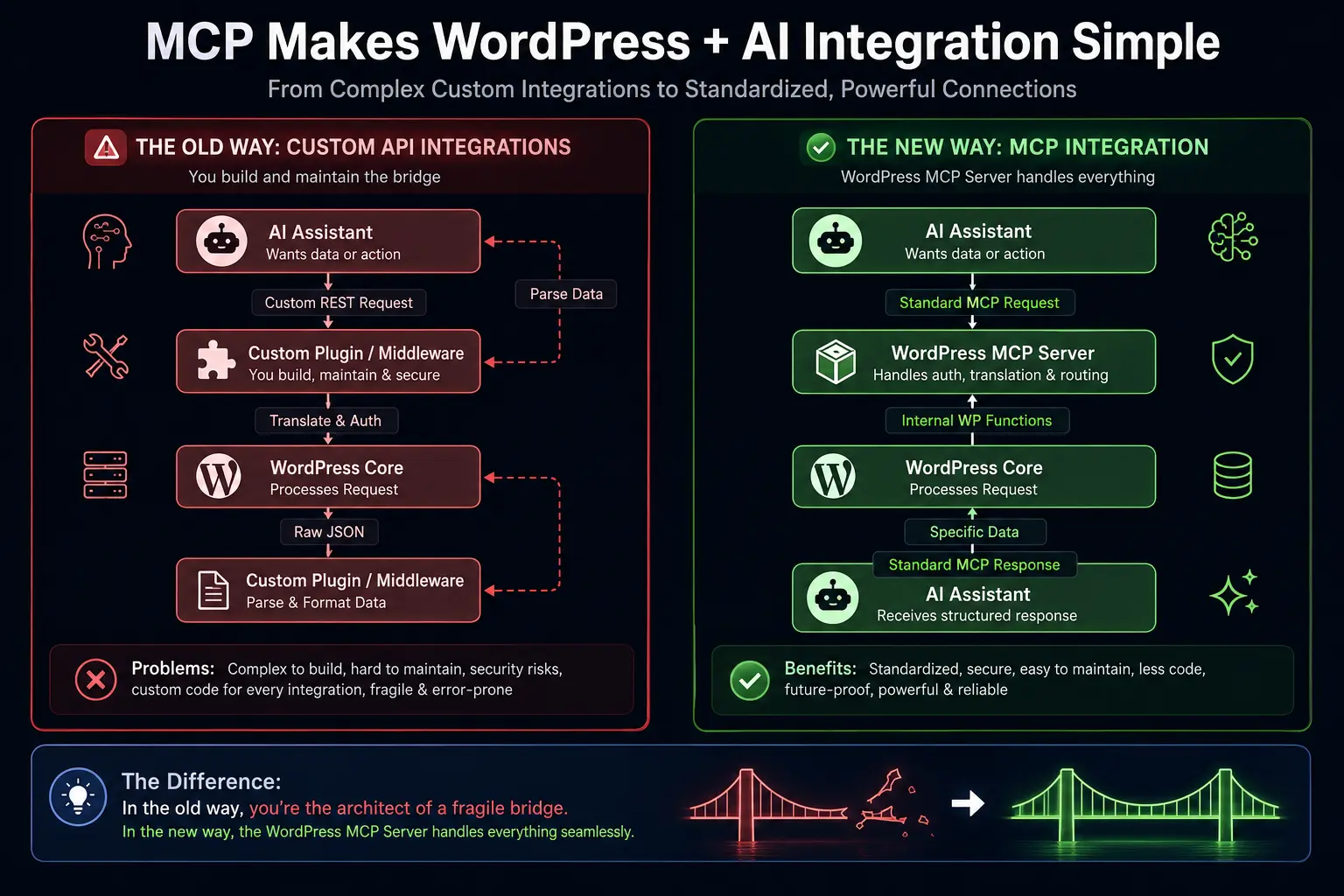
Notice the difference? In the old way, you were the architect of a fragile bridge. In the new way, the WordPress MCP Server handles everything seamlessly.
How the WordPress MCP Server Actually Works
When I first heard about the WordPress MCP server, I was intimidated. “Protocol” sounds like a heavy, technical word. But let me break it down into plain English based on how I’ve seen it operate in the real world.
The WordPress MCP Server acts as a middleman between the AI and your WordPress site. It communicates using JSON-RPC (a lightweight remote procedure call protocol), but you rarely have to look at that under the hood.
The MCP server organizes your site’s capabilities into three main categories:
- Resources: Static data the AI can read. (e.g., Your site’s basic settings, a list of active plugins).
- Prompts: Pre-written templates that help the AI understand how to interact with your site.
- Tools: The actual actions the AI can take. (e.g., Publishing a post, moderating a comment, updating a user’s role).
A Quick Comparison of Capabilities
Let’s look at a side-by-side comparison of what it used to take to do common tasks versus how MCP handles them now.
| Task | Traditional REST API Approach | Modern MCP Approach |
|---|---|---|
| Authentication | Generate Application Passwords, manage tokens manually, handle OAuth flows. | Handled securely by the MCP server using your existing WordPress credentials. |
| Finding a Post | Query /wp-json/wp/v2/posts?search=keyword. Parse massive JSON array. | AI calls the search_posts tool. MCP returns only the relevant post data. |
| Creating a User | Send POST request to /wp-json/wp/v2/users with strict payload formatting. | AI calls the create_user tool with simple parameters. MCP handles WP logic. |
| Custom Logic (e.g., “Refund Order”) | Write a custom REST endpoint from scratch, register it, document it. | Write a simple MCP Tool in your plugin. AI instantly knows how to use it. |
Setting It Up: My Experience
Setting this up is surprisingly straightforward if you are comfortable installing a plugin.
Based on the official documentation, the easiest way to get started is by using the WordPress MCP plugin. Once installed and activated, you configure it to expose specific tools to your AI client (like the Claude Desktop app).
Here is the general flow of how you set it up:
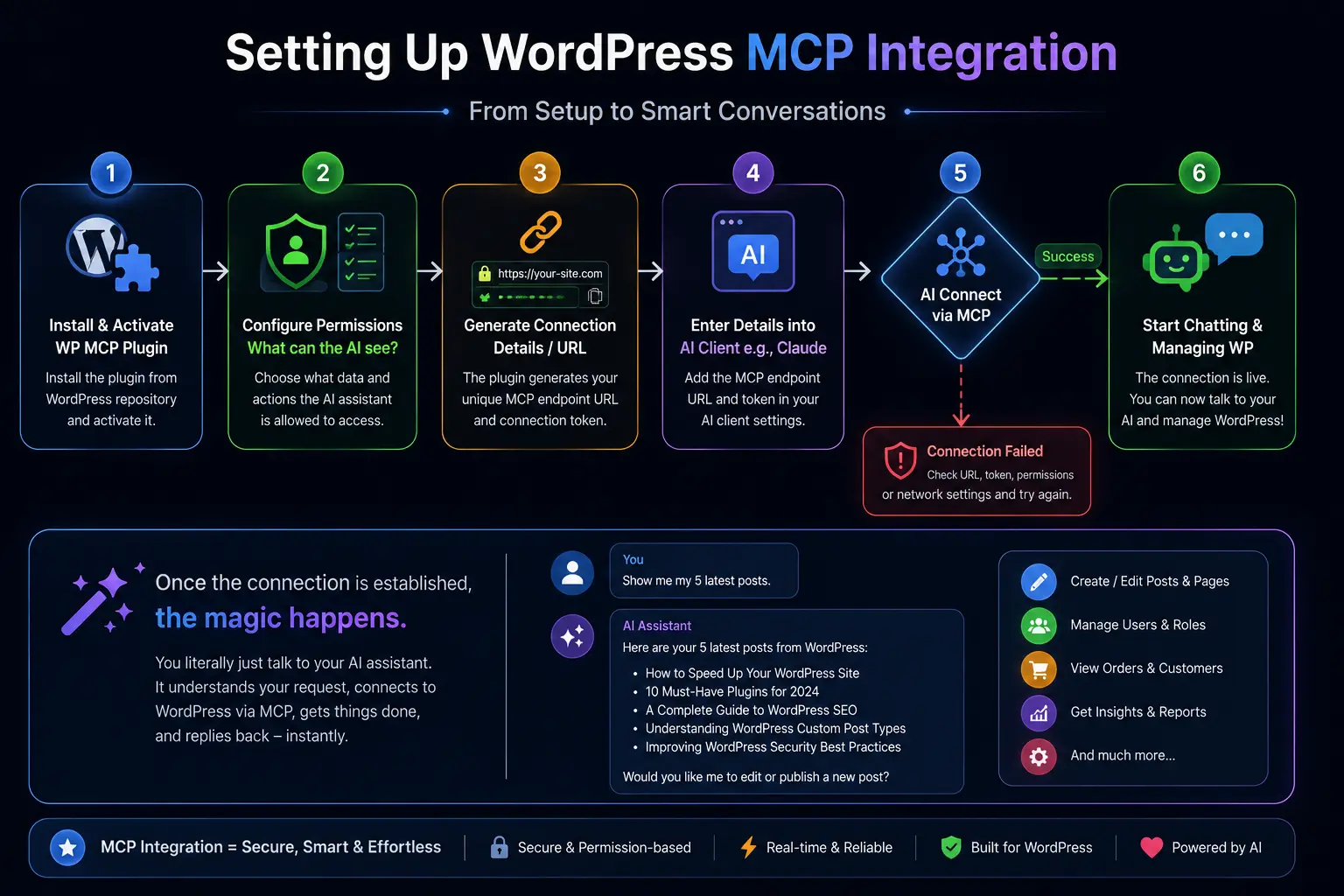
Once the connection is established, the magic happens. You literally just talk to your AI assistant.
I tested this by connecting Claude to my local test WordPress environment. I typed: “Can you check if there are any draft posts older than 30 days? If there are, publish them and let me know the titles.”
Normally, that would require me logging into wp-admin, going to the posts table, filtering by draft, checking the dates, and manually publishing.
Instead, I watched as the AI pinged the WordPress MCP server, called the get_posts tool, filtered the results internally, and then sequentially called the update_post tool for each one. In about 10 seconds, it replied: “I found 3 draft posts older than 30 days. I’ve published ‘Summer Sale Recap’, ‘New Widget Review’, and ‘Team Update’. Let me know if you need anything else!”
It felt like I had hired a highly competent virtual assistant who already knew how to use WordPress.
A Peek Under the Hood: How a Tool is Defined
For my fellow developers out there, you’re probably wondering how hard it is to write your own custom tools. Let’s say you have a custom post type for “Book Reviews” and you want the AI to be able to add a book review.
If you were doing this the old REST API way, you’d have to write a register_rest_route, handle sanitization, handle authorization, and write documentation so the AI knows how to use it.
With MCP, you define a tool using a standardized JSON schema. It looks something like this:
{
  "name": "create_book_review",
  "description": "Creates a new book review post in WordPress.",
  "inputSchema": {
    "type": "object",
    "properties": {
      "title": {
        "type": "string",
        "description": "The title of the book being reviewed."
      },
      "author": {
        "type": "string",
        "description": "The author of the book."
      },
      "rating": {
        "type": "integer",
        "minimum": 1,
        "maximum": 5,
        "description": "Star rating from 1 to 5."
      },
      "content": {
        "type": "string",
        "description": "The full text of the review."
      }
    },
    "required": ["title", "author", "rating", "content"]
  }
}When the AI client connects to your WordPress MCP server, it downloads this “menu” of tools. The AI reads the description, understands the parameters, and knows exactly how to format its requests.
When the AI decides to use this tool, it sends a JSON-RPC request to your site. Your MCP server catches it, runs the standard WordPress wp_insert_post function (or whatever custom PHP logic you want), and returns a simple success message.
Here is what that communication sequence looks like in practice:
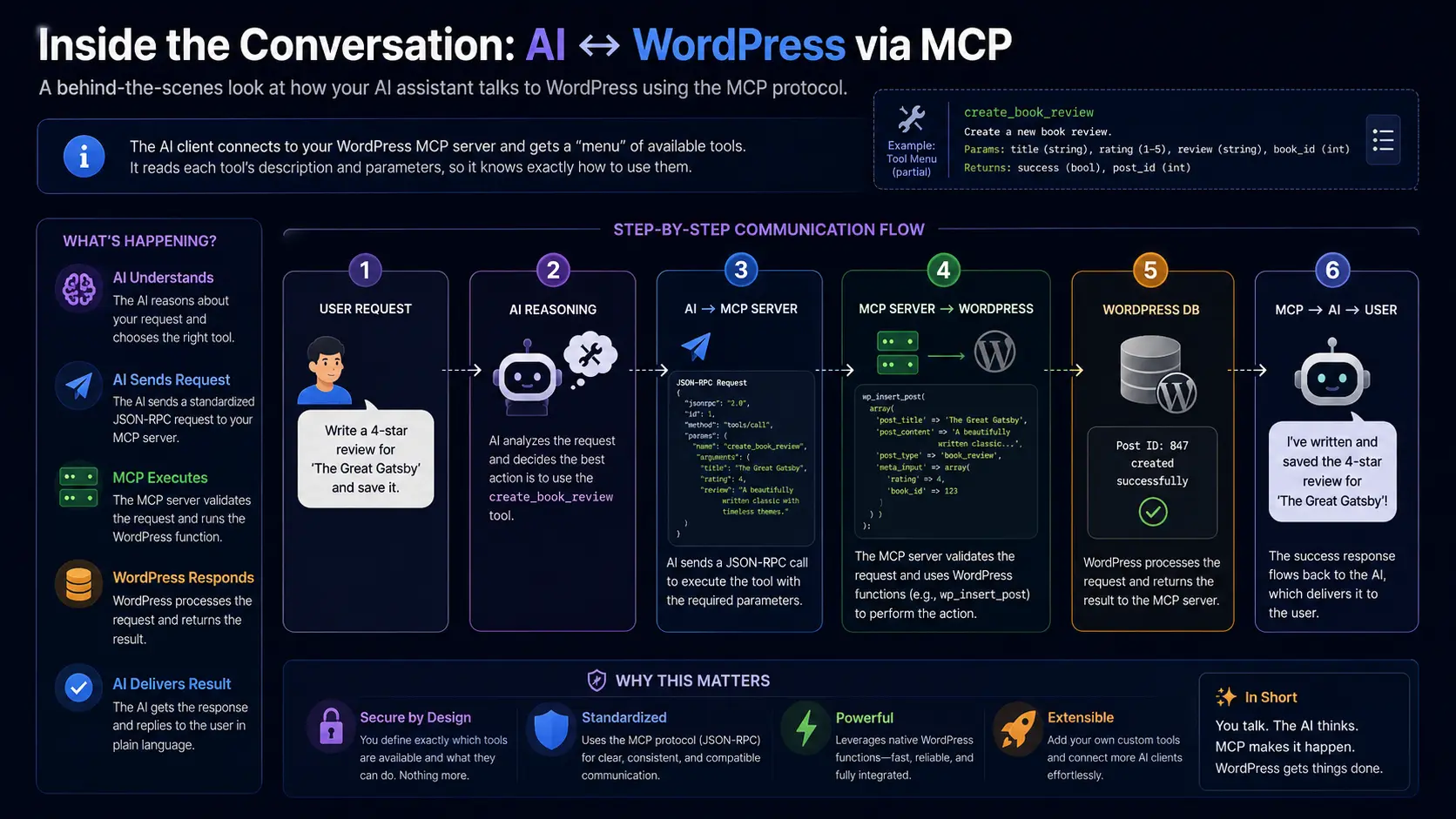
It’s clean, it’s standardized, and most importantly, it is incredibly secure because you define exactly what the MCP server is allowed to do.
Real-World Use Cases: How This Changes the Game
Now that you know how it works, let’s talk about why this matters. How is this actually going to change the day-to-day life of a WordPress site owner or agency?
1. True Conversational Content Management
Forget about wrestling with page builders or fumbling through the block editor for simple updates. You can literally message your site: “Change the call-to-action button on the homepage from ‘Buy Now’ to ‘Get 20% Off’.” The AI uses MCP to find the homepage, locate the button block, update the text, and save the revision.
2. Automated SEO and Site Audits
Imagine asking your AI: “Scan my last 20 blog posts. Find any posts that don’t have a meta description, write a compelling one based on the article content, and update them.” The AI can read the posts via MCP, process the text, generate the SEO meta descriptions, and push the updates back to your site using an SEO plugin’s custom MCP tool.
3. E-Commerce Store Management
For WooCommerce users, this is a massive win. You could ask the AI: “Which products had zero sales last month? Draft a 20% off coupon for each of them and schedule an email blast.”
By exposing WooCommerce functions as MCP tools, your AI becomes a proactive store manager.
4. Streamlined Agency Workflows
If you run an agency managing 15 different client sites, updating plugins and running reports takes hours. With MCP, you could theoretically connect your AI to all 15 sites. You could ask, “Check all my client sites for available plugin updates. Update them on the staging environments and summarize any breaking changes from the changelogs.”
Security: The Elephant in the Room
Whenever I talk about giving an AI the ability to write to a WordPress database, people immediately panic. And rightfully so. “What if the AI hallucinates and deletes all my posts?”
Let me be very clear: MCP does not mean the AI has free reign over your server.
Security is built into the core of how MCP works. Here is how you keep your site safe:
- Principle of Least Privilege: You do not have to expose every single WordPress function. If you only want the AI to read data, you only enable
readtools. You don’t have to exposedelete_postif you don’t want to. - User Permissions: The MCP server operates within the permission structure of the WordPress user account it is authenticated with. If you connect it using an “Author” level account, the AI physically cannot delete plugins or change site settings. WordPress will block it at the server level.
- Human-in-the-Loop: Good AI clients (like Claude Desktop) ask for your permission before executing a tool. The AI will say, “I want to run
update_postto change this text. Do you approve?” You click “Yes,” and only then does it execute.
Here is a visual of how the security boundary works:
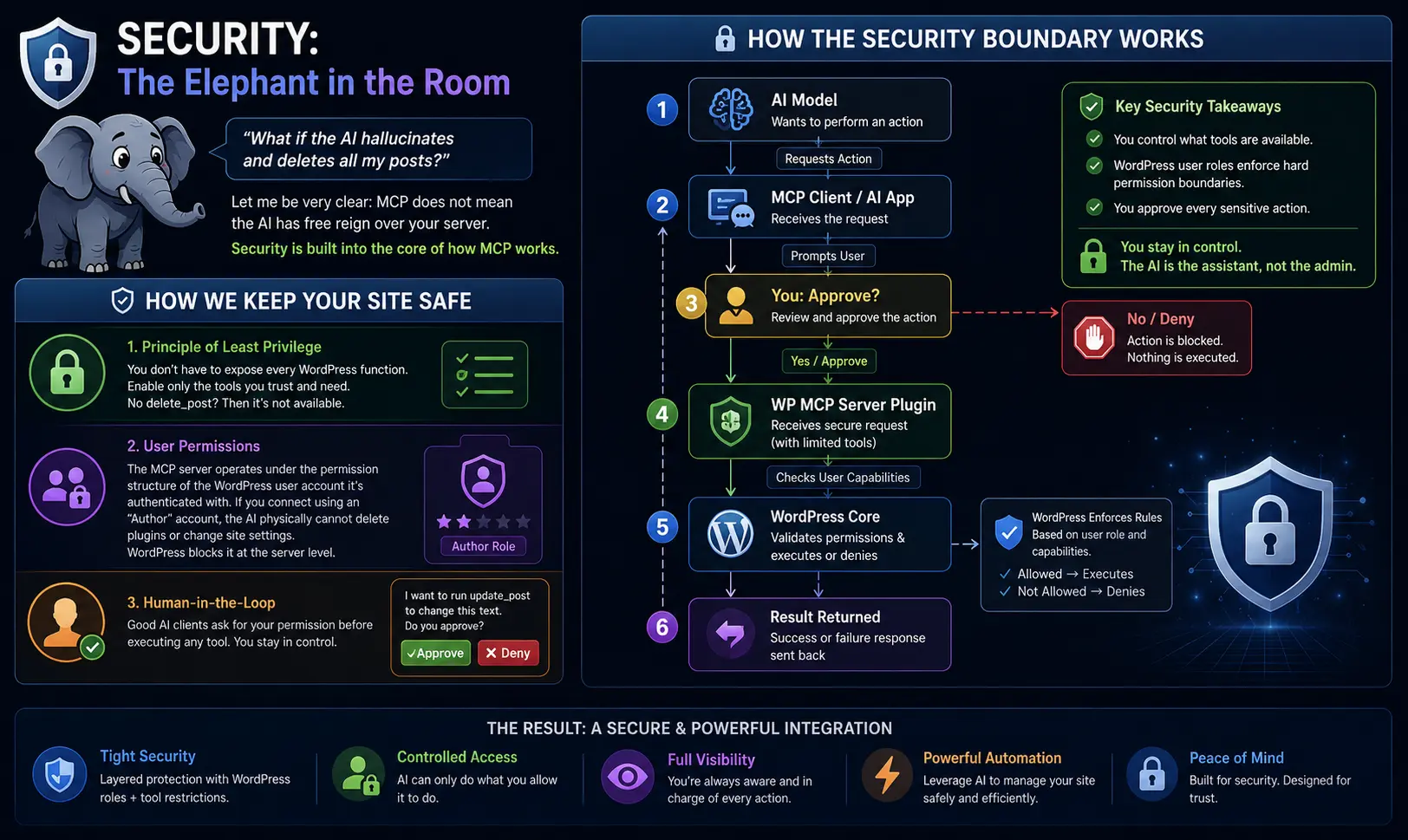
By combining WordPress’s native role management with the MCP server’s ability to limit exposed tools, you actually end up with a highly secure integration environment.
My Personal Takeaways
After spending weeks playing with this, my perspective on AI in web development has fundamentally shifted.
I used to view AI as a helpful chatbot that lived in a separate tab—a glorified Google search that could write emails. With MCP, AI transitions from a chatbot to an active operator.
For the WordPress community, this is especially huge. WordPress powers over 40% of the web, but its underlying architecture (PHP, REST API, hooks) can be intimidating for non-developers. MCP completely abstracts that away. You don’t need to know what wp_insert_post does. You don’t need to know how to register a custom taxonomy. You just tell your AI what you want to achieve, and the AI figures out which WordPress tools to use to make it happen.
Are there growing pains? Absolutely. The WordPress MCP server is still in its early stages. Not every plugin exposes its features to MCP yet. Setting it up still requires a bit of technical comfort.
But the trajectory is undeniable. We are moving toward a future where you won’t “log into” WordPress to do mundane tasks. You will just converse with your website via an AI assistant, and the site will do the heavy lifting in the background.
If you haven’t looked into MCP yet, now is the time. It’s not a fad; it’s the new standard for how intelligent systems will interact with the web. And for WordPress users, it’s about to make our lives a whole lot easier.
References and Further Reading
If you want to dive into the technical documentation and start experimenting with this yourself, I highly recommend checking out these resources:
- Official WordPress MCP Documentation: Using the MCP Server on WordPress.org – This is the best starting point for installing the plugin and understanding the baseline features.
- Anthropic’s Introduction to MCP: Model Context Protocol Quickstart – To understand the broader ecosystem and how to configure an AI client like Claude Desktop.
- WordPress REST API Handbook: WordPress REST API – For context on how we used to do things, and why MCP is such a breath of fresh air in comparison.
FAQs
What exactly is MCP in simple terms?
Imagine you have a universal remote control that can talk to any TV, regardless of the brand. That’s what MCP (Model Context Protocol) is for AI. Instead of building a complicated, custom connection every time you want an AI to talk to your WordPress site, MCP acts as a universal adapter. You just plug the AI in, and it instantly knows how to communicate with your website.
Do I need to be a hardcore developer to set this up?
Not at all! If you can install a WordPress plugin and copy-paste a link into an app, you can set this up. The hardest part is simply installing the MCP plugin on your site and then pasting your site’s connection details into your AI assistant (like the Claude desktop app). You don’t need to know how to write code to get the basic features working.
Is it safe? Can the AI accidentally delete my whole website?
This is the number one question I get, and the answer is yes, it’s safe. You act as the bouncer. First, the AI will literally ask for your permission before it does anything (it will say, “Can I update this post?”). Second, you control what tools the AI is allowed to use. If you don’t want the AI to have a “delete” button, you simply don’t give it one. Plus, it operates under your WordPress user permissions, so if your account can’t delete themes, neither can the AI.
How is this different from the WordPress REST API I already use?
The REST API is like having a raw pile of wires—you have to know exactly which wire goes where to make a connection. MCP is like a USB-C plug. It standardizes everything so the AI doesn’t have to “learn” your specific site’s API structure. It just plugs in, sees a simple menu of available tools, and starts using them.
Can I use this with ChatGPT, or is it only for Claude?
Right now, Claude (by Anthropic) is leading the charge since they helped create the MCP standard, so it works flawlessly with their desktop app. However, because MCP is an “open standard,” it’s like a universal language. Other AI companies are already starting to adopt it, meaning soon, you’ll likely be able to use it with ChatGPT and other major AI assistants.
What kind of everyday tasks can the AI actually do on my site?
Think of the boring stuff you hate doing. The AI can read your latest comments and trash the spammy ones, draft blog posts based on your rough notes, check if your plugins need updating, or summarize your monthly website traffic. You literally just type, “Hey, check my drafts and tell me which ones are missing featured images,” and it does it.
Will running an MCP server slow down my WordPress website?
Nope! The MCP server is essentially asleep until your AI sends a specific request. It doesn’t run continuously in the background draining your server resources. It’s just a plugin waiting for a phone call from your AI. When the AI calls, the plugin wakes up, does the job, and goes back to sleep.
Does this work with WooCommerce?
Yes, and for store owners, it’s a massive game-changer. While it depends on the exact tools your MCP setup exposes, you can easily allow the AI to check your inventory, look up recent orders, or draft emails to customers who abandoned their shopping carts. It basically turns your AI into a virtual store clerk.
What happens if the AI “hallucinates” and tries to do something weird?
AI hallucinations happen, but MCP has a built-in safety net called “Human-in-the-Loop.” Before the AI actually executes a change on your site (like editing a post or changing a price), your AI app will show you a pop-up saying exactly what it wants to do. If the AI is doing something weird, you just click “Deny,” and nothing happens. You always have the final say.
Is this going to replace the standard WordPress dashboard?
I don’t think it will completely replace the dashboard, at least not anytime soon. But it will definitely replace the busywork you do there. You won’t need to log in just to moderate comments, tweak a typo, or publish a scheduled post. Instead of clicking through ten different menus, you’ll just chat with your site to get the daily chores done, leaving the dashboard for the big, complex design work.