I’ve been building and maintaining WordPress plugins for more years than I care to count. Every major release brings that familiar mix of excitement and mild dread. New features land, old assumptions get broken, and suddenly half the plugins in the directory need a round of testing. WordPress 7.1 is scheduled for August 19, 2026, and from everything I’ve seen in the betas and the Field Guide, this one is going to keep a lot of us busy for a couple of weeks.
I’m writing this the way I would explain it to a fellow developer over coffee — real experiences, and the practical stuff that actually matters when you’re staring at a support ticket at 11 p.m. Let’s walk through the biggest changes that plugin authors should care about.
Table of Contents
The Post Editor Is Now Always Inside an Iframe
For a long time the post editor played a little game. Sometimes it lived inside an iframe, sometimes it didn’t. It depended on the theme, the blocks you had used, and a few other factors. That flexibility kept older code working, but it also meant your JavaScript could behave differently depending on the content of the post. Frustrating, right?
Starting with 7.1 the post editor is always iframed. No more exceptions. The site editor and template editor have been living in iframes for ages, so this is really just the last piece falling into place.
Here’s the part that bites people: the iframe has its own document and window. Any code that casually reaches for the global document or window and expects to touch the editor canvas is now looking at the wrong place. I’ve seen plugins that inject custom styles or attach event listeners this way. They worked fine last week and suddenly stop.
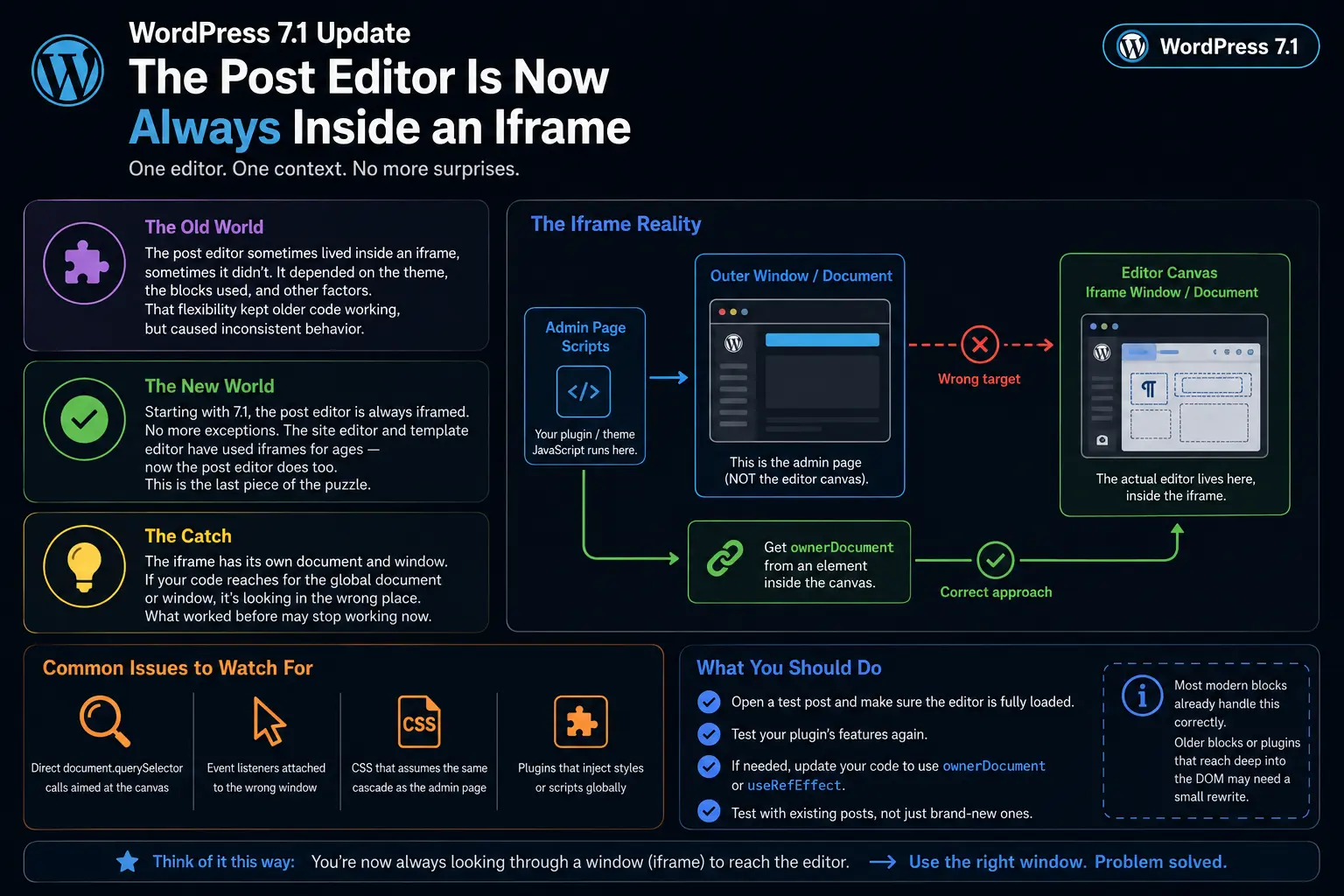
If your plugin does anything with the editor canvas, open a test post, make sure the editor is fully loaded, and try the actions again. Look especially for:
- Direct
document.querySelectorcalls aimed at the canvas - Event listeners attached to the wrong window
- CSS that assumes the same cascade as the admin page
Most modern blocks already handle this correctly. Older ones, or plugins that reach deep into the DOM, may need a small rewrite using ownerDocument or useRefEffect. It’s not hard once you know what to look for, but it’s easy to miss if you only test with brand-new posts.
Client-Side Media Processing Changes the Upload Game
This one feels bigger than it first appears. Until now, when someone uploaded a photo, the browser just shipped the original file to the server. PHP (using GD or Imagick) did the heavy lifting — resizing, creating thumbnails, converting formats, rotating based on EXIF data. That worked, but it could hit memory limits, slow down the server, and produce inconsistent results depending on what libraries the host had installed.
WordPress 7.1 can now do most of that work in the browser before the file ever reaches the server. It uses WebAssembly (specifically a port of the excellent libvips library) running in a Web Worker. Supported browsers can resize, compress, convert formats, rotate, and generate every registered image size right there on the user’s machine. The finished files, including all the thumbnails, then get uploaded.
The practical benefits I’ve already noticed in testing:
- Large images that used to fail with PHP memory errors now succeed
- iPhone HEIC photos convert cleanly to JPEG even on hosts that never supported HEIC
- Output is more consistent and often better compressed
- Server load drops because the heavy work happens on the client
Here’s a simplified view of the new flow:
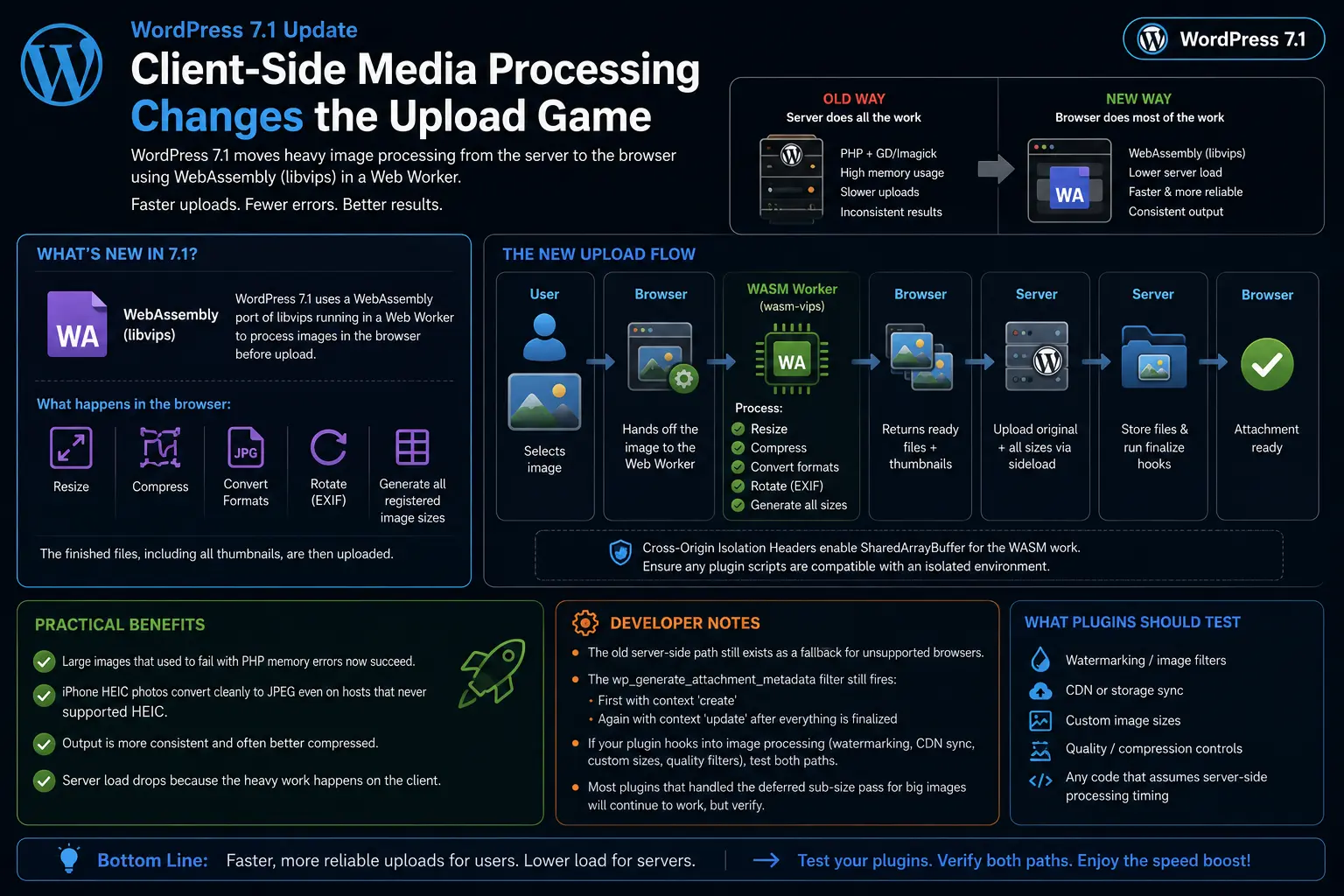
If your plugin hooks into image processing — watermarking, CDN sync, custom image sizes, quality filters — you need to test both paths. The old server-side path still exists as a fallback for unsupported browsers. The wp_generate_attachment_metadata filter still fires, once with context 'create' and again with 'update' after everything is finalized. Most plugins that were already handling the deferred sub-size pass for big images will continue to work, but you should verify.
Also watch the new cross-origin isolation headers that enable SharedArrayBuffer for the WASM work. If your plugin loads scripts that assume a non-isolated environment, you might hit surprises.
Changes Inside @wordpress/components
The component library keeps maturing, and 7.1 brings a few visible shifts.
Form controls now default to a 40px height. The temporary opt-in prop is gone. If you were still passing __next40pxDefaultSize, you can remove it. Trying to force the old 36px size no longer works. Buttons are the exception — they still use the opt-in system.
The old Navigation component (and its subcomponents) has finally been removed. It had been deprecated for a while. The replacement is Navigator. If any of your code still imports the old one, you’ll get errors.
There’s also ongoing work moving styles away from Emotion toward SCSS modules. Most people won’t notice, but if you style certain low-level components (Divider, Surface, Flex, Spacer, etc.) with Emotion in a way that relied on specific cascade behavior, you may need to adjust how you compose class names.
I keep a simple checklist for component updates:
- Search the codebase for
__next40pxDefaultSizeand remove it - Search for
Navigationfrom@wordpress/componentsand switch toNavigator - Re-test any custom form controls that sit next to core ones so the heights still look consistent
The Toolbar Is Now Persistent in the Editors
This change is more user-facing, but it affects plugins that add items to the admin bar.
Previously the top toolbar behaved differently inside the post and site editors. The “W” logo acted as a back button, which confused a lot of people. In 7.1 the regular admin toolbar stays visible in both the Post Editor and Site Editor (unless the user turns on Distraction Free mode). There’s a proper back chevron, and the site icon (when set) appears in the toolbar the same way it does everywhere else.
If your plugin adds a node to the toolbar, test it inside the Site Editor especially. The Site Editor never had a non-fullscreen mode before, so this is new territory. Some plugins will want to hide their items while the user is deep in the editor. A quick check against the current screen works fine:
add_action( 'admin_bar_menu', function( WP_Admin_Bar $wp_admin_bar ) {
    $screen = get_current_screen();
    if ( $screen && $screen->is_block_editor() ) {
        return; // hide in any block editor
    }
    // add your node here
}, 100 );A Real Public SVG Icon API
WordPress 7.0 shipped a built-in set of SVG icons for the Icon block. In 7.1 it becomes a proper public API. You can register your own collections and icons, render them from PHP, and expose them through the REST API.
The pattern is straightforward. First register a collection, then add icons to it:
add_action( 'init', function() {
    wp_register_icon_collection( 'my-plugin', array(
        'label' => __( 'My Plugin Icons', 'my-plugin' ),
    ) );

    wp_register_icon( 'my-plugin/star', array(
        'label'   => __( 'Star', 'my-plugin' ),
        'content' => '<svg xmlns="http://www.w3.org/2000/svg" viewBox="0 0 24 24"><path d="M12 2l2.9 6.9 7.1.6-5.4 4.7 1.6 7L12 18l-6.2 3.2 1.6-7L2 9.5l7.1-.6z"/></svg>',
    ) );
} );You can also point to an .svg file with file_path. The SVG gets sanitized to a safe subset of elements and attributes. To output an icon anywhere in PHP:
echo wp_get_icon( 'my-plugin/star', array(
    'size'  => 32,
    'label' => __( 'Featured', 'my-plugin' ),
    'class' => 'my-custom-class',
) );The Icon block’s picker now groups icons by collection, so your custom ones appear in their own tab. This is one of those quiet improvements that makes building consistent interfaces much nicer.
jQuery UI Moves to 1.14.2
WordPress still ships jQuery UI for a number of admin interfaces. It has been updated from 1.13.3 to 1.14.2. Backward compatibility mode is turned on so older API usage continues to work, but a few properties and methods have been removed ($.fn._form, $.ui.ie, $.ui.safeActiveElement, $.ui.safeBlur).
If your plugin depends on jQuery UI widgets, open the relevant screens and click around. Most plugins won’t notice anything, but the ones that reached into internal helpers might.
Abilities API Keeps Growing
The Abilities API (introduced earlier) continues to expand. In 7.1 you get:
- Custom input and output validation filters (
wp_ability_validate_inputandwp_ability_validate_output) - A new lifecycle action (
wp_ability_invoked) that fires on every attempt, successful or not - Richer user info from
core/get-user-info(first name, last name, nickname, description, user URL) - Ability to request only specific fields
- More consistent schemas across the core abilities
This is still early-stage infrastructure, but if you’re building tools that expose capabilities to AI agents, automation, or external clients, these additions make the surface cleaner and more reliable.
Quick Reference Table for Plugin Authors
| Change | What to Test | Likely Impact |
|---|---|---|
| Always-iframed post editor | JS/CSS that touches the canvas | Medium–High for older editor plugins |
| Client-side media processing | Image hooks, custom sizes, watermarks | Medium for media-related plugins |
| 40px form controls | Custom admin UI next to core components | Low–Medium |
| Navigation → Navigator | Any use of the old Navigation component | Low (already deprecated) |
| Persistent toolbar | Admin bar nodes in Site Editor | Low–Medium |
| SVG Icon API | New opportunity, no breakage | Positive for UI plugins |
| jQuery UI 1.14.2 | Widgets that use internal helpers | Low |
| Abilities API expansions | Custom abilities and clients | Low–Medium for advanced tools |
How I’m Approaching Testing This Cycle
I spin up a fresh local site (or a staging clone), install the RC, and go through every major user flow my plugins support. For editor-related plugins I create posts with a mix of classic and modern blocks. For media plugins I upload large images, HEIC files, and animated GIFs. I also keep the browser console open and watch for warnings about removed props or deprecated components.
One extra tip: test with both Chromium-based browsers (where client-side media processing is strongest) and Firefox or Safari so you see the fallback path too.
WordPress 7.1 doesn’t feel like a flashy “wow” release for end users, but for those of us who ship plugins it is a solid round of modernization. The always-iframed editor finishes a multi-year project. Client-side media processing removes a long-standing pain point. The component and icon APIs keep getting more consistent. And the Abilities API is quietly becoming something we can actually build on.
I’ll be spending the next few days going through my own plugins with a fine-tooth comb. If you maintain anything that touches the editor, media, or admin UI, now is the time. The release is only a few days away.
Happy testing — and may your support tickets stay quiet after August 19.
References
FAQs
When is WordPress 7.1 coming out?
WordPress 7.1 is scheduled to release on August 19, 2026. That’s the final day of WordCamp US, so a lot of people will be watching it drop live.
Why does the post editor always live inside an iframe now?
In the past the post editor sometimes used an iframe and sometimes didn’t, depending on the blocks and theme. Starting with 7.1 it is always iframed. This makes the experience consistent with the site editor and template editor, and it creates a cleaner separation between the admin page and the editing canvas. The downside is that any JavaScript or CSS that assumed the editor shared the same document and window as the rest of the admin page can break.
What do I need to change if my plugin talks to the editor canvas?
Look for code that uses the global document or window object to reach into the editor. Those calls will now hit the wrong place. Instead, grab the correct document from an element that lives inside the canvas (using ownerDocument) or use the proper React hooks for attaching listeners. Most modern blocks already handle this, but older plugins often need a quick update.
What is client-side media processing and why should I care?
When someone uploads an image, the browser can now resize it, compress it, convert the format, rotate it, and create all the thumbnail sizes before the files ever reach the server. This uses WebAssembly and runs in the background. It means fewer server memory errors, better quality output, and support for things like iPhone HEIC photos even on hosts that don’t support them natively. If your plugin hooks into image processing, watermarks, or custom sizes, test both the new browser path and the old server fallback.
Will my existing image-related filters still work?
Yes, in most cases. The familiar wp_generate_attachment_metadata filter still fires the same way it did before. It runs once when the main file is created and again after all the sizes are finished. Plugins that already handled the delayed thumbnail pass for large images should continue to work, but you should still verify with real uploads.
What changed with the form controls in the components package?
Form controls now use a 40px height by default. The temporary opt-in prop that was used in earlier versions is gone and no longer does anything. If you were still passing it, you can simply remove it. The old Navigation component has also been fully removed — switch to the Navigator component instead.
Why is the toolbar always visible in the Post and Site Editors now?
Previously the top toolbar behaved differently inside the editors and the “W” logo acted as a back button, which confused many users. In 7.1 the normal admin toolbar stays visible in both the Post Editor and Site Editor (unless someone turns on Distraction Free mode). There’s a clear back button and the site icon appears the same way it does everywhere else. If your plugin adds items to the toolbar, check that they still look and work correctly, especially inside the Site Editor.
How do I register my own icons with the new SVG Icon API?
First register a collection with a unique name, then add individual icons to that collection. You can supply the SVG as a string or point to an SVG file. Once registered, you can output the icon from PHP with a simple function call, and it will also show up in the Icon block’s picker under its own tab. This makes it easy to keep custom icons consistent across the admin, the editor, and the front end.
Does the jQuery UI update break anything?
WordPress updated jQuery UI from 1.13.3 to 1.14.2. Backward compatibility is turned on so most older code keeps working, but a few internal properties and methods were removed. If your plugin uses jQuery UI widgets, open the relevant admin screens and click through the interactions. Most plugins will be fine, but it’s worth a quick check.
What’s the best way to test my plugins for 7.1?
Install the release candidate on a staging or local site. Create posts that use both modern and older blocks. Upload a mix of regular images, large photos, HEIC files, and animated GIFs. Open the browser console and watch for warnings. Test inside both the Post Editor and the Site Editor, and try the same flows in a Chromium browser and in Firefox or Safari so you see both the new client-side media path and the fallback. Spending a couple of hours on this now usually saves a lot of support headaches after the release.