If you have spent any time building websites with WordPress over the last few years, you already know that the Block Editor (Gutenberg) has completely changed how we build pages. Instead of one giant text box where you type HTML, you now stack “blocks” like Lego bricks. You add a paragraph block here, an image block there, and maybe a columns block to tie it all together.
But what happens when you need those Lego bricks to do something they weren’t originally designed to do? Maybe you want every single image block on your site to automatically have a subtle shadow. Or maybe you want to completely disable the ability for authors to use the Heading block.
This is exactly where Block Filters come into play.
In this article, we are going to pull back the curtain on Gutenberg block filters. I am going to explain what they are, how they work under the hood, and how you can use them to bend the block editor to your will—all without writing a custom plugin from scratch.
Table of Contents
The Core Concept: What Exactly is a Block Filter?
To understand block filters, you first need to understand the concept of a “hook” in WordPress. Think of WordPress as a giant assembly line. Data (like a block of content) moves down this line. A hook is simply a point on that assembly line where you can reach in, grab the data, change it, and put it back on the line before it reaches the end.
There are two types of hooks:
- Actions: You reach in and do something extra (like sending an email).
- Filters: You reach in, modify the data, and pass it along.
Block Filters are a specific type of filter hook that deal exclusively with Gutenberg blocks.
Imagine a block filter as a bouncer at a club. The block (let’s say, a paragraph) walks up to the door. The bouncer checks the block’s attributes (what font size it has, what text is inside it). The bouncer changes the font size attribute, adds a custom CSS class to the block’s outfit, and then lets it inside the club (the final webpage).
The most important thing to remember is that block filters happen at two completely different stages of the process: Client-Side (in the editor, using JavaScript) and Server-Side (on the live website, using PHP). Understanding the difference between these two is the key to mastering Gutenberg.
The Two Worlds of Block Filters: Client vs. Server
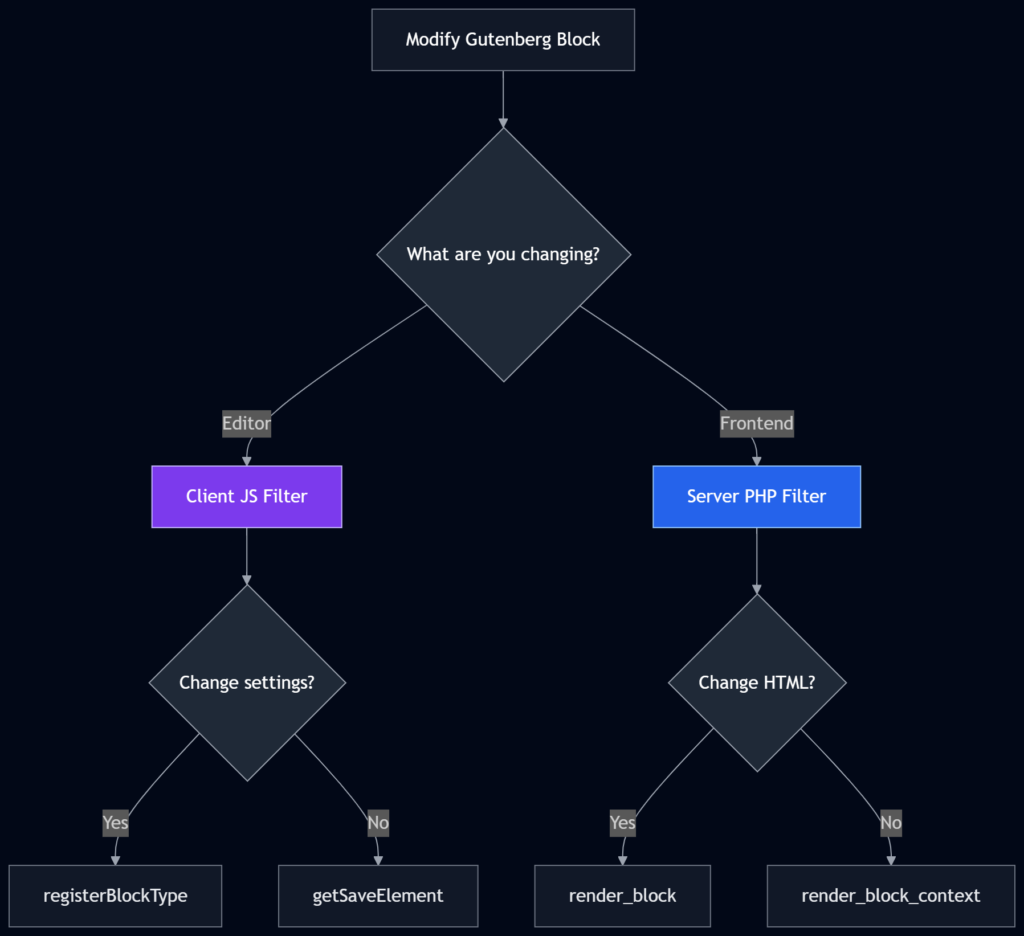
Let’s look at a visual representation of how a block travels from your screen to the live website, and where these filters jump in.

As you can see, the filter you choose depends entirely on what you are trying to change. Let’s break these two worlds down.
1. Client-Side Block Filters (JavaScript)
These filters run inside the block editor while you are actively editing a post. They modify the “blueprint” of the block—how it behaves, what settings it shows in the sidebar, and what default values it has.
- What it affects: The editing experience.
- Language: JavaScript (React).
- Best for: Hiding settings, changing default values, disabling blocks entirely.
2. Server-Side Block Filters (PHP)
These filters run on your web server at the exact millisecond a visitor requests to view your page. The block has already been saved to the database. WordPress grabs the block, passes it through your PHP filter, generates the final HTML code, and sends it to the visitor’s browser.
- What it affects: The front-end display (what the public sees).
- Language: PHP.
- Best for: Adding dynamic content, modifying HTML structure, injecting custom CSS classes that depend on server logic.
Deep Dive: Server-Side PHP Filters
Let’s start with PHP filters, as they are usually the most immediately useful for everyday WordPress developers.
The absolute superstar of server-side block filtering is a filter called render_block.
How render_block Works
Whenever WordPress is preparing to display a block on the front end, it fires the render_block filter. It hands you two pieces of information:
- The HTML content of the block (a string of code).
- The Block object (an array containing the block’s name, attributes, and inner blocks).
Let’s look at a practical example. Imagine you want to automatically wrap every single Heading block (core/heading) on your entire website in a <div> with a special CSS class for styling.
Here is how you would write that in your theme’s functions.php file:
add_filter( 'render_block', 'my_custom_heading_wrapper', 10, 2 );

function my_custom_heading_wrapper( $block_content, $block ) {
    // First, check if the block is actually a heading block
    if ( 'core/heading' !== $block['blockName'] ) {
        return $block_content; // If it's not, leave it alone and return it untouched
    }

    // If it IS a heading, wrap it in our custom div
    $custom_html = '<div class="custom-heading-wrapper">';
    $custom_html .= $block_content;
    $custom_html .= '</div>';

    // Return the modified HTML
    return $custom_html;
}Breaking this down in plain English:
- We tell WordPress, “Hey, when you are rendering a block, run it through my function called
my_custom_heading_wrapper.” - Our function looks at the block and asks, “Is your name
core/heading?” - If the answer is no (maybe it’s an image block), we just hand the block back to WordPress and do nothing. This is a crucial step—if you forget this check, you will wrap every single element on your site in a div, which will break your layout completely.
- If the answer is yes, we build a new string of HTML, put the original heading inside it, and hand that new HTML back to WordPress.
When to Use render_block
You should reach for this filter when:
- You need to inject analytics tracking scripts inside specific blocks (like adding a UTM parameter to every button block).
- You need to alter the HTML output of a core block but don’t want to create an entirely custom block variant.
- You need to add dynamic data (like the current user’s name) into a block right before it renders.
Deep Dive: Client-Side JS Filters
Now let’s jump over to the editor itself. To modify how the block behaves while you are looking at the screen, we have to speak JavaScript.
The most common client-side filter is blocks.registerBlockType.
How blocks.registerBlockType Works
When you open the block editor, WordPress loads a giant JavaScript file for every block. Right before a block is officially “registered” into the editor’s system, this filter fires. It gives you the block’s original settings, allows you to change them, and then registers the block with your modified settings.
Let’s say you have a client who keeps messing up the site by using massive font sizes in the Paragraph block. You want to remove the “Font Size” dropdown from the paragraph block’s settings sidebar entirely.
To do this, you would create a JavaScript file (let’s call it block-filters.js), enqueue it in the editor using PHP, and write this code:
wp.hooks.addFilter(
    'blocks.registerBlockType',
    'my-plugin/remove-paragraph-font-size',
    function( settings, name ) {
        // Check if the block being registered is the paragraph block
        if ( name !== 'core/paragraph' ) {
            return settings;
        }

        // If it is, we dive into its settings and delete the font size support
        if ( typeof settings.supports !== 'undefined' ) {
            delete settings.supports.fontSize;
        }

        // Return the modified settings
        return settings;
    }
);Breaking this down in plain English:
wp.hooks.addFilteris the JavaScript equivalent of PHP’sadd_filter.- We hook into
blocks.registerBlockType. - We check the
nameof the block. In Gutenberg, all core blocks start withcore/(e.g.,core/image,core/list). - We look at the block’s
supportsobject. This object tells the editor what features the block is allowed to have (like anchors, custom colors, font sizes). - We simply
deletethefontSizesupport. When the editor finishes loading, the Paragraph block will act as if Font Size was never invented.
When to Use Client-Side Filters
You should reach for these when:
- You want to change the default alignment of a block.
- You want to disable certain toolbar buttons for non-admin users.
- You want to add custom attributes to a core block (which requires a secondary filter called
blocks.getSaveElement, which gets a bit complex, but follows the same logic).
Choosing the Right Filter: A Decision Guide
If you are ever staring at your screen wondering which route to take, use this flowchart to guide your decision-making process.
Quick Reference: Block Filter Cheat Sheet
To make your life easier, I have put together a table of the most useful block filters, what language they use, and what they are best used for. Bookmark this—you will need it later.
| Filter Name | Language | What it Does | Common Use Case |
|---|---|---|---|
render_block | PHP | Intercepts the final HTML of a block before the visitor sees it. | Wrapping blocks in custom HTML, injecting dynamic text. |
render_block_context | PHP | Passes data from a parent block down to its nested child blocks. | Passing a custom post ID to a Query Loop block inside a custom wrapper. |
blocks.registerBlockType | JS | Modifies a block’s settings right before it loads in the editor. | Disabling block supports (like colors or font sizes), setting new defaults. |
blockEditorSettings | JS | Modifies the global settings of the entire editor. | Adding custom color palettes, disabling custom font sizes globally. |
blocks.getSaveElement | JS | Intercepts the React element a block produces when saving. | Highly advanced: modifying the exact JSX/React output of a block in the editor. |
block_type_metadata | PHP | Filters the raw block.json metadata before the block is registered in PHP. | Changing the icon or description of a block on the server side. |
Advanced Concept: Block Context (Passing Notes Under the Door)
I want to briefly touch upon one more PHP filter because it solves a very specific, frustrating problem. The filter is render_block_context.
Imagine you create a custom “Accordion” block. Inside that accordion, people can put any blocks they want—paragraphs, images, etc. Now, imagine you want the text inside those inner blocks to know which accordion they are inside of so you can style them differently.
Blocks are isolated. The inner paragraph block has no idea it is inside an accordion. It’s like being locked in a room.
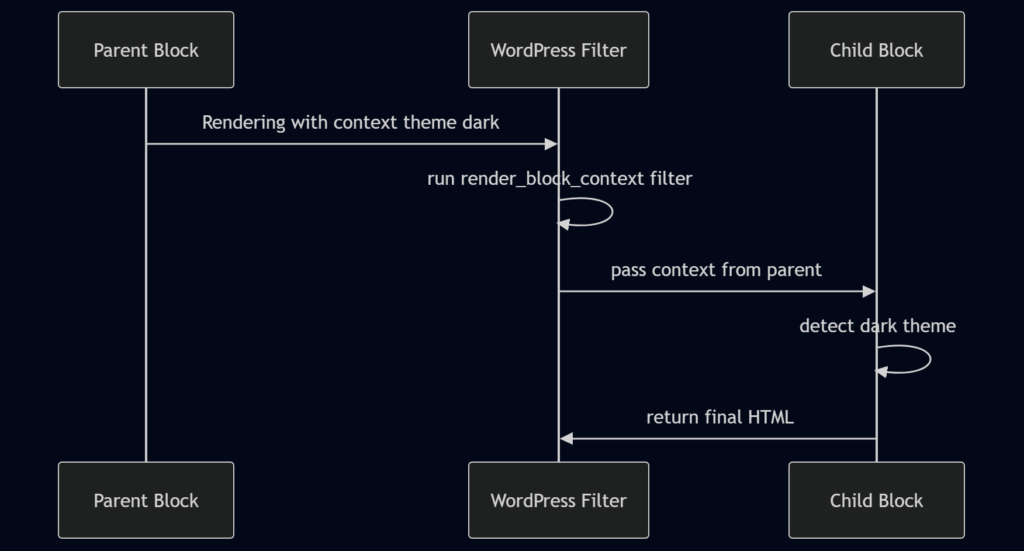
render_block_context allows the parent block to slide a note under the door to the child block.
When the parent block renders, it provides a “context” (an array of data). The child block can be programmed to look for that context. If the child finds the note, it can alter its own output based on it. While writing the code for this requires creating custom blocks, you can use this filter to intercept and modify that context on the fly for core blocks too.
Here is how that data flows:
Real-World Examples to Spark Your Imagination
Sometimes knowing how a tool works is different from knowing what to build with it. Here are a few real-world scenarios where block filters are the perfect solution:
- The “Read Time” Injector: You use a
render_blockPHP filter to target the very firstcore/paragraphblock of a post. You append a small string to the end of its HTML that says “4 min read.” - The Lazy Load Image Override: By default, WordPress adds
loading="lazy"to images. But what if you want the first image on the page to load immediately (loading="eager")? You can userender_blockto find the firstcore/image, do a string replace on the HTML to change “lazy” to “eager”, and leave the rest of the images alone. - The “Dumbed Down” Editor: You are building a site for a client who is not tech-savvy. You use
blocks.registerBlockTypein JS to strip out Custom Colors, Custom Font Sizes, and HTML editing mode from allcore/blocks. You effectively turn Gutenberg into a strict, foolproof template builder. - Affiliate Link Auto-Appender: Every time an author adds an
core/imageblock, you userender_blockto check if it has a link wrapped around it. If it does, you automatically append?ref=myaffiliatelinkto the end of thehrefattribute.
Best Practices: How Not to Break Your Site
Block filters are incredibly powerful, but with great power comes the ability to completely tank your website’s performance if you aren’t careful. Keep these rules in mind:
- Always Target Specific Blocks: In the examples above, you saw
if ( 'core/heading' !== $block['blockName'] ). Never run heavy logic or HTML modifications on every block. A page might have 100 blocks. If your filter runs complex regular expressions on all 100 blocks, your page load time will skyrocket. - Use
strposCarefully: When modifying HTML strings in PHP, developers often usestrposto find a specific tag. Remember that HTML is case-insensitive (<IMG>vs<img>). Use case-insensitive checks to avoid bugs. - Don’t Break the Editor: When using JavaScript filters, be careful not to remove settings that the block relies on to save data correctly. If you remove a core attribute that the save function expects, the block will throw a “Block Recovery” error when the user tries to update the post.
- Cache Considerations: Remember that server-side
render_blockfilters run every time the page loads. If your filter queries the database (e.g., “Get the author’s name for this block”), you are adding a database query to every block. Use WordPress object caching (wp_cache_get/wp_cache_set) if your filter relies on heavy database lookups.
Wrapping Up
Gutenberg was designed to be modular, and block filters are the glue that lets you customize those modules without hacking core files.
By understanding the fundamental split between Client-Side JavaScript filters (which change how the editor behaves) and Server-Side PHP filters (which change what the visitor actually sees), you unlock the ability to build highly customized, performant, and unique WordPress websites.
Start small. Try writing a simple render_block PHP filter that adds a custom class to a specific block type. Once you see it work on the front end, the whole system will click into place, and you’ll start seeing opportunities to use them everywhere.
References
If you want to dive deeper into the official technical documentation, these are the three best resources on the internet for block filters:
- WordPress Developer Handbook: Block Editor Hooks
- WordPress Developer Handbook: Server-Side Rendering
- GitHub WordPress Gutenberg Handbook: JavaScript Filters
FAQs
What exactly is a Gutenberg block filter?
Think of it like a quality control checkpoint. When a block (like a paragraph or an image) is getting ready to show up on your screen or on your live website, a filter lets you step in, change something about that block—like adding a CSS class or tweaking some text—and then let it continue on its way. It’s a safe way to tweak how WordPress blocks behave without ever touching the core WordPress files.
Do I need to know coding to use block filters?
Yes and no. To actually set up a block filter, you need to know a little bit of either PHP or JavaScript. However, you don’t need to be a senior developer. If you know how to copy and paste a snippet of code into your theme’s files, you can use them. Many developers share ready-made block filters that you can just drop into your site using a free code snippets plugin.
What is the difference between a PHP block filter and a JavaScript block filter?
It all comes down to where the change happens. A JavaScript filter works right inside the block editor while you are typing. It changes the editing experience (like hiding a toolbar button). A PHP filter happens on your web server right before the page is sent to a visitor. It changes what the visitor actually sees on the front-end of your site.
Can I use block filters to remove options from the editor sidebar?
Absolutely. This is actually one of the most popular uses for JavaScript block filters. If you are building a site for a client who keeps breaking the design by picking weird font sizes or custom colors, you can use a filter to completely remove those dropdowns from their sidebar, forcing them to stick to your preset design.
Will using block filters slow down my website?
If written correctly, no, you won’t notice a difference at all. However, if you write a PHP filter that tells the server to do a heavy database lookup for every single block on a page that has 100 blocks, yes, it will slow things down. The golden rule is to always tell your filter to do nothing and exit immediately if it isn’t looking at the exact block type you want to change.
Can I use a block filter on just one specific page, not the whole site?
Yes, but it requires an extra step. By default, a block filter runs everywhere on your site. To make it page-specific, you just have to write a quick check inside your code that asks, “Am I on the Contact page right now?” If the answer is no, the filter just goes back to sleep and leaves the blocks alone.
What happens if I write a bad block filter? Will it break my site?
It depends on where the mistake is. A bad JavaScript filter might just cause a “Block Recovery” error in the editor, or make the editor screen go blank. A bad PHP filter, however, could potentially crash your live website and give you a critical error screen. This is why you should always test new filters on a staging (clone) site first.
Are block filters the same thing as regular WordPress plugins?
Not exactly. A plugin is a container that holds features. A block filter is a specific tool you put inside that container. You can think of a plugin like a toolbox, and a block filter like a specific screwdriver inside that box used to tighten a specific screw on a Gutenberg block.
Can I use block filters to add custom text or tracking code inside a block?
Yes, especially with PHP filters. For example, you could use a filter to target every “Button” block on your site and automatically inject a tiny piece of tracking code or an affiliate ID into the HTML link right before the visitor clicks it. You don’t have to manually add it to every single button; the filter does the heavy lifting for you.
Where do I actually put the code for these block filters?
Usually, PHP block filters go into your theme’s functions.php file. JavaScript block filters need to be put into a separate .js file and then loaded into the editor using a little bit of PHP. If you don’t feel comfortable digging into theme files, you can use a plugin like WPCode to safely add PHP snippets directly from your WordPress dashboard.